Free online lessons · Every button explained

Gcodai Studio Manual: learn lesson by lesson, every button of the online CNC software

Gcodai Studio is online CNC software that runs in your browser. Every job takes 4 steps: Design → tell each part what it will do → Simulate → Export G-code. This manual covers every button and menu in short lessons with real screenshots. Not sure where to click? Just type your question in the search box.

Press / to search at any time. Try terms like V-carve, neon, ACP

Popular searches:

64lessons9modules70tasks you can search to find where to click56FAQsAbout 5 h 27 min in total

Where should I start?

If you are new, study Module 0 and Module 1 first. In under 45 minutes you can make your first sign. Open any other lesson only when you need that topic. The page remembers which lessons you have finished on this computer.

Every job in the program follows these 4 steps:

  1. 1DesignSet the material and sheet size, type text, draw or import a file
  2. 2Tell each part what it will doCut, V-carve, pocket, groove, then check the toolpaths
  3. 3SimulateSee the finished part in 3D before you cut for real
  4. 4Export G-codeChoose the machine type, download, set zero, then start the job

I want to make this → where do I click?

70 jobs sign shops do often, with the buttons to click in order and a link to the lesson that explains it in detail. The → sign means click one after another, in order.

Jobs you want to do, the buttons to click and the related lessons
I want to make thisWhere to clickLesson
LED channel letter signs (count LEDs, power supply, wiring)Select the letters → Signs → LED layout in letters…LED layout in letters
Small letters too narrow for LED modules (use ribbon LED instead)Select the letters → Signs → LED layout in letters… → check Small letters use ribbon light → choose a model → Place lights in designLED layout in letters
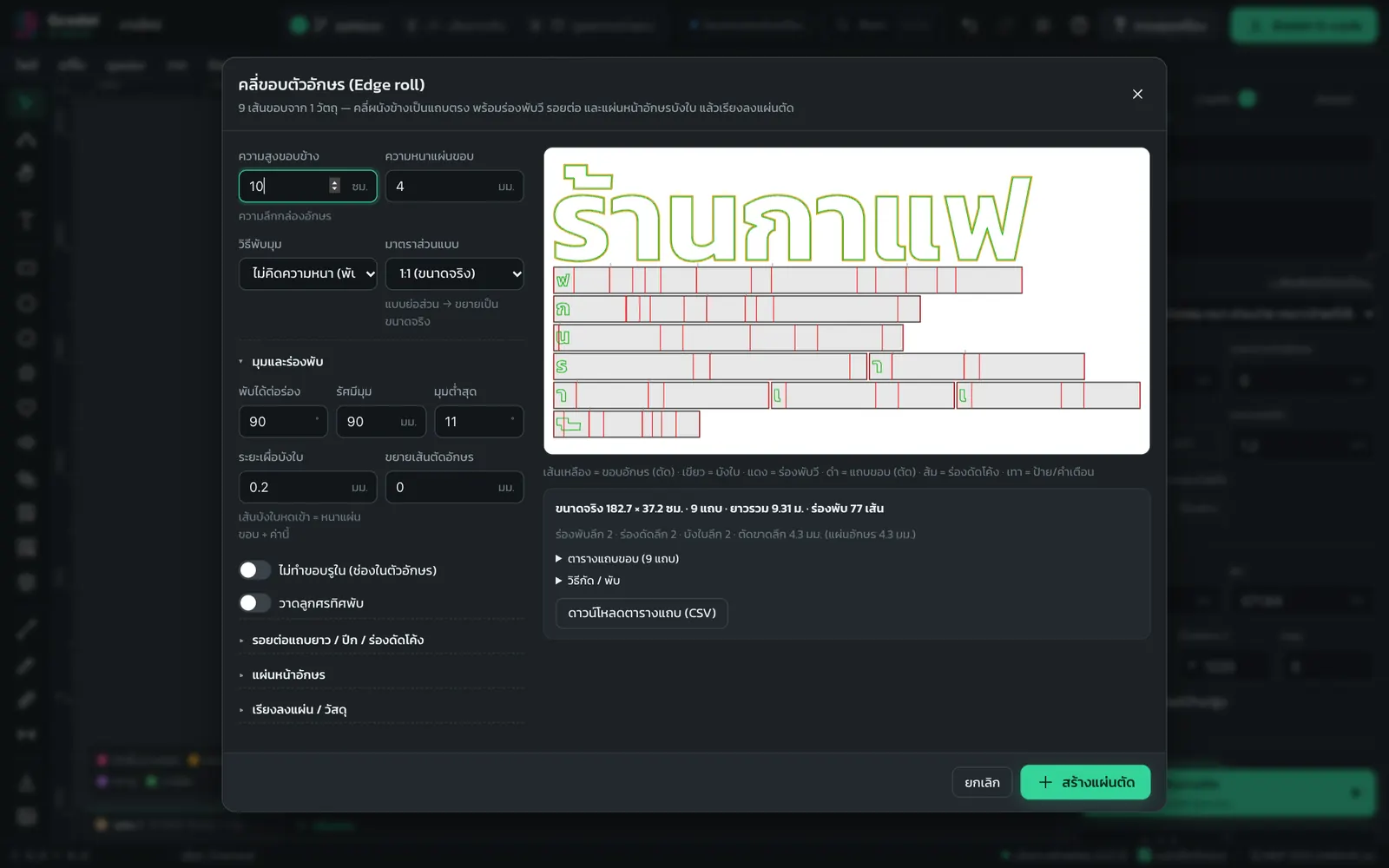
Letter returns for channel letters (edge roll)Select the letters → Signs → Edge roll (letter returns)… → Create cut sheetsEdge roll (letter returns)
Use your shop's fonts or a font the customer sentText → Shop fonts… or drag a .ttf / .otf file onto the screenAdding your own shop fonts
Add phone, restroom or parking icons to a signDraw → Icons & sign frames… → type to search → click an iconIcons + sign frames
Thai-style sign frames / ribbons / dividersDraw → Icons & sign frames… → tab Frames & ornaments → Surround the selectionIcons + sign frames
Kranok, kracang, Thai arch frames and emblem elements (flat patterns)Draw → Icons & sign frames… → tab Frames & ornaments → category Modern Thai patterns or Emblem elementsIcons + sign frames
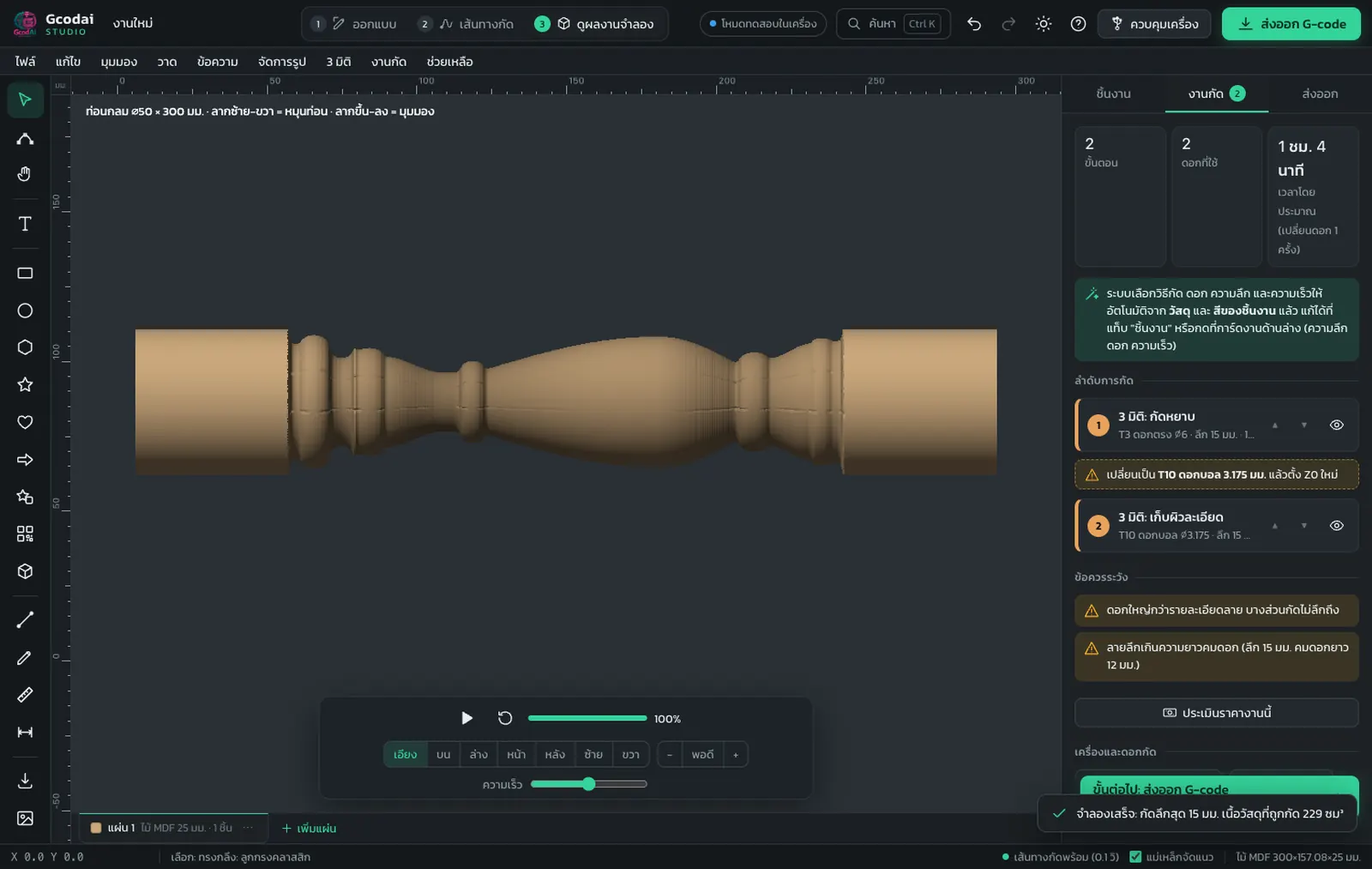
Table legs, balusters, stair posts, vases (turning)3D → Revolve (turned shape) rotary… → choose a preset → Create revolveRevolve (turned shapes)
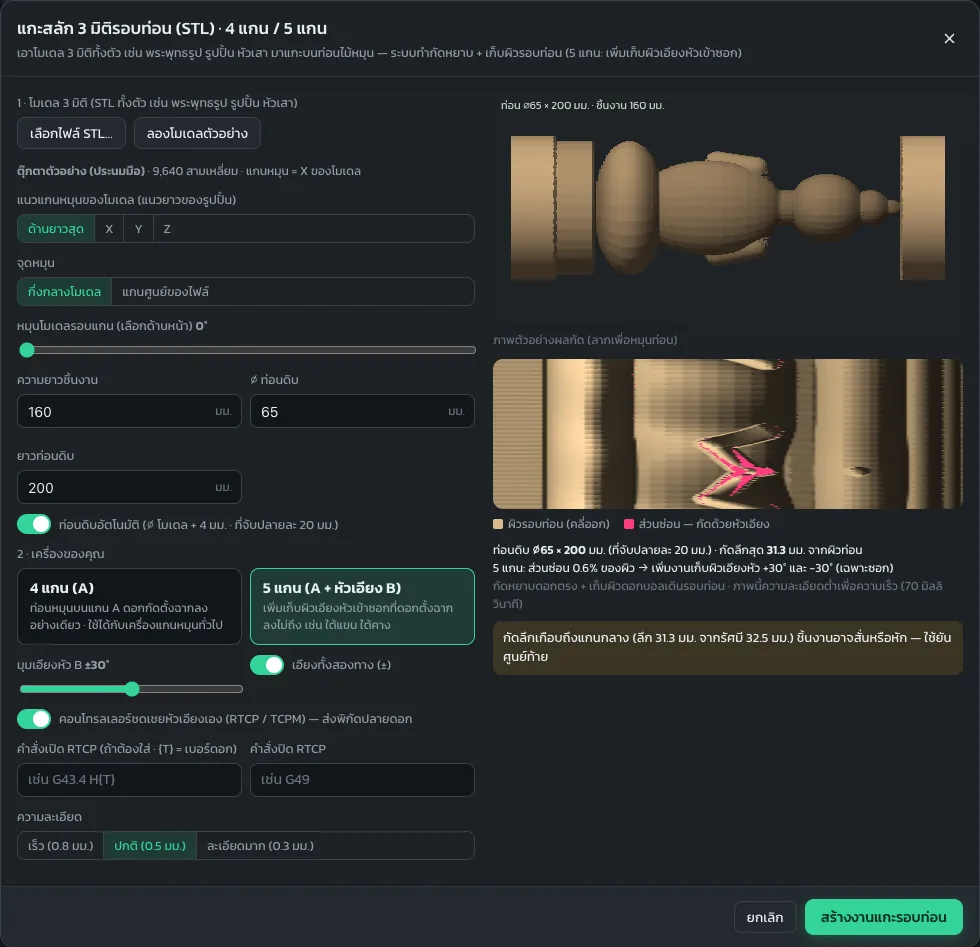
Carve a Buddha image / statue around a cylinder from STL (4-axis · 5-axis tilting head)3D → 3D carving around a cylinder (STL) 4/5-axis… → choose an STL → Create rotary carve jobCarving around a cylinder from STL
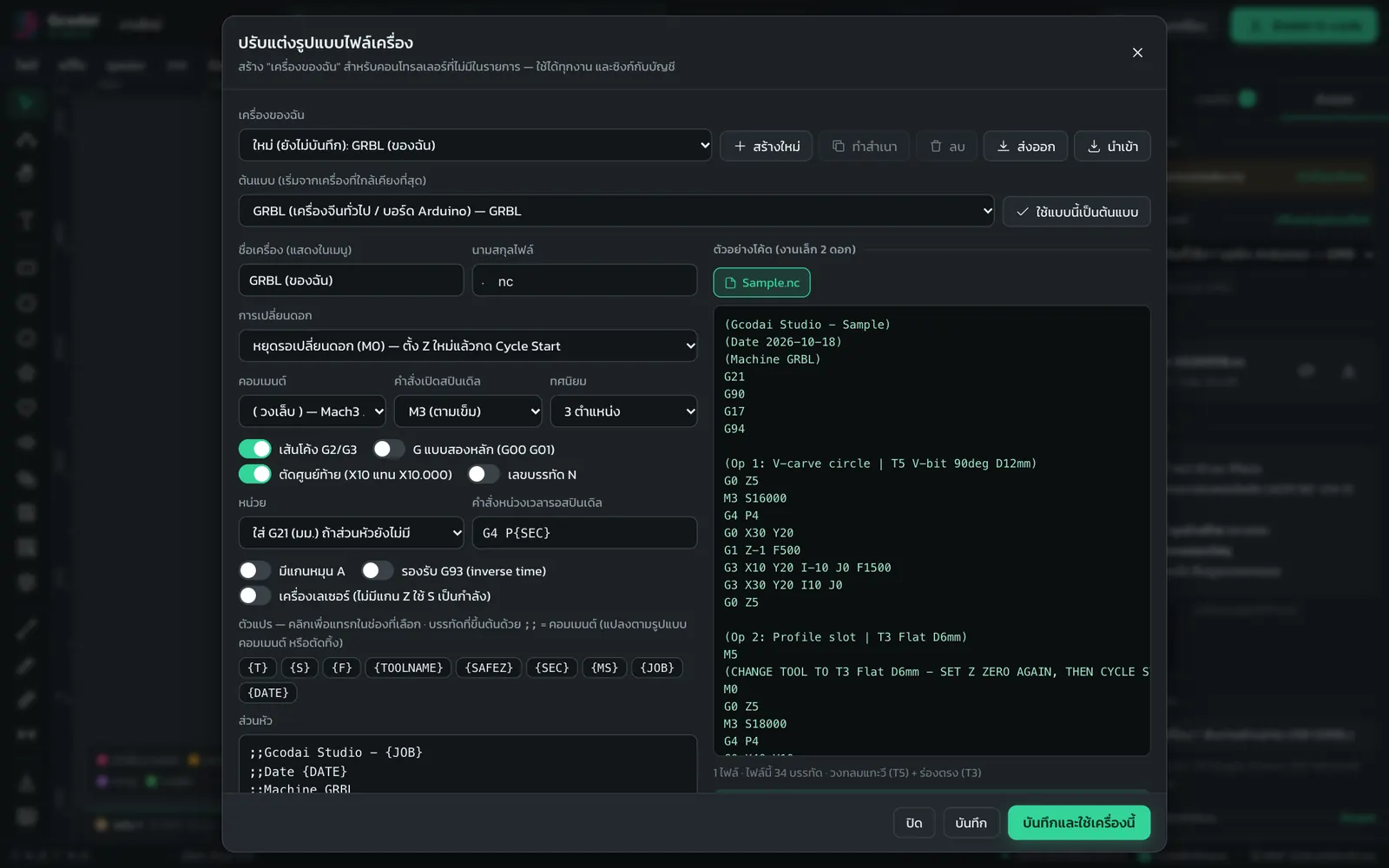
Your shop's machine is not on the listMachining → Machine settings… → Customize file format…Customize the machine file format
Cut acrylic letters (separate letters)T type the text → right panel Profile cut (cut out) → Outside + turn on Leave tabsProfile cut + tabs
V-carved wooden signSelect the text → Letter carving (V-carve) → for the sign border choose Profile cut (cut out)V-carve
House number sign / wooden address plaqueFile → Sample jobs… → Carved wooden house number, or Draw → Sign shapes… then type the numberShapes, sign shapes, QR codes
Round sign with text curved around itText → Curved text (round sign) or right panel Curved text → Top arc / Bottom arcText, fonts, curved text
Numbered signs in sequence (rooms 101–120, tables 1–30)Text → Number sequence (numbered signs)…Text, fonts, curved text
Raised letters (clear the background around the text)Draw a frame → select the frame + text → Arrange → Subtract (first object minus the others) → PocketPocket + small bit for corners
Backing plate behind lettersSelect the text → Text → Create backing around text…Backing plates and stencils
Stencil letters whose centers do not fall out (O, D, B)Text → Make stencil letters…Backing plates and stencils
QR code sign: link / WiFi / PromptPayDraw → QR code (link / WiFi / PromptPay)…Shapes, sign shapes, QR codes
Arched text for a storefrontSelect the text → Arrange → Warp: arch / bulge / wave / slant…Edit nodes, combine, trim, bend, slice, repeat
Describe a sign and let the program design itDraw → Sign design assistant (describe it in words)…Sign design assistant
Customer logo is a JPG/PNG fileFile → Trace image to vectors…Trace images to vectors
Open a customer's SVG / DXF / AI / EPS fileFile → Open / Import file… (Ctrl+O) or drag and drop the fileImport files and line color → machining
Use line colors in the file to set machining jobsMachining → Line color → machining…Import files and line color → machining
Neon flex groovesSelect the line → Groove on the line or Midline (centerline) engraving → Bit T7 neon flex grooving bitNeon flex grooves and ACP fold grooves
ACP fold grooves (aluminum composite)Fold line → Groove on the line → Bit T8 ACP composite grooving bit 90°Neon flex grooves and ACP fold grooves
Recess for an insert / clear an areaSelect the shape → Pocket → enter the DepthPocket + small bit for corners
Drill holes for bolts or light bulbsDraw a circle → DrillingDrilling
Inlay acrylic into woodSelect the shape → Inlay → you get 2 files: the pocket + the insert cut-outInlay
Tight-fitting square-cornered joints (dogbone)Profile cut (cut out) or Pocket → Dogbone corners → Dogbone / T-boneDogbone / T-bone and chamfer
Neat beveled top edge (chamfer)Profile cut (cut out) → turn on Chamfer top edge with V-bit (Chamfer)Dogbone / T-bone and chamfer
Beveled-edge letters / full-thickness beveled sign (3D cutting)Select the text → 3D bevel cut (V-bit) → choose a V-bit → Design size at top edge / bottom edge3D bevel cut
Prism letters with a sharp ridgeSelect the text → Prism letters (V-bit) → enter First pass depth / Next layer depthPrism letters
Rounded edges / cove around letters (embossing)Select the part → Round-over / cove edge (Embossing) → ball nose → click a preset such as RoundRound-over / cove edge
Waveboard walls, grooved headboardsDraw a rectangle → Texture / waveboard → choose a ready-made patternTexture / waveboard
Drill holes along a line / a panel full of holesSelect a line or closed shape → Drilling → Where to drill along line / fill areaDrilling
Set the start point (where the bit plunges)All jobs: Machining → Machine settings… → Start point · One part: Profile cut (cut out) → Advanced settings → Start pointProfile cut + tabs
Cut through the outer line, groove the inner lines (inner lines not treated as holes)Select the part → Arrange → Split all paths (inner paths aren't holes) → choose a job for the inner linesEdit nodes, combine, trim, bend, slice, repeat
Finger-joint wooden boxDraw → Box maker (finger joints)…Finger-joint boxes
Engrave lines and cut around on the same partRight panel → Add another machining job to this objectSeveral jobs on one part + styles
Laser jobs: cut / score / fillTab Export → Machine / controller → GRBL laserLaser jobs
3D relief from an image3D → Image → 3D relief…3D relief from images / STL
3D relief from an STL file3D → Import 3D model (STL)…3D relief from images / STL
Curved 3D raised letters (dome, prism)Select the text → 3D → Make selected letters/shapes 3D raised…3D raised letters
Raised sign on a curved base / domed raised letters, Aspire-styleSelect the text (and sign border) → 3D → Sculpt relief from selection… → choose a ready-made style → Create on sheetRelief sculpting
Molded picture frame / raised medallion or emblem3D → Relief sculpting… → Molded picture frame or Coin / round emblem · Edit later: double-click the sculpt on the sheetRelief sculpting
Raised temple sign with Thai arch / gable sign / round agency signSelect the name or logo → 3D → Sculpt relief from selection… → group Thai motifs & emblems → choose a style → Create on sheetRelief sculpting
Raised house number sign / name sign with Thai frame / executive desk signSelect the name or logo → 3D → Sculpt relief from selection… → group Sign → choose a style → Create on sheetRelief sculpting
Add raised kranok or kracang patterns to a sculpt, or repeat them around an emblem rimIn the sculpting window Add component → Thai pattern / Pattern from library… → choose a pattern → Single / Around a circle / In a row → Place in sculptRelief sculpting
Photos on wood (dot engraving)File → Photo → halftone dots…Photos on wood (Halftone)
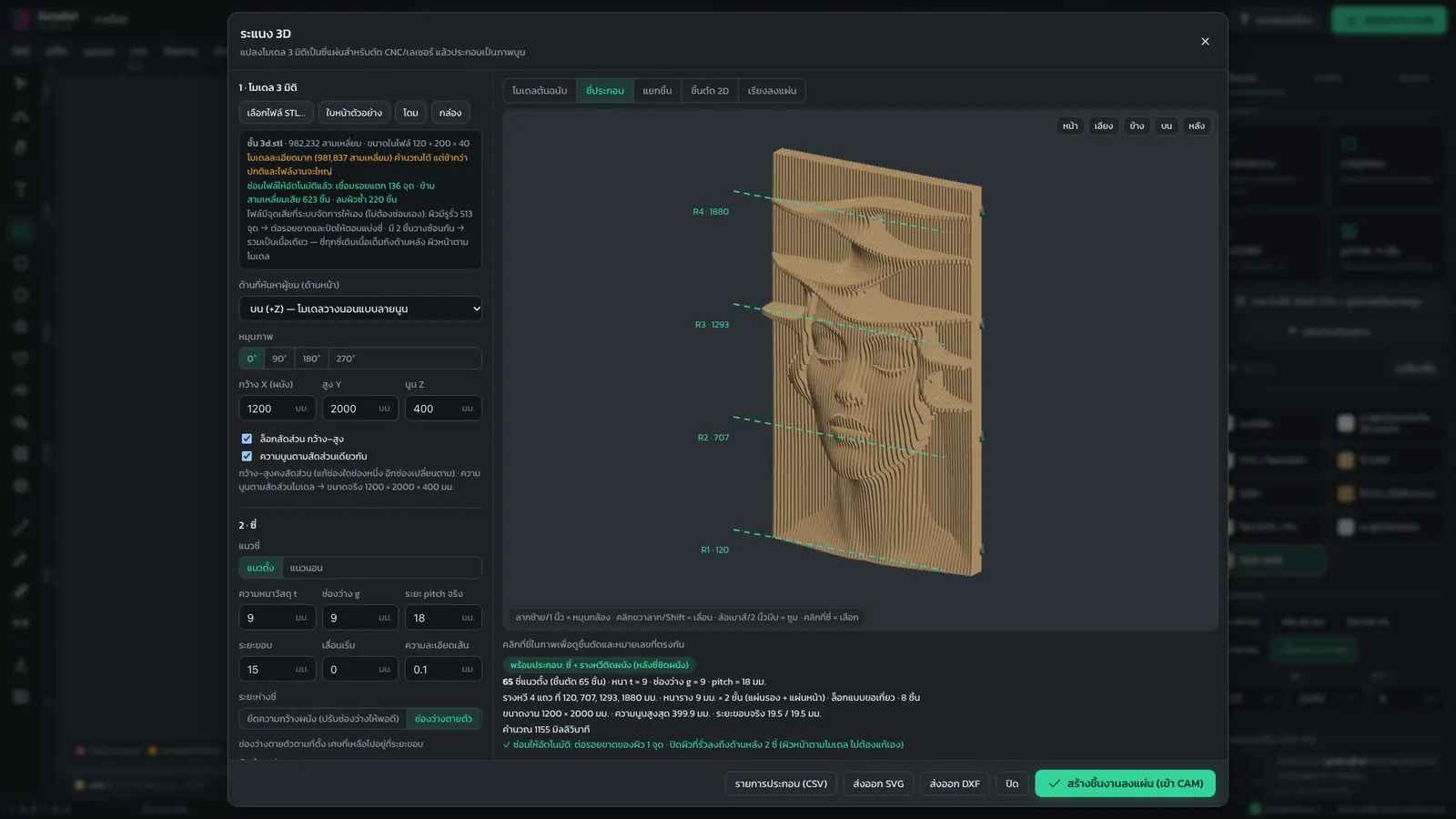
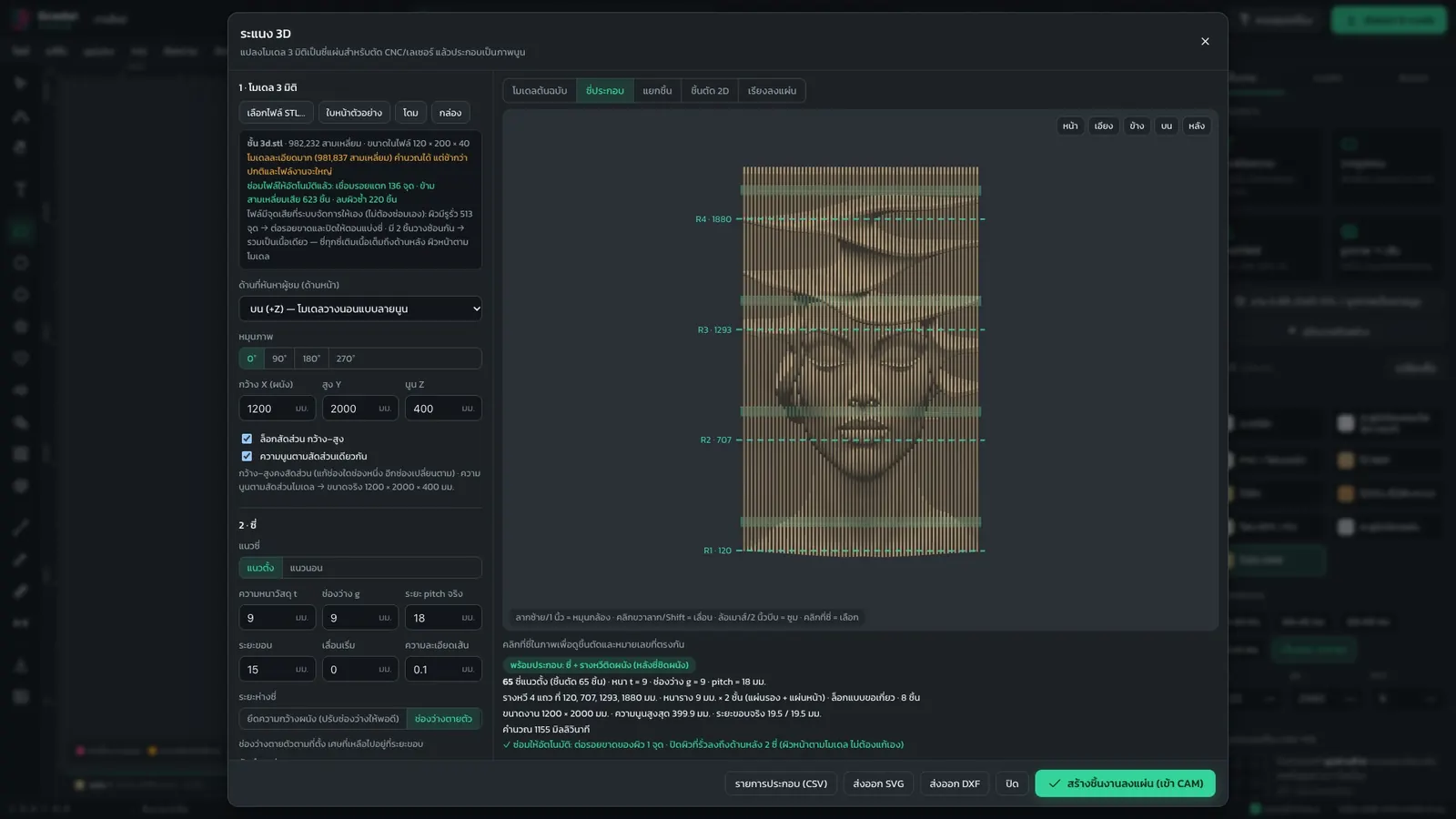
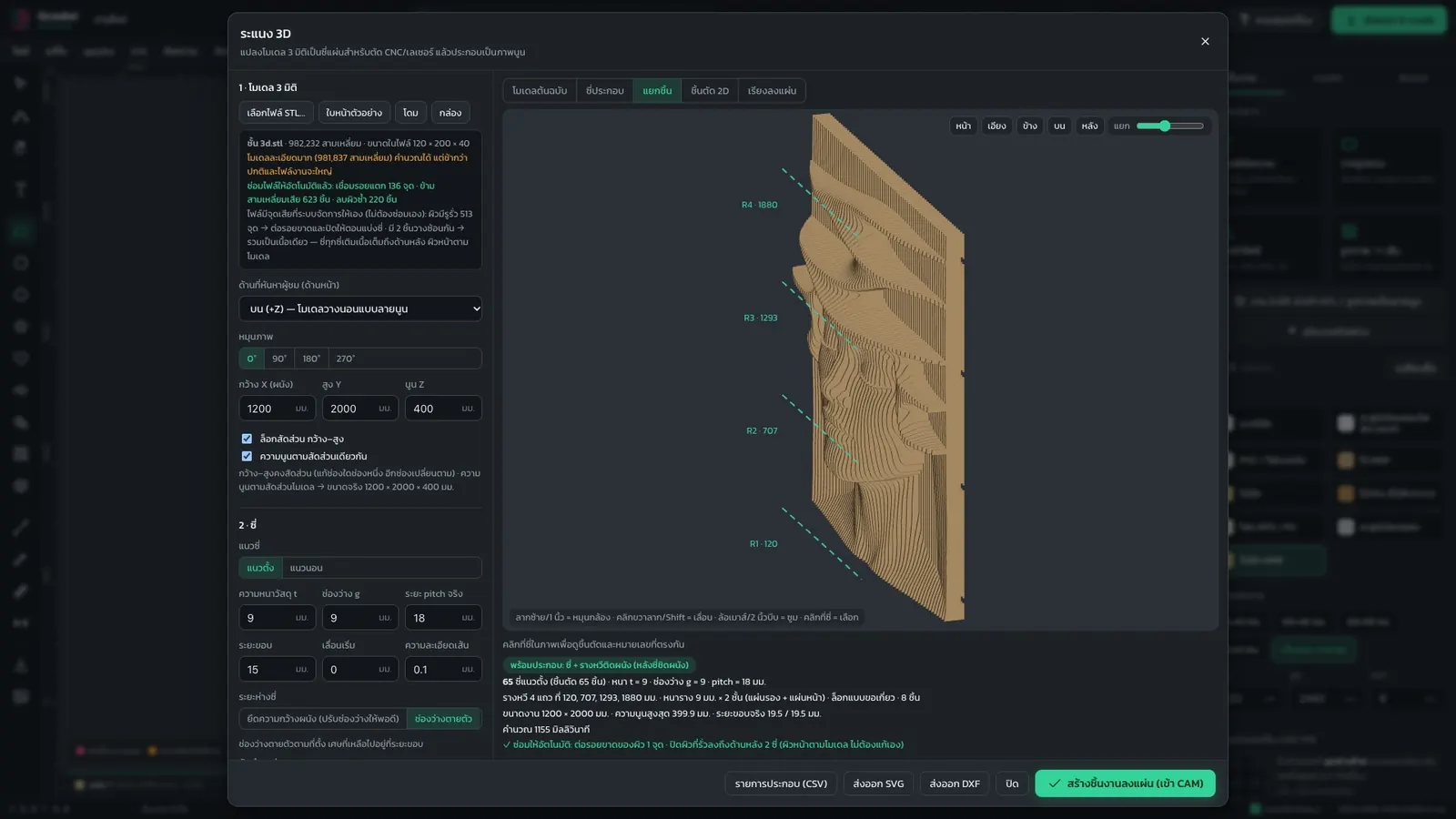
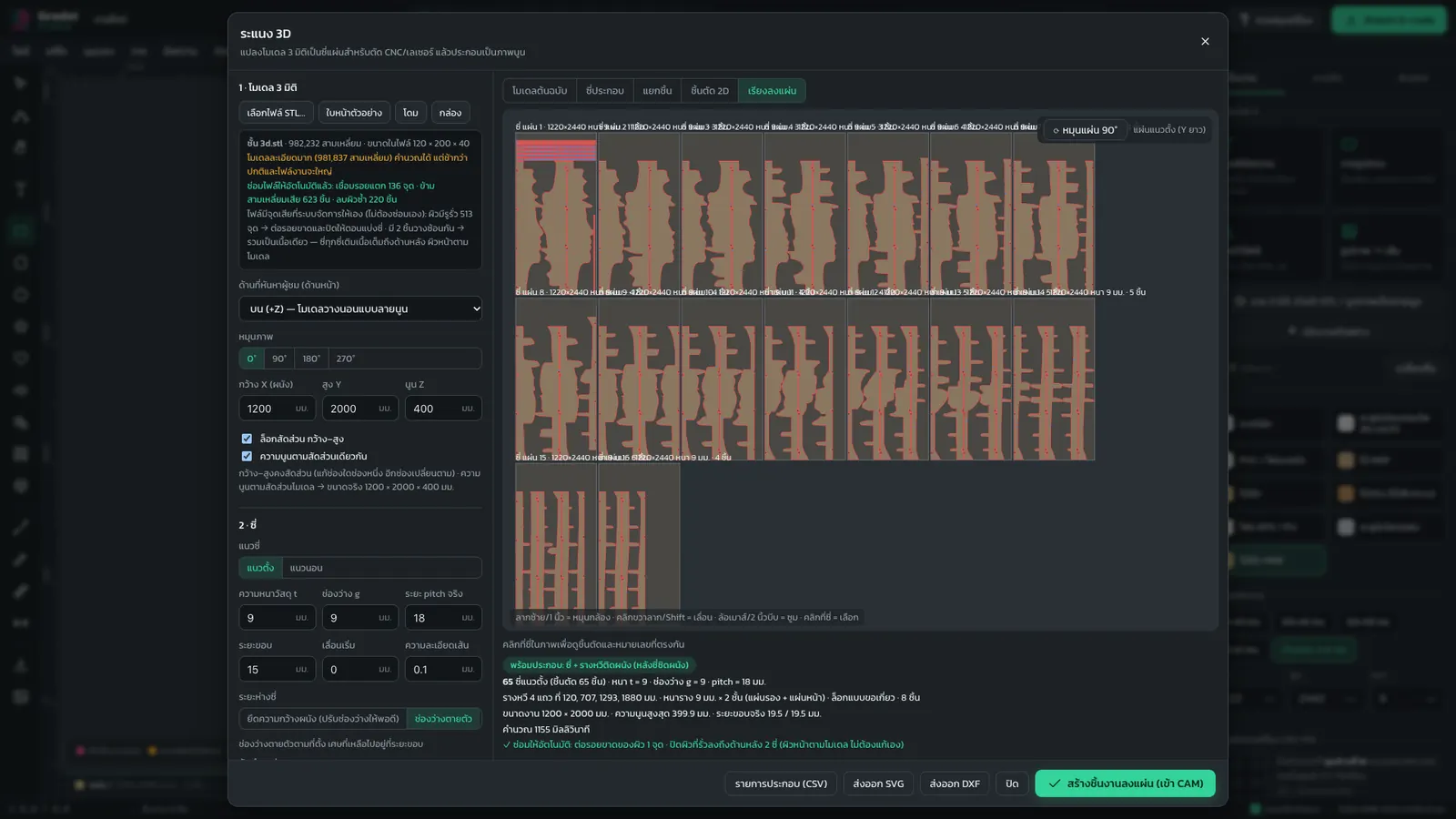
3D slat wall from a model3D → 3D slat wall…3D slat wall, step by step
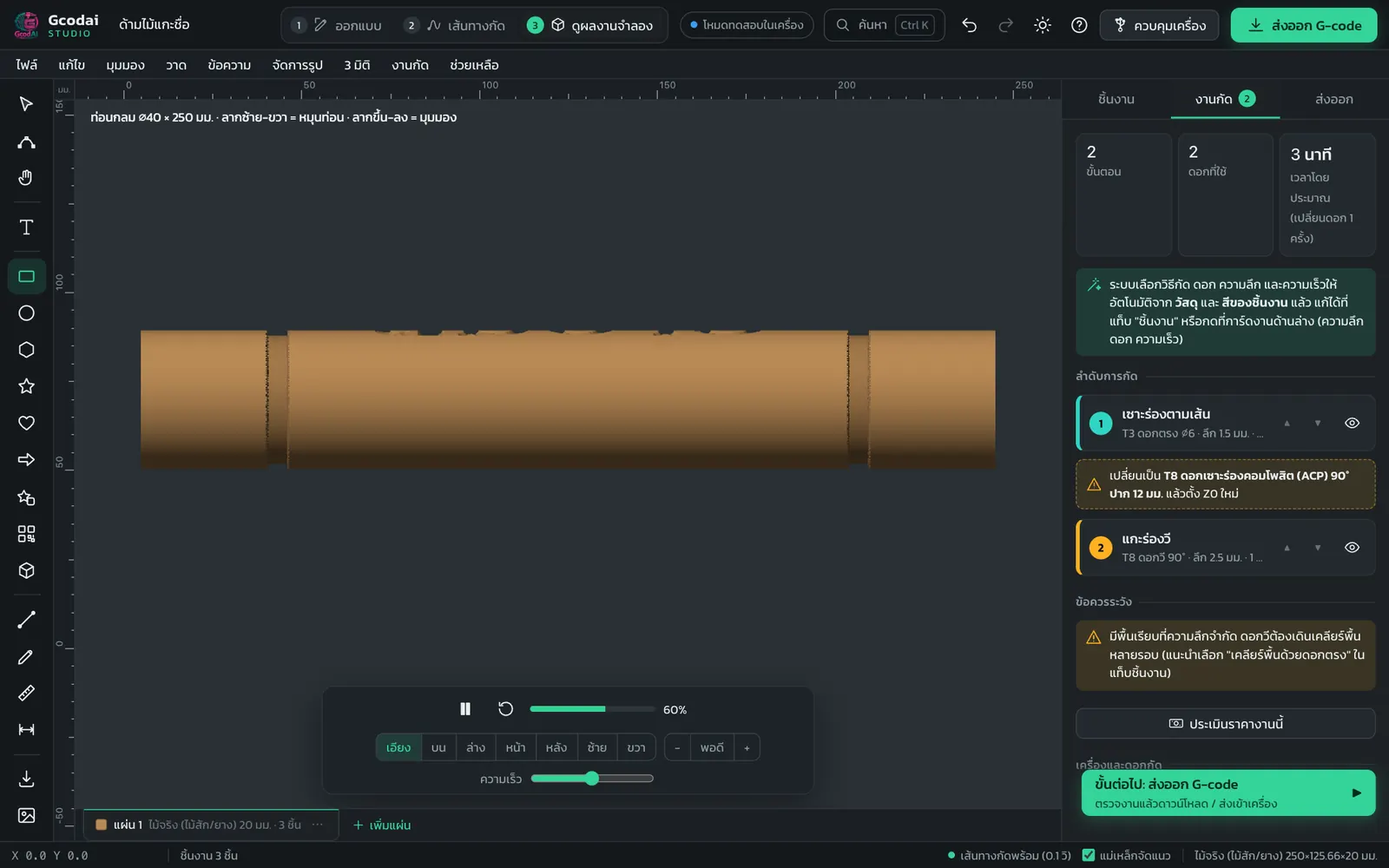
Carve a name on a round handle / logMachining → 4-axis rotary…4-axis rotary
Square table leg carved on 4 sidesMachining → Indexed rotary (4-axis)…Indexed rotary
Machine the front and back of the same sheetMachining → Two-sided job (flip sheet)…Two-sided jobs (flipping the sheet)
Set zero Z with a touch plateMachine control → Jog / set zero → Probe Z with touch plateControl a GRBL machine over USB
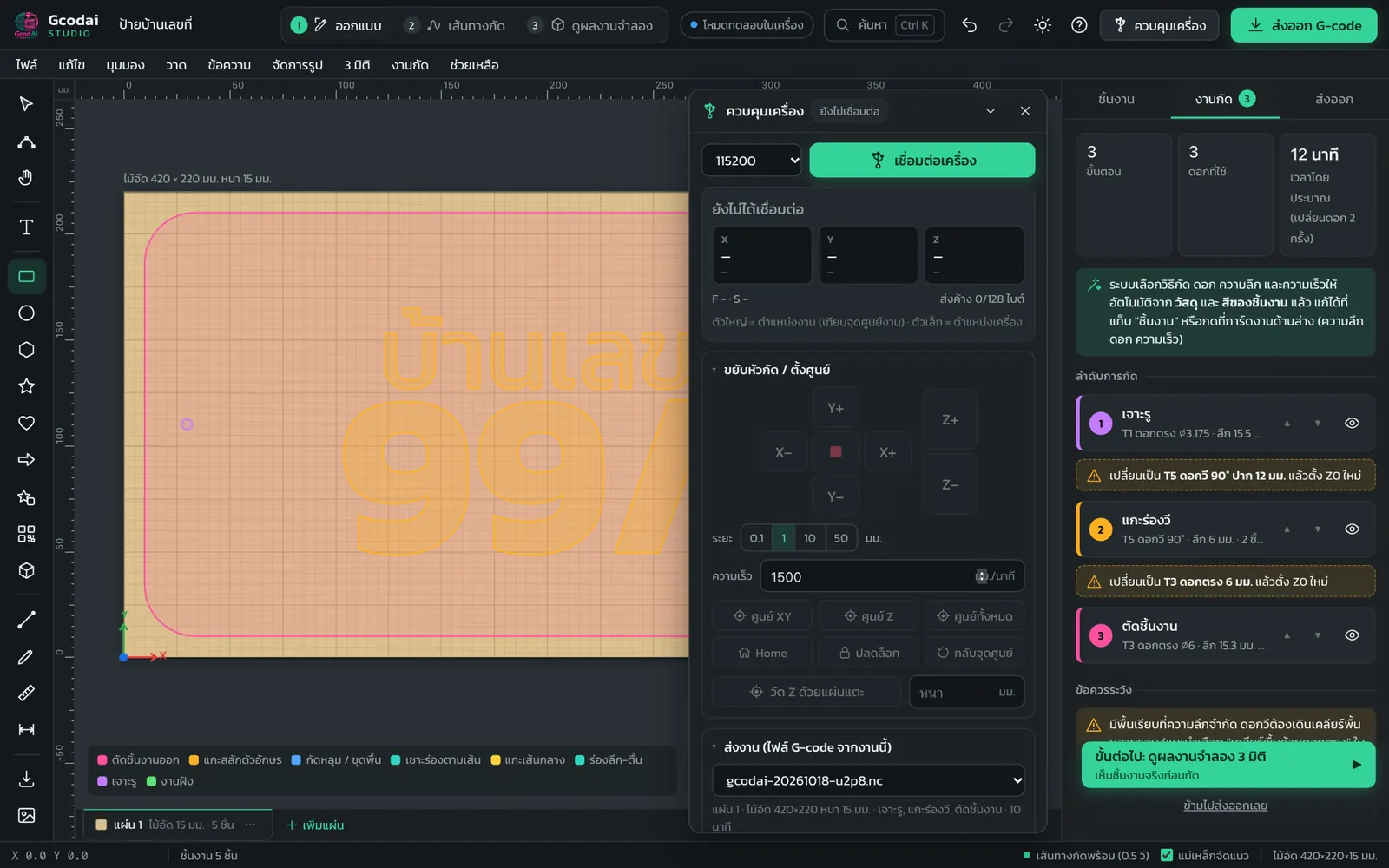
Send a job to a GRBL machine over USBMachine control button in the top bar → Connect machine → Start jobControl a GRBL machine over USB
Resume cutting from where it stoppedMachine control → Start from → Last stop point / Line…Control a GRBL machine over USB
Send files to NcStudio / Mach3 / DSP handheld controllerExport G-code → Machine / controller → choose the machine typeChoosing from 12 machine types
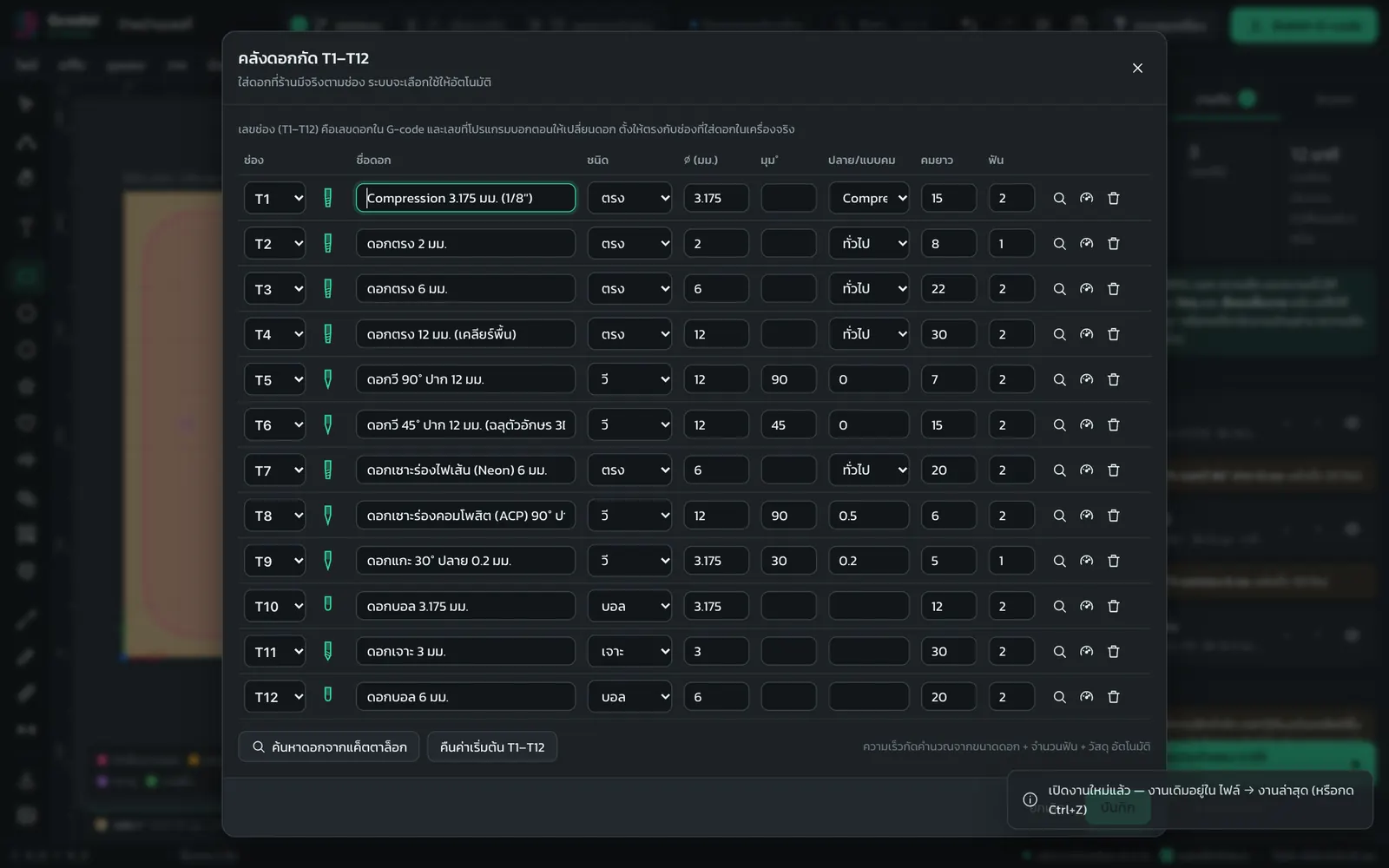
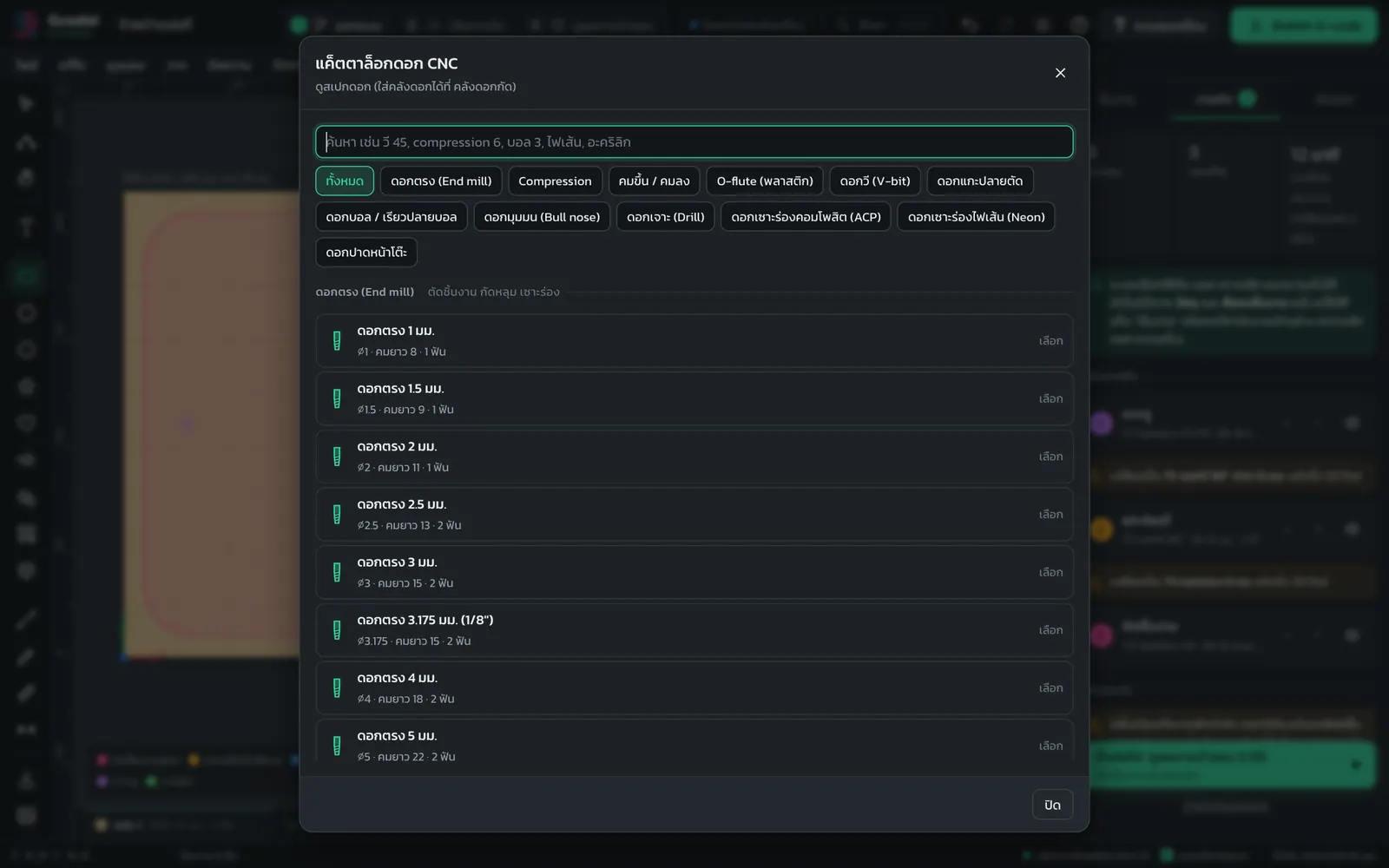
Set bit speeds yourselfMachining → Tool library… → the bit's gauge button, or click the job card in the Machining tabTool library T1–T12 + bit speeds
Add a new bit / change a bit in the libraryMachining → Tool library… → Find a bit in the catalogTool library T1–T12 + bit speeds
First-time machine setup (safe Z, max RPM)Machining → Machine settings…Machine settings
Sign or wall longer than the machine tableTab Export → Job larger than machine work area → check the sheet → set Section lengthJobs larger than the machine work area
Change the file extension (.txt .tap .nc) / .jg filesTab Export → File extension · .jg must be converted with CNC_ChangeStep 4: Export G-code
Edit a G-code file from your computerFile → Edit G-code file from computer…Editing G-code
A full sheet of keychainsSelect the part → Make copies (enter quantity)… → Auto nesting (true shape)…Auto nesting, make copies
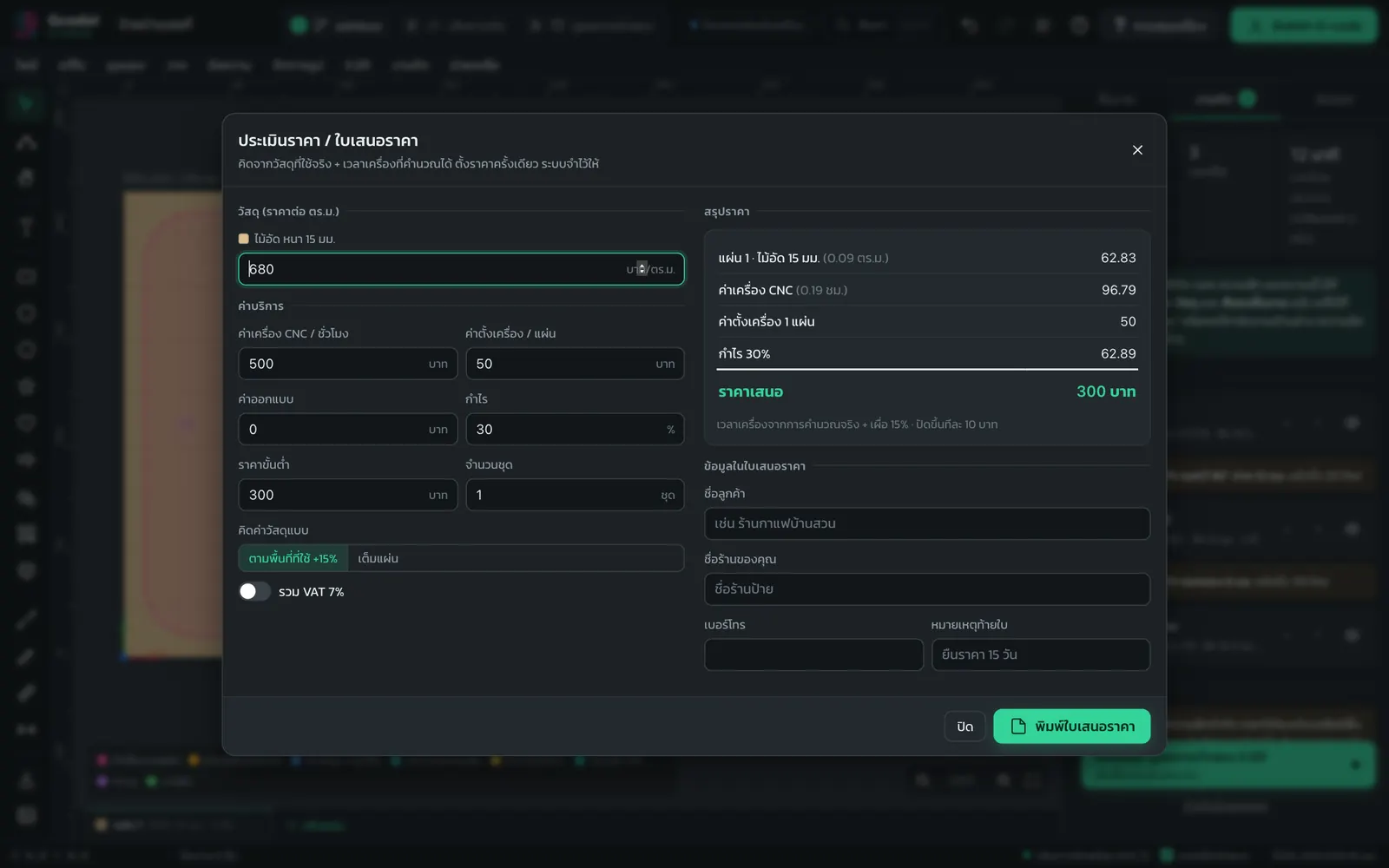
Price estimate / quotationFile → Price estimate / Quotation…Price estimate / quotation
Print a job sheet for the machine operatorFile → Print job sheet for operatorOperator job sheet
Save a job to open on another computerFile → Save job (.gcodai) (Ctrl+S)Saving, recent jobs, account sync
Find a command when you forget which menu it is inSearch (Ctrl+K) and type the command nameGetting to know the screen
Ask where a menu is (type your question in plain words)Ask button at the bottom right → type your question → Go thereGetting to know the screen

Module 0 · 3 lessons

Getting started

Get to know the program, open it for the first time, sign up for the free trial and learn what each part of the screen does.

Lesson 0.1 · About 3 min

What is Gcodai Studio and what can it do?

Short answer: Gcodai Studio is online CNC software that runs in your web browser, with nothing to install. Design signs, type text (including Thai) or import files, and the program picks the bit, depth and speeds for you. Check the 3D simulation, then export a G-code file for your CNC router or laser.

After this lesson you will…

  • Know how the program helps a sign shop
  • Know which parts are free and which need a membership
  • Know the limits before you start

A CNC machine does not understand pictures. It only understands G-code: a list of commands that tells the spindle where to move, how deep to go and how fast. Software that turns a design into G-code is called CAM. Gcodai Studio is design software and CAM in one, and the interface is also available in Thai.

What a sign shop can make

  • Acrylic letters, shaped signs, V-carved wooden signs, house number signs, round signs
  • Neon flex grooves, ACP fold grooves, acrylic inlay in wood, finger-joint wooden boxes
  • A full sheet of keychains or small parts, with price estimates and quotations
  • 3D work: 3D relief from images or STL files, photos on wood, 3D slat walls
  • 4-axis rotary, two-sided jobs and laser jobs
Part of the programNot a memberMember / 3-day trial
Design, draw, type text, import filesFreeYes
View toolpaths and the 3D simulationFreeYes
Download G-code filesNoYes
View and edit codeFirst 25 lines onlyWhole file
Send jobs to the machine over USBNoYes (GRBL machines)

Limits to know first

  • Text in PDF / AI files that has not been converted with Create Outlines, and images inside the file, are not imported
  • Shop fonts you add are stored in that computer's browser and do not travel with the job file. If you open the job on another computer, add the font there too (WOFF2 is not supported yet)
  • Sending jobs directly to the machine works only for GRBL machines connected by USB, using Chrome or Edge on a computer. For Mach3, NcStudio, DSP and Syntec, export a file and open it at the machine

Lesson 0.2 · About 4 min

Sign in / sign up and start the free trial

Short answer: Open gcodai.com/app in Chrome or Edge. The program asks you to sign in first. Click Sign in / Sign up with Google (if you have no account yet, one is created for you) or use email. New accounts get a free trial with every feature, and you can buy a lifetime license later with a single payment · Sign in once and stay signed in, on any computer.

After this lesson you will…

  • Open the program and complete the first-time setup
  • Sign in / sign up and start the free trial
  • Know how to buy a lifetime license
  1. Open gcodai.com/app. Chrome or Edge on a computer is recommended
  2. On the Sign in to use Gcodai Studio screen, click Sign in / Sign up with Google (if you have no account yet, one is created for you) or enter your email and password · No email account yet? Click No account? Sign up with email
  3. The first time, the Welcome to Gcodai Studio window appears. Choose your machine type, table size (3018 / 6040 / 1325 / 1530) and machine rigidity
  4. Choose the Material → Sheet size → Start from (type text / draw / import a file / sample job)
  5. The member badge in the top bar shows Trial and every feature is available (click the badge to see My account)
  6. Buy a license on the order page. Scan the PromptPay QR (Thai payments) or pay by card. Access is unlocked automatically and the badge changes to Lifetime

💡 Tip Sign in with the same account on every computer in the shop. Your machine settings, tool library, cutting styles, shop details, line color rules and My materials follow you automatically.

Pay once, use it for life. No monthly fee. There are 3 plans: Starter 1,990 THB (normally 4,900) · Sign Shop 3,990 THB (normally 9,900) · Complete 6,990 THB (normally 16,900). Promo prices until Oct 31, 2026. Upgrade anytime and pay only the difference · Starter = profile cutting and basic sign work · Sign Shop = adds V-carve, inlay, LED layout, edge roll, laser, 3D bevel cut, prism letters, texture/waveboard · Complete = adds 3D work, round-over/cove edges, 3D slat walls, revolve, rotary and two-sided jobs. Read the conditions on the terms of use page

Lesson 0.3 · About 6 min

Getting to know the screen: top bar, menus, left toolbar, right panel and sheet tabs

Short answer: The Gcodai Studio screen has 5 parts: the top bar (steps 1-2-3, Search, Machine control, Export G-code), the menu bar with 10 menus, the left toolbar, the right panel with 3 tabs (Objects · Machining · Export) and the sheet tabs at the bottom.

After this lesson you will…

  • Know where each part of the screen is
  • Use the command search and the Ask button
  • Switch steps with the 1 2 3 buttons

1. Top bar (left to right)

  • Job name box (used as the file name when exporting)
  • Steps 1 Design 2 Toolpaths 3 Simulate. You can also press 1 2 3 on the keyboard
  • Member badge showing your status: Not signed in / Trial / Lifetime
  • Search (Ctrl+K or /) finds any command or setting
  • Undo (Ctrl+Z), Redo (Ctrl+Shift+Z), dark/light theme switch and the How to use button
  • Machine control sends jobs to a GRBL machine over USB, and Export G-code (Ctrl+E)

2. Menu bar

File · Edit · View · Draw · Text · Arrange · 3D · Machining · Help. See every command in the full menu table

3. Left toolbar

Select/move (V), edit nodes (N), pan the view (H), type text (T), shapes, QR code, 3D work, line, pen, measure, dimensions, import file and trace image to vectors. See them all in the left toolbar table

4. Right panel with 3 tabs

  • Object: sheet settings, edit size and position, choose what this part will do, object list and layers
  • Machining: summary of steps, bits used, estimated time, cutting order and warnings
  • Export: check the job, choose the machine type, download the file and the checklist before you press start at the machine

5. Bottom of the screen

  • Sheet tabs: click Add sheet, or open a tab's menu to rename, duplicate or delete a sheet
  • Zoom buttons, rulers (in mm) and the status bar showing X Y coordinates, the selection and the Snap box
  • The Ask button at the bottom right: type a question in plain words (the assistant understands Thai), such as "where do I set the start point", then click Ask. It finds the matching menu or field, and Go there opens it for you right away (questions about .jg files or downloads that fail also get a short answer)
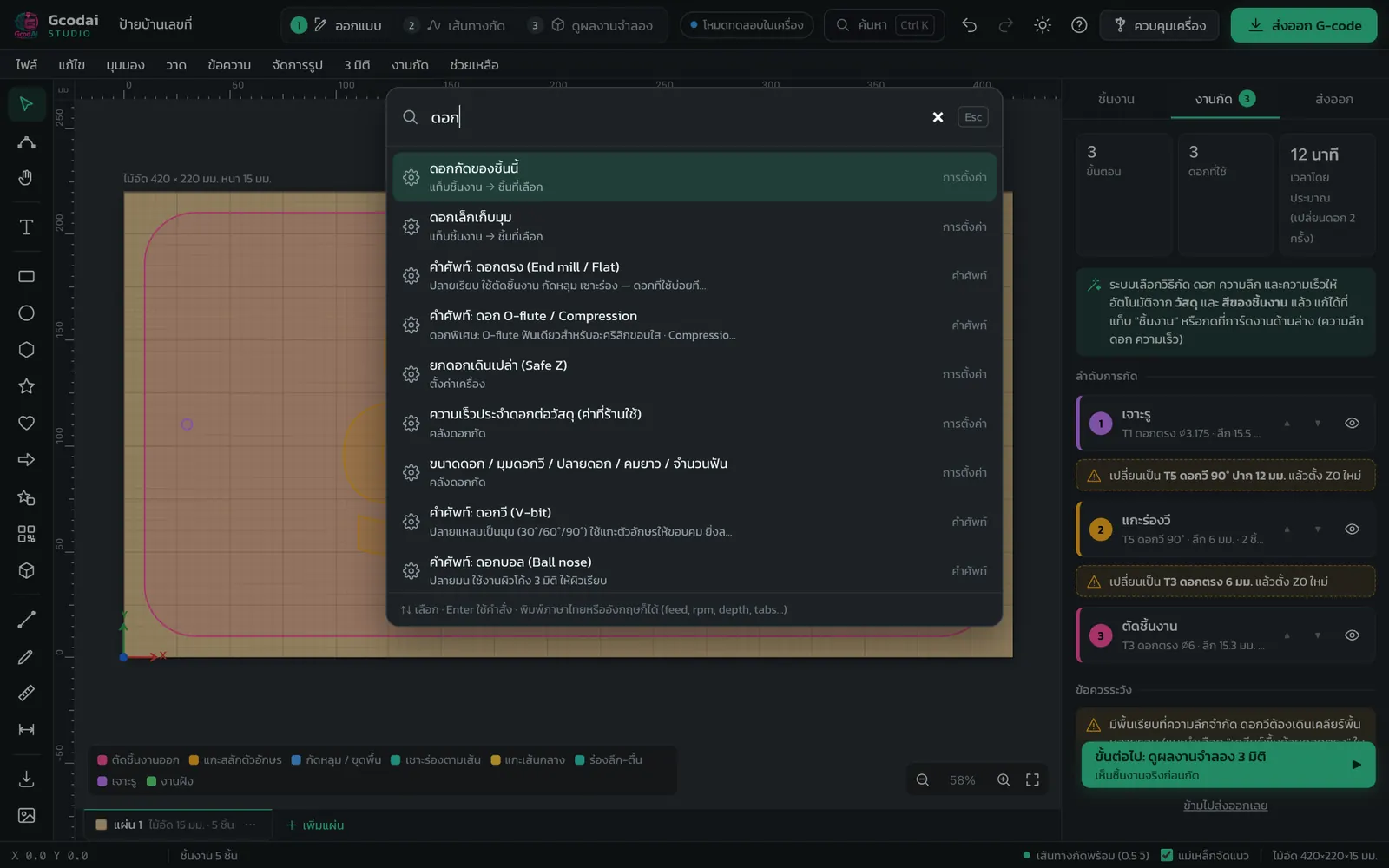
Gcodai Studio command search window, opened with Ctrl+K: type the name of a command or setting
Press Ctrl+K and type, for example, "depth". The program opens the right tab and highlights that field for you

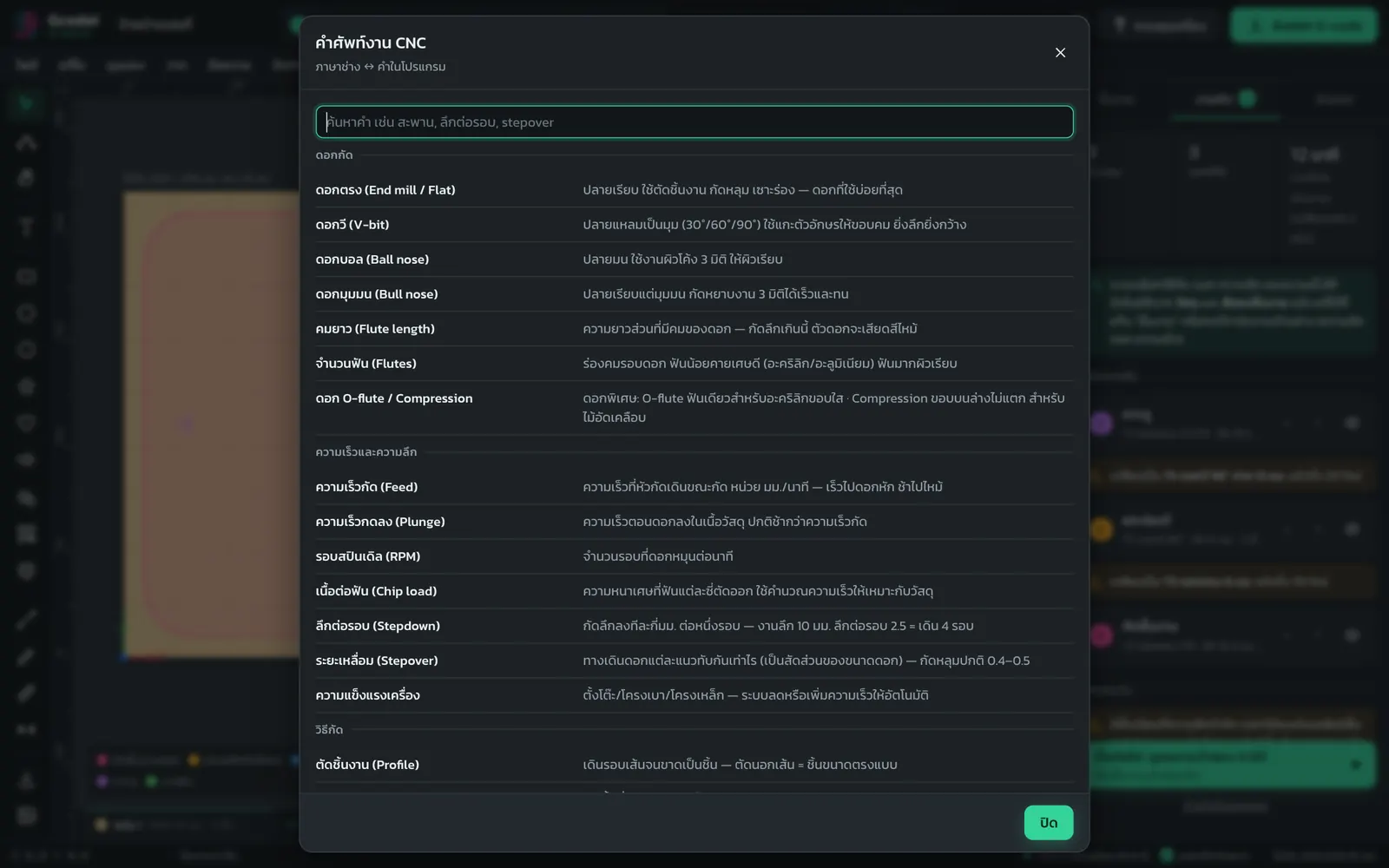
💡 Tip Forgot what a CNC term means? Click Help → CNC glossary, or see the glossary in this manual

💡 Tip Want the program to walk you through step by step? Click Help → Getting started and 5 guided steps appear on screen

Module 1 · 4 lessons

4 main steps: from design to CNC machine

The heart of the program. Learn these 4 lessons and you can do real jobs.

Lesson 1.1 · About 6 min

Step 1 Design: set the material and sheet size, then lay out your job

Short answer: First tell the program which material you are using, how wide, long and thick the sheet is, and which corner you will set zero at. Then type text, draw shapes or import a file onto the sheet, and adjust size and position in the right panel.

After this lesson you will…

  • Set the material, size and thickness of the sheet correctly
  • Set the zero point to match your machine
  • Place text, shapes or files on the sheet
  1. Click step 1 Design or press 1
  2. Click an empty spot on the screen (not on an object). The right panel's Object tab shows the sheet settings
  3. Choose the Material, such as acrylic, ACP composite (aluminum composite), PVC / foam board, MDF, plywood, solid wood, EPS / PU foam or aluminum sheet. Each material has a short tip to read
  4. Choose a Sheet size from the preset buttons (30×40 cm up to a full 4×8 ft sheet) or type the Width, Height and Thickness yourself
  5. Set the Machine zero point (X0 Y0). There are 9 positions: choose the same corner you will zero at on the real machine. Z0 is the material top
  6. Add work to the sheet: press T and click on the sheet to type text, pick a shape from the left toolbar, or click File → Open / Import file… (Ctrl+O). You can also drag a file onto the screen
  7. Click an object and edit it in the top settings bar (under the menu, like CorelDRAW / Illustrator: X, Y, width, height, proportion lock, rotation, flip, job type, font). Type a value and press Enter to apply it right away, or use Size and position in the right panel (both always match) · hide the bar under View → Top settings bar · click Arrange → Center on sheet to center it
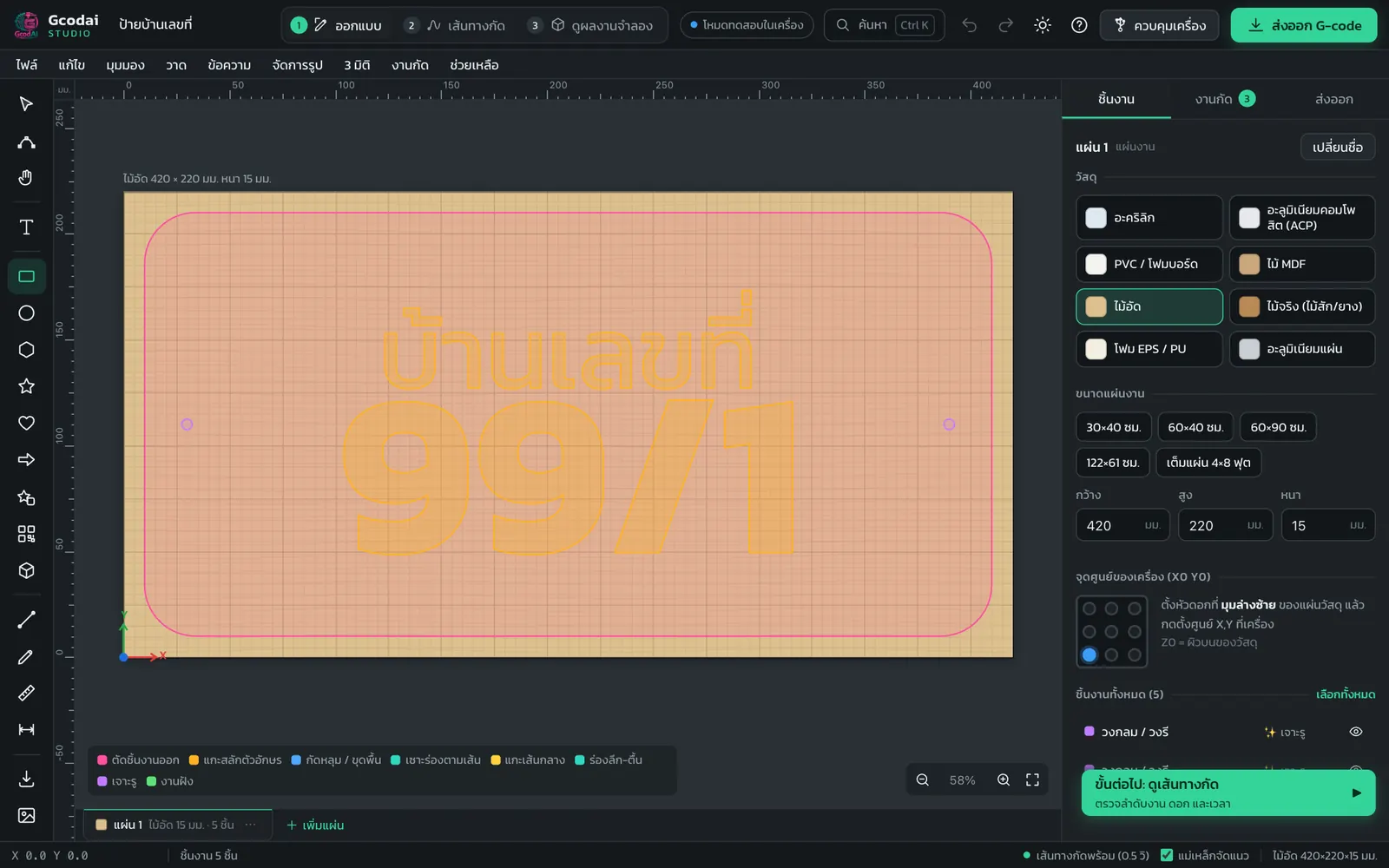
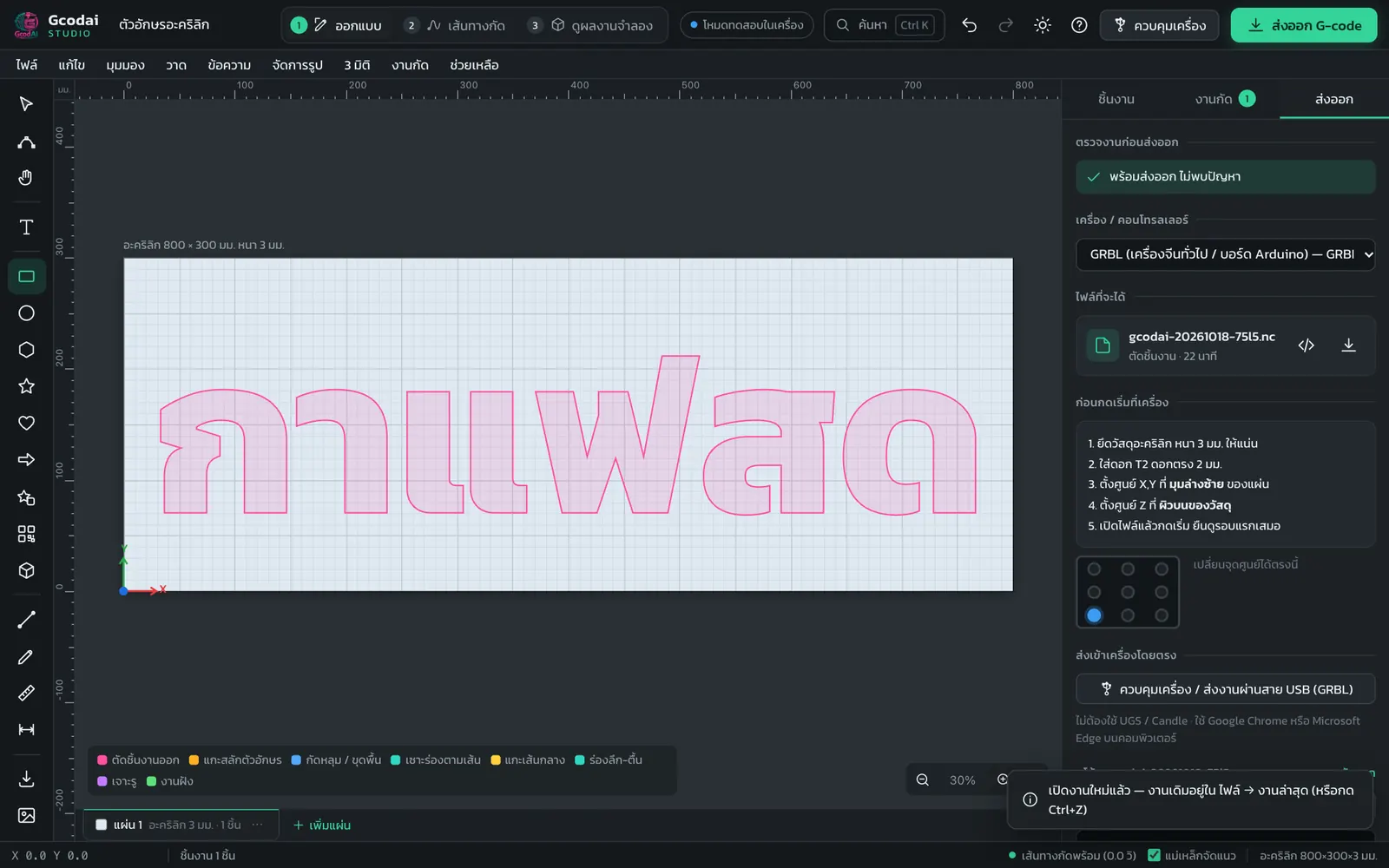
Gcodai Studio Design step with Thai text on the sheet; the right panel shows the material, sheet size and machine zero point
Design step: your work is in the middle, tools on the left, sheet and object settings in the right panel

⚠️ Caution Measure the real sheet thickness with calipers and enter it exactly. The program uses this value to calculate the cut-through depth. If you enter less than the real thickness, it will not cut through. If you enter more, the bit will cut deep into the spoilboard.

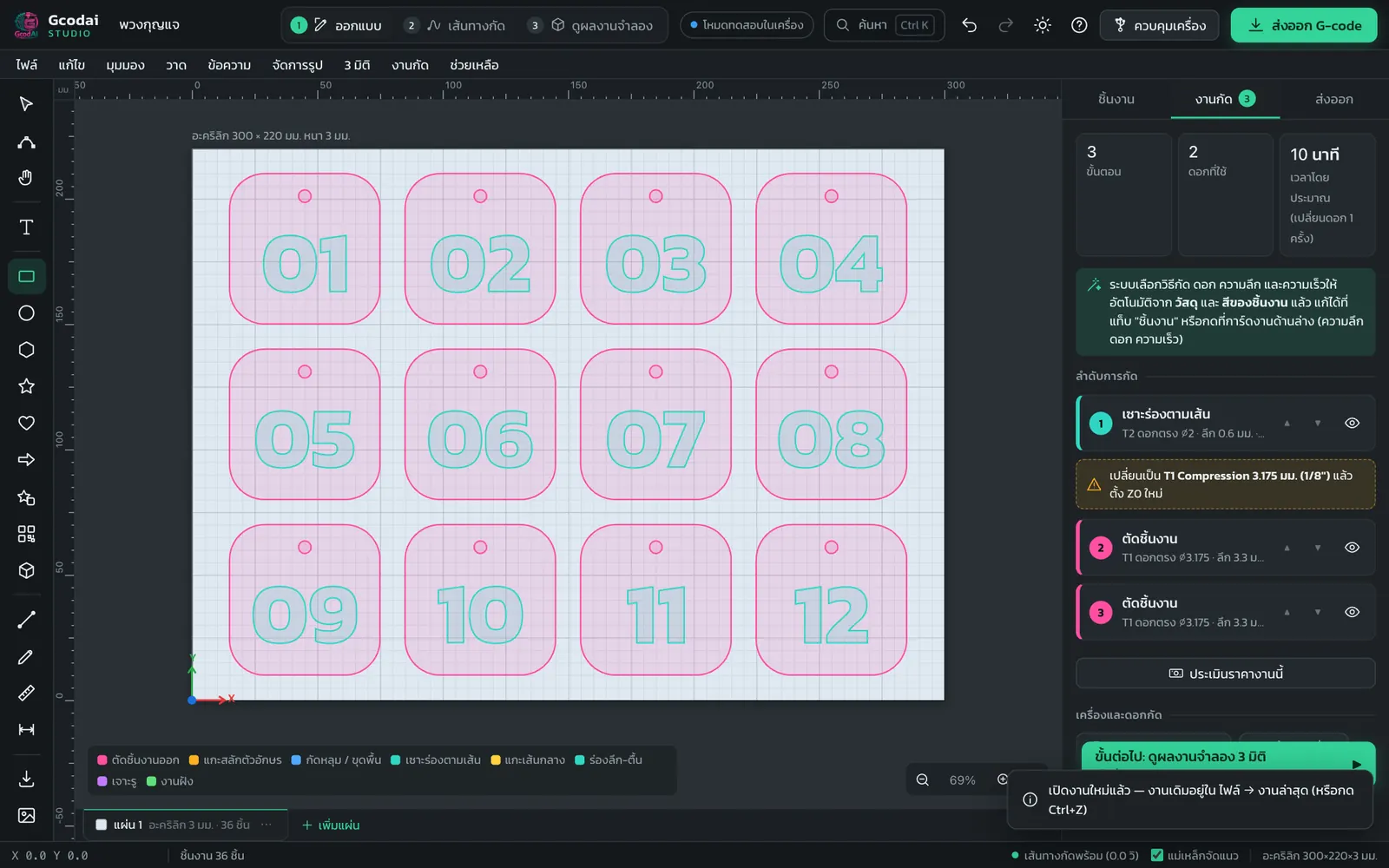
💡 Tip Not sure how to begin? Try File → Sample jobs…. There are 8 ready-made jobs, such as a carved wooden house number, cut-out acrylic letters and 12 keychains.

💡 Tip Turn on Snap in the status bar at the bottom. Objects snap to each other and center more easily.

Lesson 1.2 · About 7 min

Step 2 Tell each part what it will do, then check the toolpaths

Short answer: Click a part, then choose a button under "What will this part do?" in the right panel, such as Profile cut, V-carve or Pocket. The program picks the bit, depth and speeds from the material. Then click step 2 Toolpaths to see where the bit will travel, the job order and the estimated time.

After this lesson you will…

  • Assign a job to each part
  • Read the toolpaths and the cutting order
  • Know where to change the bit and depth yourself
  1. Click the part you want (press Ctrl+A to select everything)
  2. In the right panel, under What to do with this object?, click the job you want (see the table below). If you are not sure, click Let the system choose
  3. You can leave the Depth and Bit boxes on Auto, or choose a bit T1–T12 and enter the depth yourself
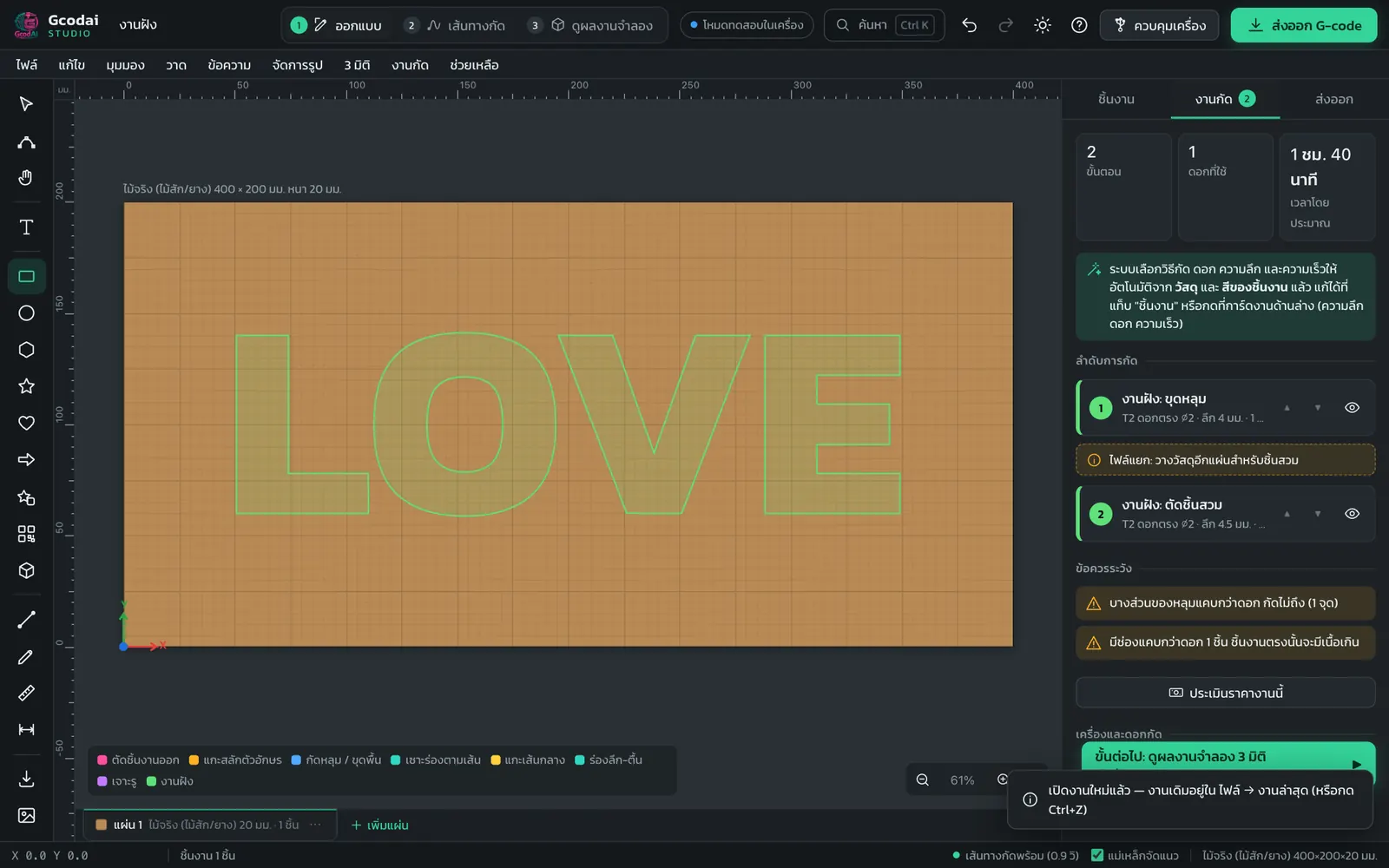
  4. Click step 2 Toolpaths (2). The right panel switches to the Machining tab, showing the number of steps, the bits used and the estimated time (including tool changes)
  5. Check the Cut order. Click ▲ do earlier / ▼ do later to reorder, or drag a card by ⋮⋮ · Move several steps at once: click the step numbers to select them (Shift+click = range), then use the bar above (⤒ ▲ ▼ ⤓) or drag them together · cards are compact by default; click Full cards for the larger view. Between cards it tells you "Change to … then set Z0 again"
  6. Watch the bit run: in the Toolpaths step, press ▶ on the bar above the drawing. The bit follows the cutting order at each job's real speed; finished cuts show as bands the width of the bit (V-bits widen with depth), with a Z depth label and the job/bit being cut · drag the time bar anywhere · ⏮ ⏭ jump one step · speed Auto (about 40 seconds) or ×1 to ×200 · press ✕ to return to all toolpaths
  7. Read any Caution, then click the Next step: … button at the bottom
Job (button)Used forLesson
Profile cutCutting through along the shape: acrylic letters, shaped signsProfile cut
Engrave letters (V-carve)V-carved wooden signs with sharp cornersV-carve
PocketRecesses for inserts, raised lettersPocket
Groove along the lineNeon flex grooves, ACP fold groovesGrooving
Midline engravingFaster than V-carve, good for small textMidline
Flute (variable-depth groove)Column flutes, flower petalsVariable-depth grooves
3D bevel cut (V-bit)Beveled-edge letters, full-thickness beveled signs3D bevel cut
Prism letters (V-bit)Letter faces with a sharp ridge, light box signs, brassPrism
Round-over / cove edge (Embossing)Rounded edges and coves with a ball noseRound-over / cove edge
Texture / waveboardDecorative walls, headboards, textured sign backgroundsWaveboard
DrillingBolt holes, bulb holes, holes along a line, hole panelsDrilling
InlayPocket + insert cut-out, e.g. acrylic inlay in woodInlay
No machiningGuide lines the machine should not cutSeveral jobs
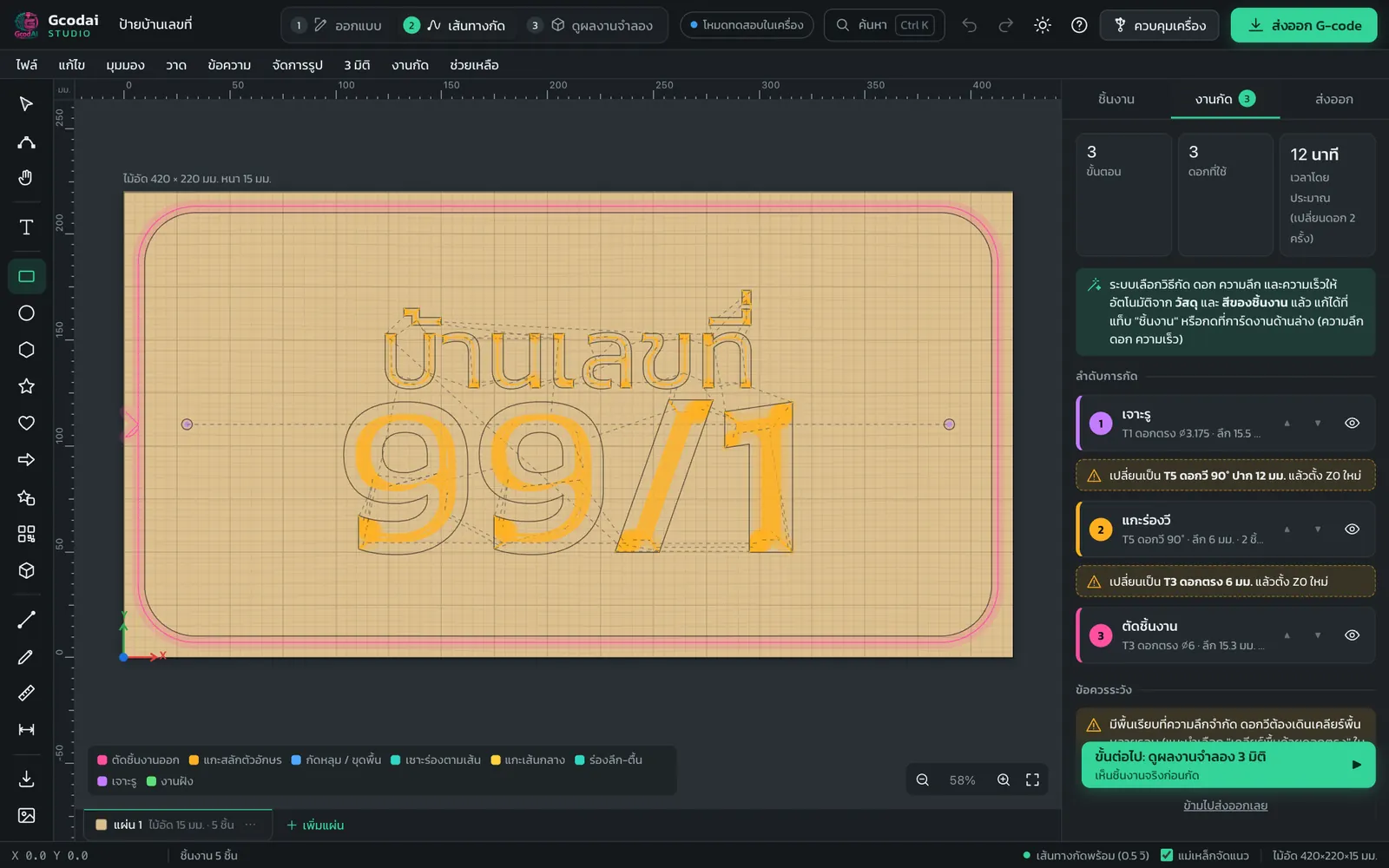
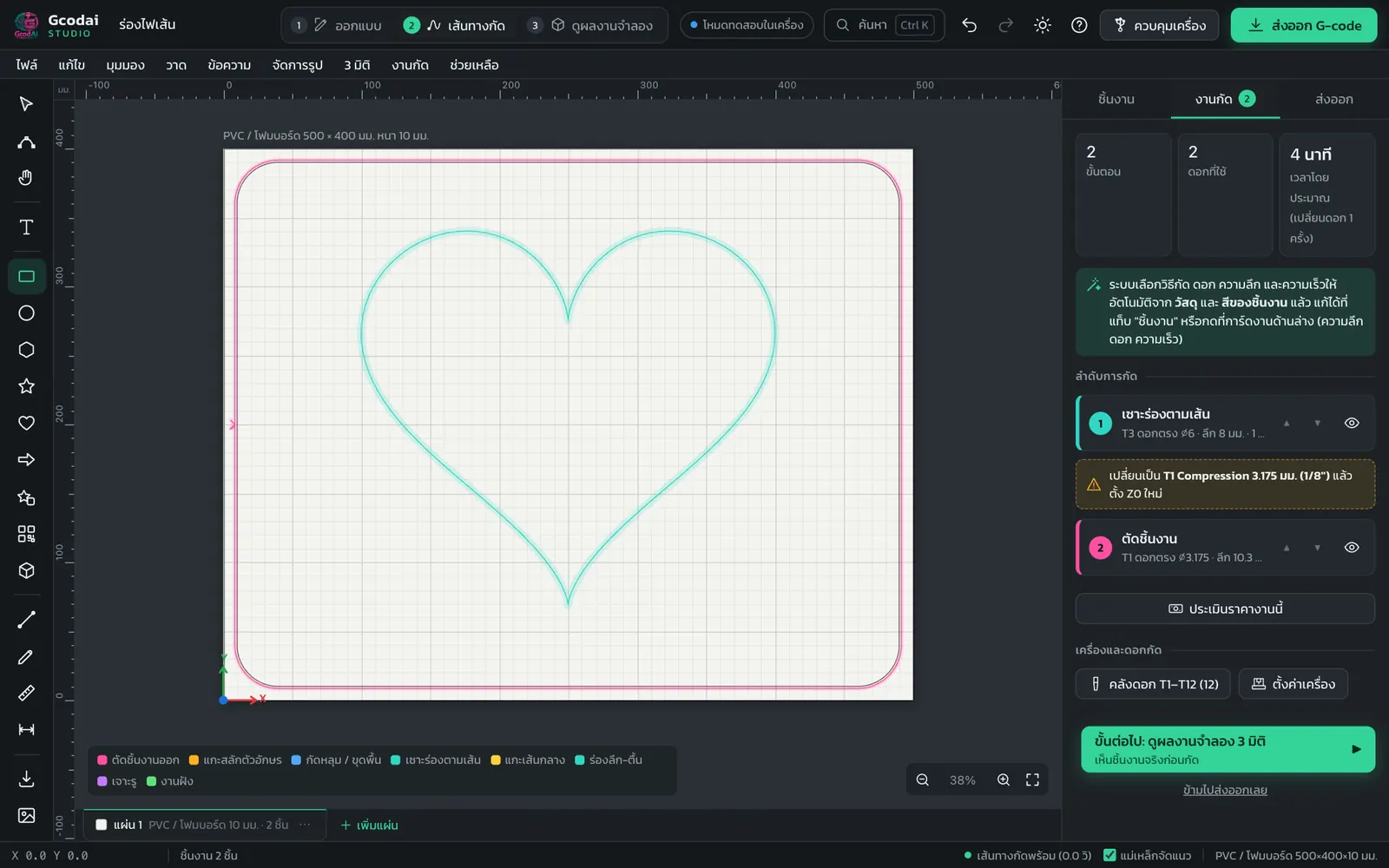
Toolpaths step in Gcodai Studio showing where the bit will travel on the part, and the Machining tab with cutting order, bits used and time
Toolpaths step: line colors show the job type; the right panel shows the cutting order and estimated time

If a part has inner lines inside its outer line, What to do with this object? shows a warning box: the inner lines count as holes in this part and will be cut the same way as the outer line (Profile cut = cut through as holes). If you want the inner lines machined differently, for example a 4 mm deep groove, click Split all paths in that box, then choose a new job for the inner lines.

The program chooses the machining method, bit, depth and speeds from the material and the object color. If you import a file with colored lines, see the lesson Line color → machining

💡 Tip To change speeds for this job only, click the job card in the Machining tab. You will see feed rate, plunge rate, spindle speed, depth per pass and stepover. Click Auto (reset) to go back to the defaults.

Lesson 1.3 · About 4 min

Step 3 Check the 3D simulation before you cut for real

Short answer: Click step 3 Simulate (or press 3). The program machines the part virtually on screen in 3D, so you see the grooves, pockets and cuts before wasting real material. Use play/pause, adjust the speed and view it from 7 angles.

After this lesson you will…

  • Open and control the simulation
  • Know what to check in the simulation
  • Simulate an old G-code file
  1. Click 3 Simulate (3) or 3D → 3D simulation
  2. Click Play/Pause to watch the bit step by step. Move the Speed slider (1–5). Click Restart to watch from the beginning
  3. Change the view: Slant Up Down Front Back Left Right. The Down view shows whether every hole is cut all the way through
  4. Mouse: drag = rotate, right-drag or Shift+drag = pan, mouse wheel = zoom, double-click = fit to screen
  5. If you find a mistake, go back to step 1 or 2, fix it and check again
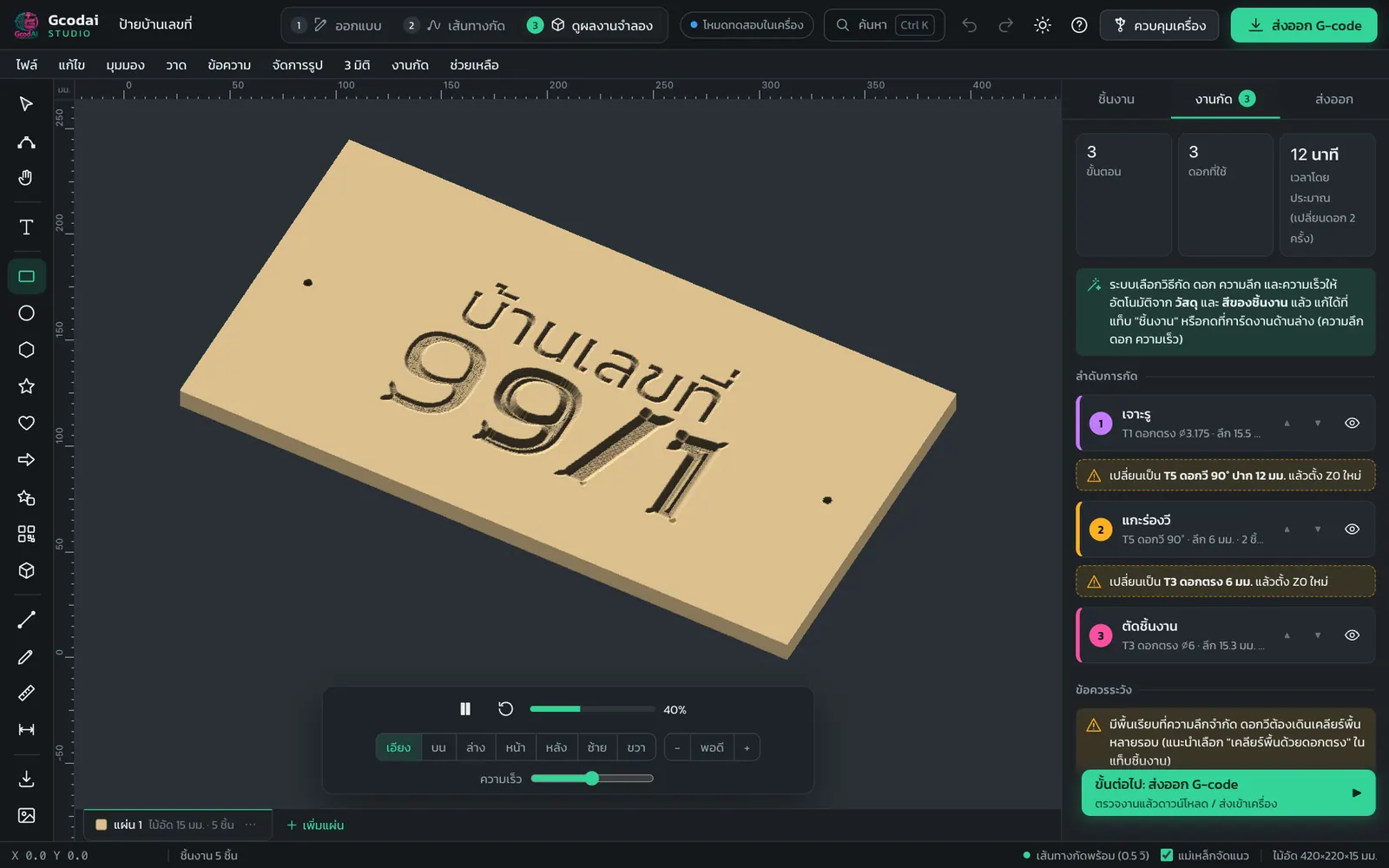
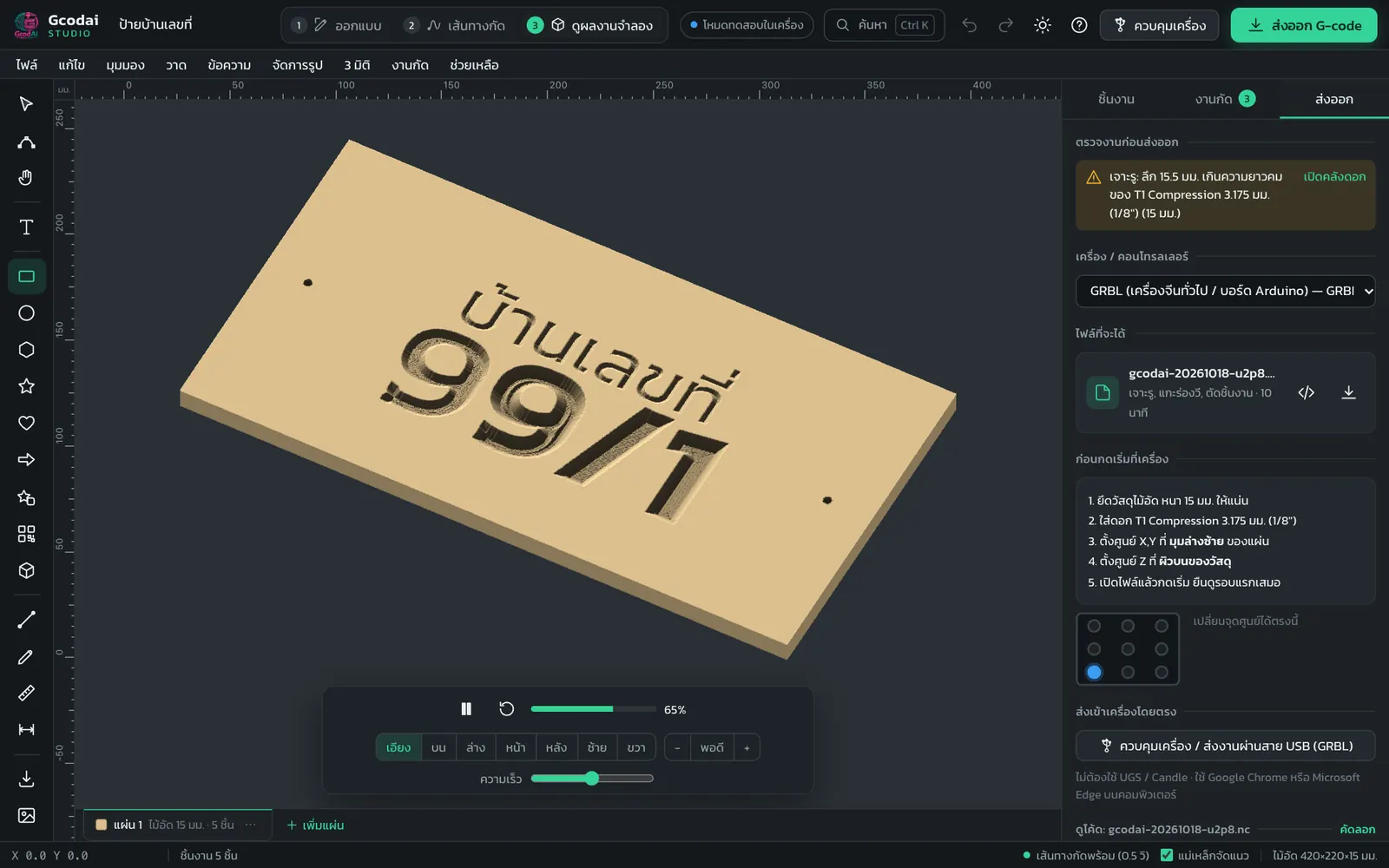
3D simulation of a wooden sign in Gcodai Studio, showing the finished carved letters and the playback controls at the bottom
3D simulation: see the finished part before cutting. Play, view and speed controls are at the bottom

💡 Tip Check 3 things every time: did small letters disappear (bit too big for the line)? Do cut-through parts have tabs? Are the grooves deep enough without cutting through in the wrong place?

💡 Tip Open an old G-code file (.nc .gcode .tap .txt) with File → Open / Import file… to simulate it too, including rotary A-axis files

Lesson 1.4 · About 7 min

Step 4 Export G-code and set zero on the machine

Short answer: Click the Export G-code button (Ctrl+E), choose the machine type that matches your controller, then download the file and open it at the machine. Before you press start, clamp the material firmly, fit the right bit, set X Y zero at the same corner as in the program, and set zero Z on the material top.

After this lesson you will…

  • Fix problems the program finds before export
  • Choose the machine type and download the file
  • Set zero on the machine to match the program
  1. Click the Export G-code button at the top right (Ctrl+E). The right panel goes to the Export tab
  2. Look at Check job before export. If there are problems, fix them in one click with buttons such as Let the system choose the bit, Reduce to half thickness or Fit to sheet, until it says "Ready to export, no problems found"
  3. Choose the Machine / controller that matches your machine. Not sure? See the lesson Choosing the machine type
  4. If your machine wants a different file extension, choose it in the File extension box: Machine default / .nc / .tap / .txt / .gcode / .ngc / .cnc / .gc / .nct. The code inside stays the same; only the file name changes
  5. Under Output files, download one file at a time or click Download all (as one ZIP)
  6. At the machine, follow the Before pressing start on the machine checklist: clamp the material → fit the bit → set X Y zero → set zero Z on the material top → watch the first pass
  7. A GRBL machine connected by USB can receive the job straight from the program with Send directly to machine. See the lesson Machine control
Gcodai Studio Export tab with the job check list, machine type selector, G-code download buttons and the checklist before starting at the machine
Export tab: check the job, choose the machine, download, and the checklist before you start

⚠️ Caution For jobs with several bits, if your machine has no automatic tool changer, you must change the bit and set zero Z again every time. GRBL and Mach3 machines pause and wait for the tool change. DSP handheld controllers and NcStudio get a separate file for each bit.

⚠️ Caution .jg files used by some Chinese machine brands (such as Suda / Signvec handheld controllers) are encrypted. If you just rename the extension, the machine will reject it. Export for Mach3 (.tap), open it in the machine manufacturer's CNC_Change program, then save it as .jg

Downloading G-code requires a membership or the 3-day free trial. If you have not signed up yet, you will see a locked card. Click Buy: use for life or start the trial first.

💡 Tip Under Other files you can download SVG or DXF for customers to review or for use on other machines. Check Add dimension lines in SVG/DXF (DIMENSIONS layer) if you want the dimensions included.

💡 Tip If the sheet is longer than your machine table, the Export tab shows Job larger than machine work area so you can split the file into sections. See the lesson Jobs larger than the machine work area

Module 2 · 11 lessons

Designing your job

Text, shapes, importing files and every shape editing tool.

Lesson 2.1 · About 6 min

Type text, choose fonts, curved text, text on a path and number sequences

Short answer: Press T and click on the sheet to type text. There are 8 built-in Thai fonts that place Thai vowels and tone marks correctly (no floating vowels). Make text curve around a round sign with Text → Curved text (round sign), and make numbered signs with Text → Number sequence (numbered signs).

After this lesson you will…

  • Type and lay out text
  • Make curved text and text along a path
  • Create many numbered signs at once
  1. Press T (the Type text tool) and click on the sheet
  2. Type in the Text box in the right panel. Press Enter for a new line
  3. Choose the Font: Kanit Bold (recommended), Kanit Regular, Prompt SemiBold, Sarabun Bold, Mitr Medium, Chakra Petch Bold, Itim, Pridi Bold
  4. Set the Letter height, Letter spacing, Align lines (left/center/right) and Line spacing

Curved text around a round sign

  1. Click Text → Curved text (round sign), or select the text and set the Curved text box: Straight / Top arc / Bottom arc, and enter the radius R
  2. Use Top arc for the upper text and Bottom arc for the lower text. Enter the same R and the letters sit on the same circle
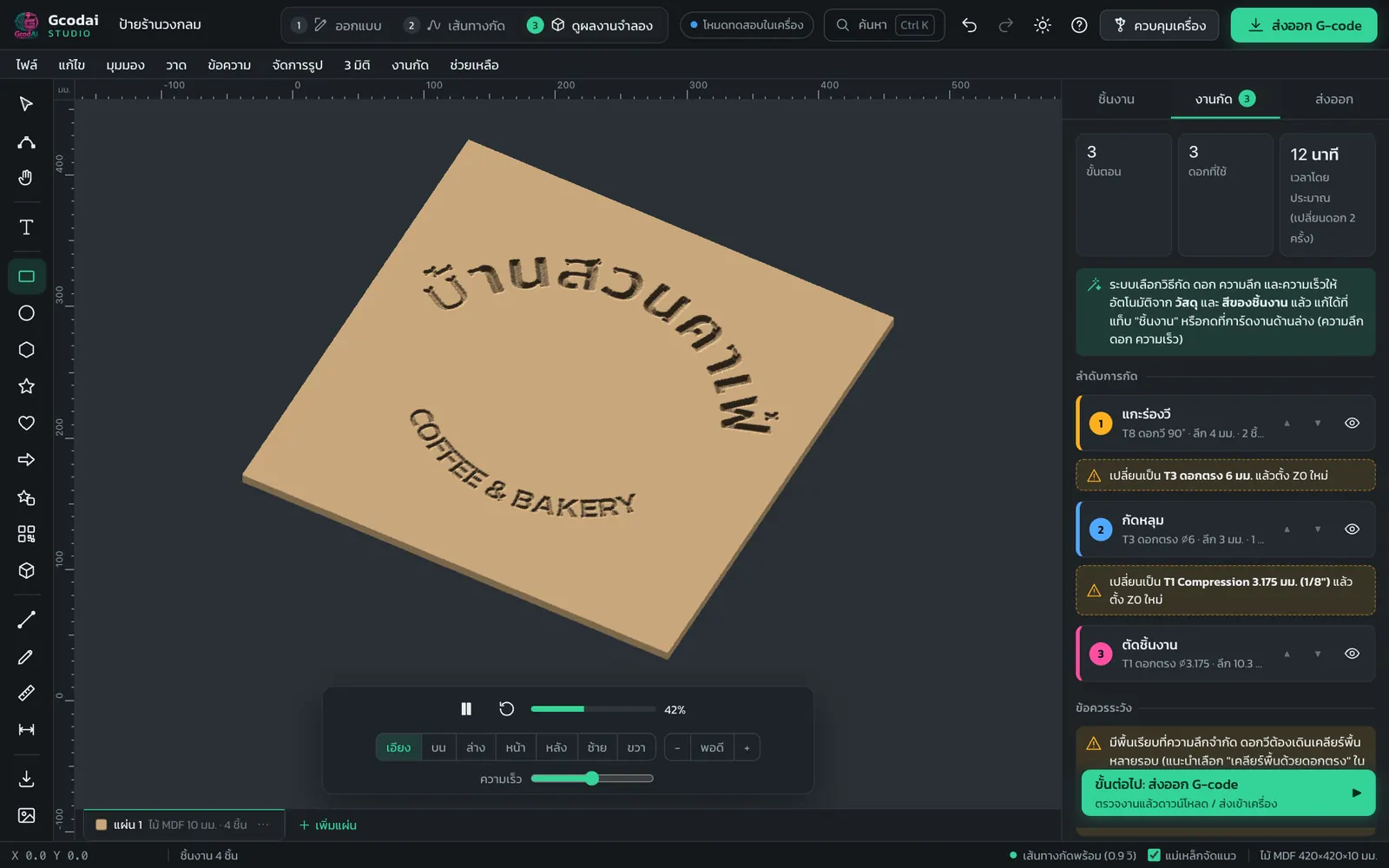
Simulation of a round shop sign with Thai text curved on top and English text curved below, V-carved in MDF
Round sign: top arc and bottom arc text, V-carved and cut out with a flat end mill

Text along your own path

  1. Draw a guide line with P (pen) or use a circle. Select that line (and the text, if any)
  2. Click Text → Text along drawn path…, type the text, choose the position Above line / Below line and the alignment Start / Center / End of line

Numbered signs in sequence

  1. Click Text → Number sequence (numbered signs)…, enter Start at, Quantity and Number height, and you get the whole sequence in one go

If a customer wants a different font, add shop fonts with Text → Shop fonts… (TTF OTF TTC WOFF files). See the lesson Adding your own shop fonts

💡 Tip To edit letter shapes node by node, click Text → Convert text to curves first, then use the edit nodes tool (N)

💡 Tip For very small text where V-carve does not look good, try Midline (centerline) engraving instead. It is faster and the lines are crisper

Lesson 2.2 · About 6 min

Draw shapes, ready-made sign shapes and QR codes

Short answer: Draw shapes from the left toolbar or the Draw menu: rectangles, circles, polygons, stars, hearts, arrows and 15 ready-made sign shapes such as shields, ribbons, hanging signs and house shapes. Make QR codes with Draw → QR code for links, WiFi, PromptPay, phone numbers and LINE.

After this lesson you will…

  • Draw basic shapes and sign shapes
  • Draw straight lines and curves with the pen
  • Adjust corner radius, number of sides and number of points
  • Make QR codes the machine can really cut
  1. Rectangle: press R and drag (hold Shift for a square). Circle/ellipse: press E
  2. Other shapes: Draw → Polygon Star Heart Arrow Speech bubble. Straight line: press L. Freeform lines and curves: use the pen P (see the next section)
  3. Sign shapes: Draw → Sign shapes…, choose shield, ribbon / banner, hanging sign, house shape, concave-corner frame, cloud, scalloped seal, price tag / name tag
  4. Click the shape and adjust it in the right panel, such as Bull nose, Number of sides, Number of points and size

Pen: draw straight lines and curves (Bézier)

  1. Press P or Draw → Pen (lines/curves)
  2. Click = corner point (straight line) · click and drag = curve point, drag the handle until you get the curve you want · hold Shift while dragging = lock to every 45° · hold Alt while dragging = break the corner
  3. Click the first point = close the shape · Enter, Esc or double-click = finish an open line · Backspace = remove the last point
  4. Edit a selected line with the pen: click on the line = add a point · click a point = delete it · drag a point = move it · drag a handle = bend the curve (hold Alt = split the two handles) · Alt+click a point = toggle corner/curve point · click the end of an open line = keep drawing
  5. Edit later: with the select tool (V), double-click the pen line to go straight into pen node and handle editing

💡 Tip If you press N (edit nodes) on a pen curve, the program switches to the pen for you, so the curve handles do not break into lots of small points

Make a QR code

  1. Click Draw → QR code (link / WiFi / PromptPay)…
  2. Choose the type: link / text, WiFi, PromptPay (you can include an amount), phone number, LINE, then enter the details
  3. Set the size and choose Cut dark cells or Cut background (dark modules raised)

⚠️ Caution If the QR modules are smaller than 1.6 mm, the program warns you. Modules smaller than the bit cannot be cut cleanly and will not scan. Enlarge the QR code or use a smaller bit

💡 Tip To change the QR data later, click the QR code and click Edit QR in the right panel

Lesson 2.3 · About 6 min

Import SVG, DXF, EPS and AI files and use line colors to set machining jobs

Short answer: Click File → Open / Import file… (Ctrl+O) or drag a file onto the screen. SVG, DXF, EPS, AI, PDF, images and G-code are supported. The program reads the line colors in the file and sets the machining jobs automatically using the Line color → machining rules, for example black = cut, orange = V-carve, green = pocket.

After this lesson you will…

  • Import customer files at the correct size
  • Use line colors in the file to set machining jobs automatically
  • Fix problems with AI files and files in inches
  1. Click File → Open / Import file… (Ctrl+O) or drag the file onto the area that says "Drop file here"
  2. The import window summarizes File line colors → jobs so you can see which color becomes which job
  3. Choose the Material sheet (for example fit to job + 10 mm margin) and the Size: As in file / Fit to sheet / Set width / File is in inches (×25.4)
  4. Check Split into separate objects if you want to select and move each shape separately, then click Import
Line color in fileResulting job (default)
BlackProfile cut, outside the line, through
Bright redGroove along the line, leaving 2 mm
Dark redACP groove with bit T8, leaving 1 mm
GreenPocket
OrangeV-carve
YellowMidline engraving with the neon bit, leaving 3 mm
PurpleDrilling, through

Set your shop's own color rules

  1. Click Machining → Line color → machining…
  2. Edit the job, bit and depth for each color. Depth options: Through / Leave material / Depth / Auto
  3. Click Add color if your shop uses other colors, or Reset to defaults to go back. The rules sync with your account
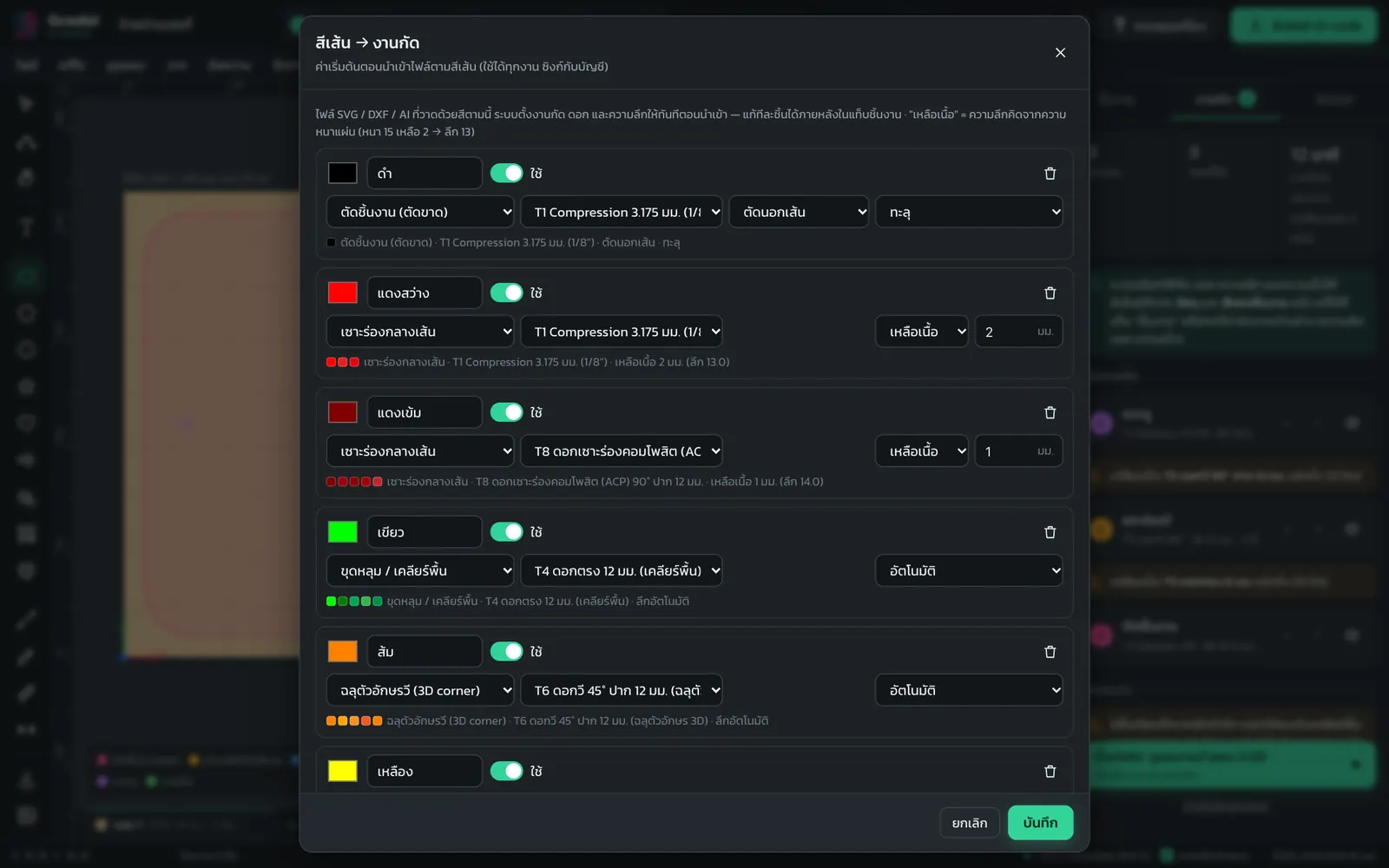
Line color to machining window, setting whether black, red, green, orange, yellow and purple lines in the file become cutting, grooving, pocket or V-carve jobs
Line color → machining rules: set them once and future files get their jobs automatically

⚠️ Caution In PDF / AI files where text has not been converted to outlines, the program warns you and skips that text. In Illustrator, use Select All → Type → Create Outlines, then save again

💡 Tip Prepare clean files: convert text to outlines and delete duplicate lines and unused guide lines. If DXF lines are broken, use Arrange → Link open paths

Lesson 2.4 · About 4 min

Trace an image (PNG/JPG logo) into vectors for cutting

Short answer: Use File → Trace image to vectors…, choose a PNG, JPG, WebP or BMP logo, then adjust the threshold and line smoothing. The program converts it into vector lines you can cut or engrave right away.

After this lesson you will…

  • Convert a customer's logo into vectors
  • Adjust the settings for smooth, clean lines
  • Know you can turn it into a relief or dot engraving instead
  1. Click File → Trace image to vectors… or the image button in the left toolbar
  2. Choose an image file (PNG, JPG, WebP, BMP)
  3. Adjust the Threshold until the black and white image is complete, adjust Smoothing so the edges are not jagged, and enter the Object width you want
  4. If you get the reverse (the background becomes the shape), check Invert
  5. Click OK, then choose a machining job as in lesson 1.2

💡 Tip Use a sharp, large image with a plain single-color background. You will get much cleaner lines than from a phone photo

💡 Tip In the same window you can choose Make a 3D relief instead or Make a halftone instead if you want a relief or a photo on wood

Lesson 2.5 · About 7 min

Editing shapes: edit nodes, combine, trim, bend, slice and repeat

Short answer: Shape editing commands are in the Arrange menu: union, subtract, intersect, offset (grow/shrink), warp, slice, and repeat in a grid or around a circle. To edit a line node by node, use the edit nodes tool (press N).

After this lesson you will…

  • Edit shapes node by node
  • Combine and subtract shapes
  • Warp, slice and repeat shapes

Edit line nodes

  1. Select the shape, press N and drag nodes to change the shape. Double-click on a line to add a node, press Delete to delete a node
  2. The bar at the top has Simplify, Fillet corners, Split path, Close path, Set start point (red dot = start point), Delete node and Done

Combine, subtract and intersect (select at least 2 objects)

  • Arrange → Union merges them into one shape
  • Subtract (first object minus the others), for example to make a frame with the letters cut out of it
  • Intersect and Offset (grow / shrink outline)… to make edges thicker or thinner

Warp, slice, break apart, join

  • Warp: arch / bulge / wave / slant… with arch, bulge, pinch, wave / flag, perspective and slant styles, strength −100 to 100%
  • Slice… splits a large sign into several panels with knife lines: vertical, horizontal, pie slices or concentric rings. Set the number of pieces and the gap
  • Break apart and Link open paths
  • Split all paths (inner paths aren't holes) (in the Arrange menu and on right-click) makes every line its own object, so inner lines no longer count as holes in the outer line. Useful for a sign where the outer line is cut through but the inner lines should be grooved

Repeat, flip, rotate, align

  • Repeat in grid… (columns, rows, spacing), Repeat around circle… (count, radius), Clone along curve…
  • Flip left-right, Flip top-bottom, Rotate 90°. Group Ctrl+G, ungroup Ctrl+Shift+G
  • With several objects selected, the right panel has align buttons for left, center, right, top and bottom, plus Arrange → Distribute evenly (select 3 or more objects)

💡 Tip Right-click an object to see the most-used commands in one place, such as duplicate, make copies, warp, slice and make stencil

💡 Tip Nudge objects with the arrow keys (hold Shift = 10 mm steps). Hold Alt and drag = copy

Lesson 2.6 · About 4 min

Backing plates around letters and stencil letters

Short answer: Make a backing plate behind letters with Text → Create backing around text…, choosing a shape that follows the letters or a rounded rectangle. For stencil letters whose centers do not fall out (O, A, D, B), use Text → Make stencil letters…: the program adds bridges to hold the centers for you.

After this lesson you will…

  • Make backing plates behind letters
  • Make stencil signs where the letter centers do not fall out

Backing plate around an object

  1. Select the text or shape, click Text → Create backing around text… (or Arrange → Create backing around object…)
  2. Choose the Shape: Follow letter shape / Rounded rectangle, and enter the Margin and Bull nose
  3. Choose Create on: Same sheet or New sheet (when the backing uses a different material)

Stencil letters

  1. Select the text, click Text → Make stencil letters…
  2. Enter the Tab width. The program sets the job to a profile cut Inside for you

💡 Tip Putting the backing on a new sheet suits two-material signs, such as acrylic letters on an ACP backing. See the sample "2-material sign (2 sheets)" in Sample jobs…

Lesson 2.7 · About 4 min

Layers, lock, hide, dimension lines and measuring

Short answer: Organize objects into layers in the Objects tab. Lock objects you do not want to move with Edit → Lock selected. Add dimension lines that are never cut with the D key, and measure distance, angle and ΔX ΔY with the M key.

After this lesson you will…

  • Use layers and lock objects
  • Add dimension lines for customers
  • Measure distances on the design
  1. Layers: tab Object → Add layer. Open a layer's menu to Use this layer, Rename…, Change color…, Move up / Move down, Select all objects on this layer, Delete layer
  2. Lock: Edit → Lock selected. Unlock with Unlock all or click the padlock in the All objects list, which also has show/hide buttons for each object
  3. Dimension lines: press D and drag from one point to another. This line is never cut. You can adjust Measure direction, Line offset, Text size and Decimals
  4. Automatic dimensions: Draw → Auto-dimension selection (width × height)
  5. Measure: press M and drag to see the distance, angle and ΔX ΔY (hold Shift = straight)

💡 Tip Send customers a design with dimensions: tab Export → Other files, check Add dimension lines in SVG/DXF (DIMENSIONS layer) and download the SVG

Lesson 2.8 · About 5 min

Make a finger-joint wooden box

Short answer: Use Draw → Box maker (finger joints)…, enter the width, depth, height and material thickness. The program creates every side panel with finger joints, dogbone corner reliefs, a lid and dividers. Cut them and they fit together right away.

After this lesson you will…

  • Make finger-joint boxes that fit snugly
  • Choose the lid style and dividers
  1. Click Draw → Box maker (finger joints)…
  2. Enter the Width, Depth and Height, and choose whether these are inside or outside dimensions
  3. Enter the Material thickness (measured), the Finger width and the Fit clearance
  4. Choose the Groove angle: Dogbone (recommended) / T-bone / Embedded in shape / No corner relief
  5. Choose the Lid: No lid / Closed lid (finger joints) / Fitted lid (lifts off). You can add dividers in both directions and choose to engrave part names to help assembly

⚠️ Caution The material thickness must be exact. Plywood labeled 10 mm is often thinner. If you enter the wrong value, the joints will be loose or will not fit. Cut a small test piece before cutting the whole box

Lesson 2.9 · About 3 min

Sign design assistant: describe the sign in words and get a design instantly

Short answer: Use Draw → Sign design assistant (describe it in words)…. Type the size, material, method and text, for example "wood sign 40x20 cm V-carve Garden Coffee", and the program suggests 3 sign designs to choose from. The assistant reads Thai descriptions. It runs in your browser and sends no data to an outside AI.

After this lesson you will…

  • Use the assistant to create sign designs from a text description
  • Know what details the assistant can read
  1. Click Draw → Sign design assistant (describe it in words)…
  2. Type the details, or click one of the examples marked Try:. The assistant reads size, shape, material, method, text, phone number, LINE, PromptPay and icons
  3. Methods you can choose: V-carve, cut-through stencil, pocketed letters, raised letters, cut-out separate letters
  4. Pick 1 of the 3 designs, then keep editing it as usual

💡 Tip Example request: house number sign "99/9 Baan Sukjai" 30x15 cm teak, raised letters, with a heart and a hanging hole

Lesson 2.10 · About 4 min

Add your own shop fonts (TTF / OTF)

Short answer: Click Text → Shop fonts… and choose a .ttf, .otf, .ttc or .woff font file (or drag the font file onto the screen). The font appears in the font box under Shop fonts, and you can type, V-carve and cut letters with it just like the 8 built-in fonts.

After this lesson you will…

  • Add fonts your shop bought or that customers sent
  • Know where fonts are stored and what to do when opening a job on another computer
  1. Click Text → Shop fonts… or choose + Add shop font… at the end of the font box in the right panel
  2. Choose the font file (you can pick several at once), or just drag the font file onto the sheet
  3. Check the preview in the Sample text box. Fonts that include Thai characters show a Has Thai badge
  4. Select text on the sheet and click Apply to text, or choose the font in the font box. Shop fonts are in their own category, separate from the built-in fonts
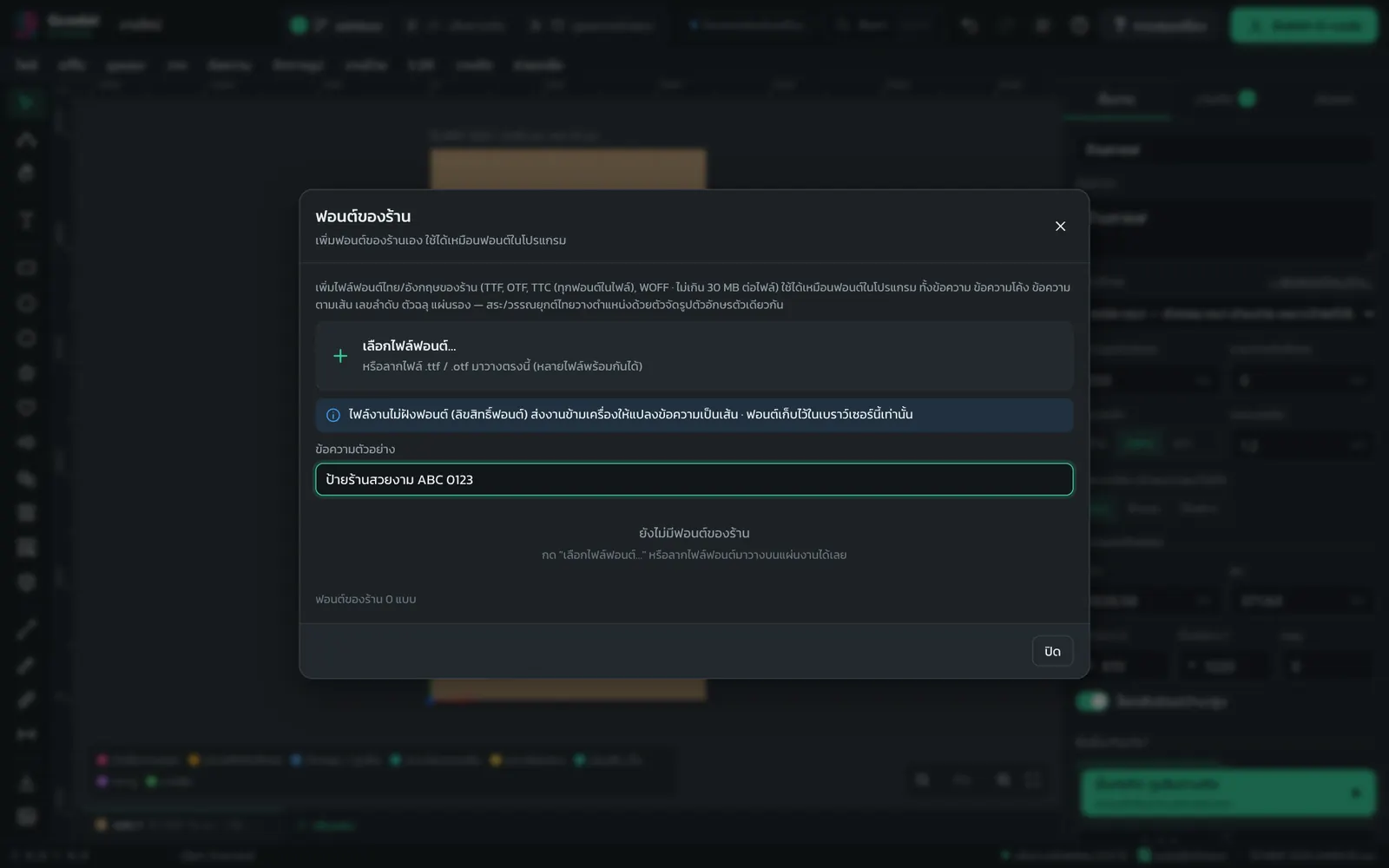
Shop fonts window in Gcodai Studio showing the list of added fonts, a text preview and a badge for fonts with Thai characters
Add a shop font once and use it in every job on this computer

Fonts are stored in this computer's browser and do not travel with the .gcodai file. To open the job on another computer, add the same font there too, or click Text → Convert text to outlines before saving · Supports TTF OTF TTC WOFF, up to 30 MB per file (WOFF2 is not supported yet)

💡 Tip Fonts without Thai characters show a warning, because Thai text would appear as empty boxes. They work only for English text and numbers

Lesson 2.11 · About 4 min

Icon library with 281 icons + 50 sign frames and ornaments

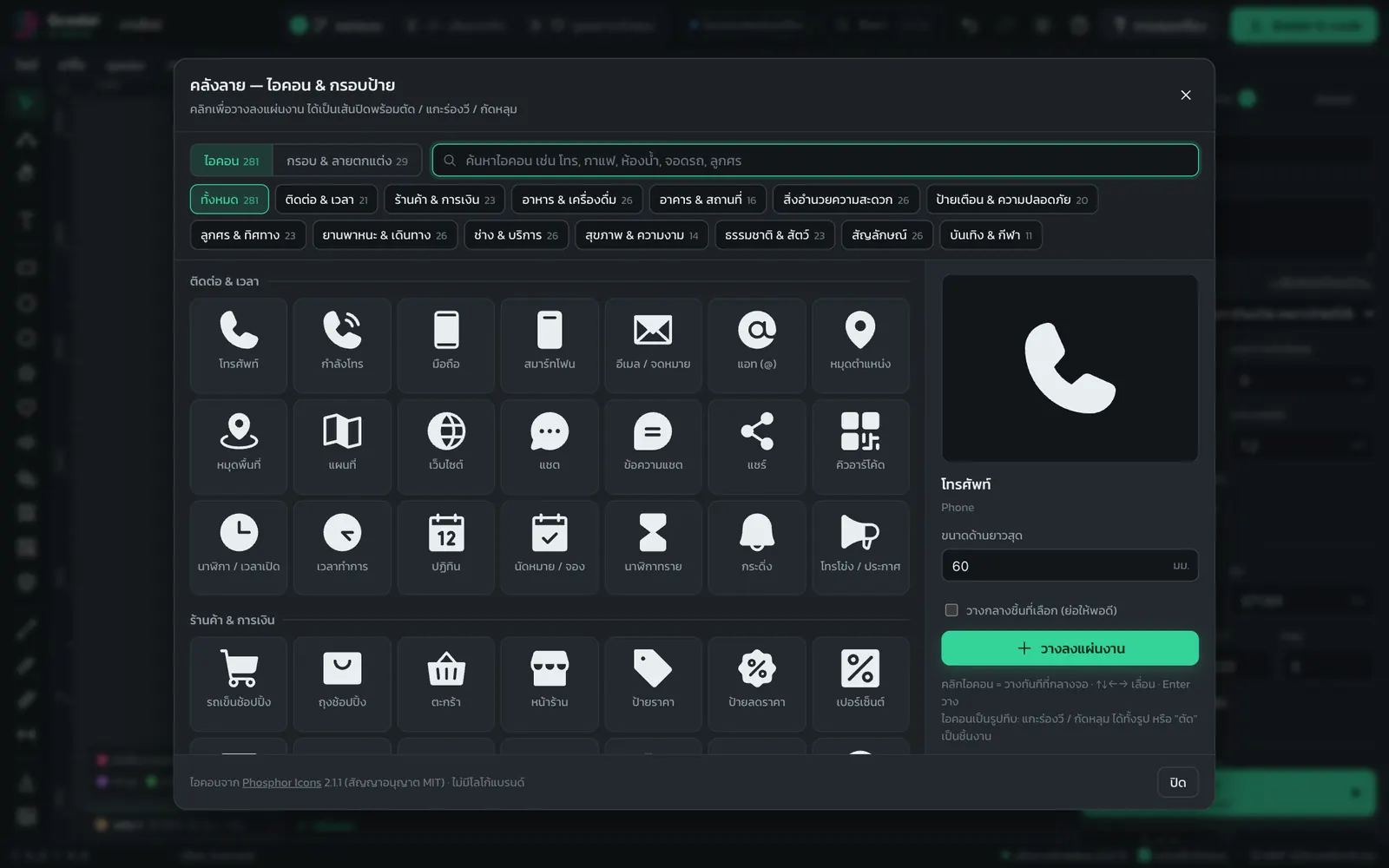
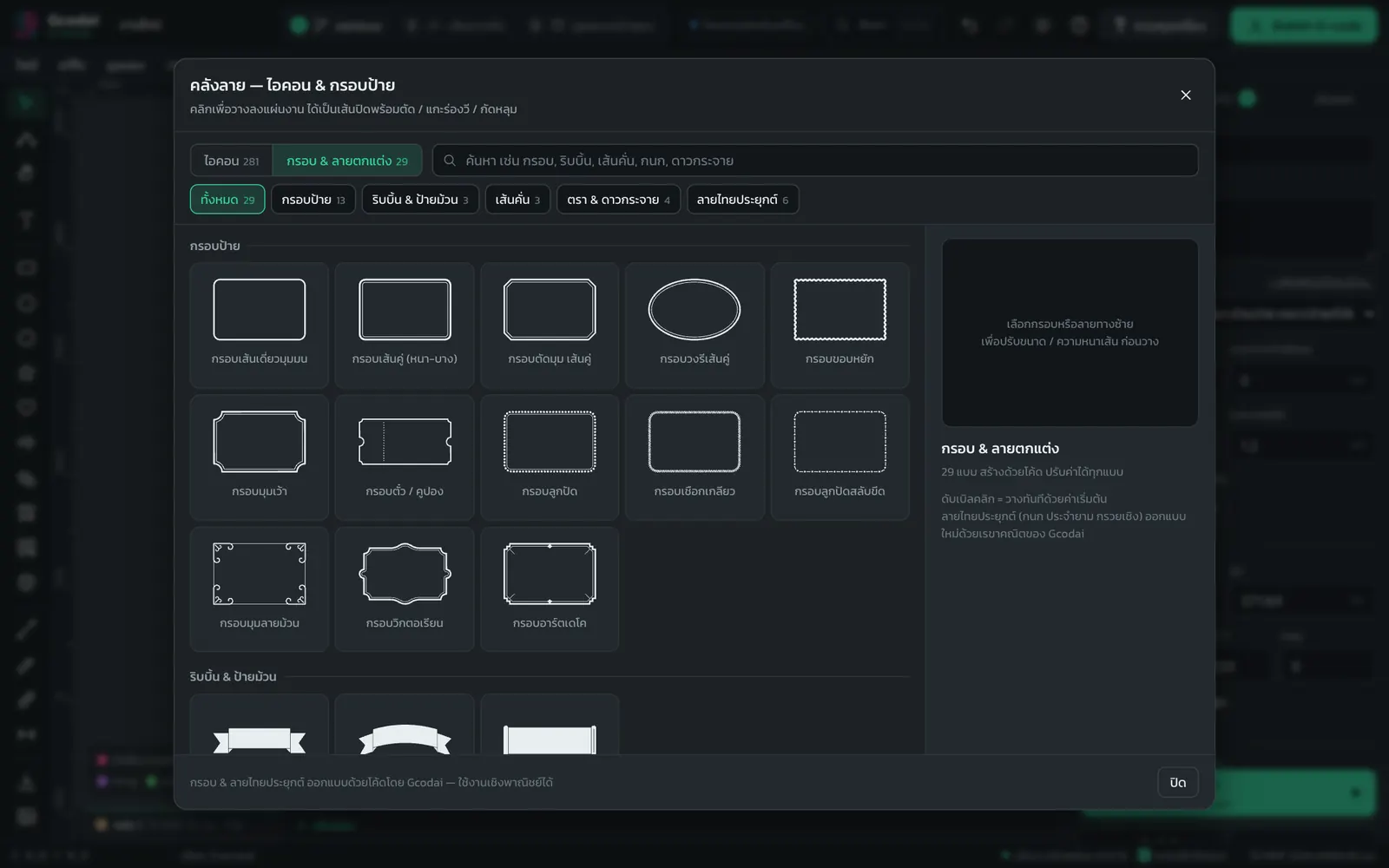
Short answer: Click Draw → Icons & sign frames…, search for words like phone, coffee, restroom, parking or arrow, then click an icon to place it in the middle of the screen as closed lines ready to cut. The Frames & ornaments tab has frames, ribbons, dividers, Thai-style patterns (kranok, kracang, peony flowers, lotus petals, Thai arch frames, gables) and emblem elements. Set the size in millimeters before placing.

After this lesson you will…

  • Add symbols to a sign in seconds, without hunting for files online
  • Make sign frames that fit neatly around your text
  • Use Thai patterns and emblem elements to decorate temple and agency signs, or sculpt them as reliefs
  1. Click Draw → Icons & sign frames… (or type "icon" in the command search Ctrl+K)
  2. Tab Icons: search or pick a category, set the Longest side (default 60 mm), then click an icon. It is placed in the middle of the screen right away
  3. Tab Frames & ornaments: choose a style and adjust width, height and line thickness (mm). If you selected text first, click Surround the selection and the frame fits the text
  4. Click Place (or Ctrl+Enter), then set the machining job as usual, such as V-carve or Pocket

Thai patterns and emblem elements (21 new designs)

CategoryPatterns
Thai-style patterns · single motifsLarge flame kranok · Kranok spray · Kracang ta-oi · Peony flower · Lotus bloom · Dok jan flower · Spiral (coiled kranok)
Thai-style patterns · bandsKracang row band · Lotus petal band (upward/downward lotus) · Interlaced garland band · Prajam yam corner band
Thai-style patterns · framesThai arch frame · Gable frame · Full Thai corner frame
Emblem elements (new category)Kranok ring around emblem · Laurel wreath around emblem · Sun rays · Dharma wheel · Flame rays · Curved ribbon banner under emblem · Double-line seal ring + text band

Every pattern is a solid shape with layers separated by grooves, ready to V-carve, pocket, cut or sculpt as a relief. Some patterns have extra settings, such as Upside down (1 = inverted lotus), Flame shape (1 = yes, 0 = straight), Sweep angle, Empty inner circle, Text area, Left/right dots (1 = yes) · For a 3D relief pattern, use Add component → Thai pattern / Pattern from library… in the Relief sculpting window

⚠️ Caution The Emblem elements category is only for designing your own emblems. It does not include the Garuda emblem, the Great Crown of Victory, the national coat of arms or any real agency emblems, which only authorized organizations may use. If your customer is an organization with its own emblem, use the emblem file the organization provides

Icon library in Gcodai Studio, searchable and split into categories such as restaurants, restrooms and directional signs
281 icons in 13 categories, searchable by keyword
Sign frames and ornaments window: adjust size and line thickness before placing, including Thai-style patterns
50 frames and ornaments, adjustable before placing

Once placed, a frame becomes ordinary lines and its frame settings cannot be edited later. For a new size, delete it and place a new one from the library

💡 Tip Solid icons suit V-carve or pocketing, thin-line icons suit midline engraving. You may use all icons in work you sell to customers

Module 3 · 16 lessons

Each machining job

Profile cut, V-carve, pocket, grooving, drilling, inlay, 3D bevel cut, prism letters, round-over/cove edges, waveboard walls and laser, one by one with the values to set.

Lesson 3.1 · About 8 min

Profile cut: acrylic letters and shaped signs, with tabs

Short answer: Select the part and click Profile cut. Use Outside the line for parts you will keep, Inside the line for holes or openings you will throw away, and turn on Leave tabs so parts do not fly loose when they are cut free.

After this lesson you will…

  • Cut letters and shaped signs to the exact size
  • Use tabs, or a thin skin instead of tabs
  • Know what each advanced setting does
  • Set the start point, cutting order and trochoidal grooving
  1. Select the part (for example text) and click Profile cut (cut out) under What to do with this object?
  2. Choose Which side of the line to cut: Outside (the part comes out at the design size) / Inside (the hole comes out at the design size) / Cut on line
  3. Check Leave tabs (keep parts from flying loose). It is off by default and only appears when cutting through
  4. Leave the depth on Auto and the program cuts through the full sheet thickness
  5. For fine control, click Advanced settings (see the table)
Advanced settingWhat it means
Finishing allowance for final passLeaves a thin layer so the final pass can clean up the edge smoothly
Cut directionClockwise / counterclockwise (the direction the bit travels around the line, seen from above) · For outside profile cuts clockwise is recommended; for inside cuts and pockets counterclockwise gives a smoother edge · Inner holes reverse direction automatically
Start pointFrom machine settings (default: top center) / Top center / Bottom center / Left center / Right center / Custom point / Auto (least travel) · Custom point: press N, click a point on the line, then click Set start point (red dot)
PlungeRamp 10° / Slow ramp 3° / Straight plunge. Ramping is gentler on the bit · If Ramp plunge is off in machine settings (the default), the first button becomes Straight plunge (from machine settings)
Depth orderPart by part to full depth (cut one part through all layers, then the next part) / Layer by layer for all parts (cut the first layer of every part, then go deeper, so small parts do not come loose mid-job)
Part orderNearest first (least travel) / Left→right / Bottom→top
Trochoidal groovingOff / Full circle (fast machines) / Half circle (typical machines). The bit moves in small loops along the line, reducing load on the bit and preventing breakage in metal or in grooves as wide as the bit (trochoidal) · Set Step per loop and Loop radius · When on, the program turns off tabs and arc lead-in/out for you
Ramp out on retractLifts the bit at an angle at the end of the line so it leaves no mark on the wall (ramp up)
Arc lead-in / lead-outOff by default: the bit starts inside the cut groove itself and ramps down along the line, leaving no mark outside the line · On = the bit enters and exits on an arc from the waste side (you will see a small arc mark outside the cut line)
Number of tabs / width / heightAdjust the size and number of tabs
Thin skin on final pass (instead of tabs)Leaves a thin skin across the whole sheet instead of tabs, which you trim off afterwards
Reset all to defaultsReturns to the values the program set
Acrylic letter cutting in Gcodai Studio: toolpaths around each letter with tabs
Acrylic letters: cut outside the line, with tabs on every letter

⚠️ Caution For letters with enclosed centers (O, A, D, B), if you cut them as a stencil sheet with Inside the line, the centers will fall out. Use Make stencil letters instead

💡 Tip On very small parts such as keychains, tabs can break easily. Try Final onion skin (instead of tabs): leave a thin skin, then trim it off with a craft knife

💡 Tip Want every job to start cutting at the same point, such as bottom center? Set it once in Machining → Machine settings… → Start point (all closed paths). The box in advanced settings changes it for one part only

Lesson 3.2 · About 5 min

V-carve: wooden signs with crisp letters

Short answer: Select the text and click Engrave letters (V-carve). The V-bit carves deeper where the stroke is wider, giving sharp corners like hand carving. For large letters or wide strokes, turn on Clear flat areas with a flat end mill to make it faster.

After this lesson you will…

  • V-carve wooden signs
  • Set the maximum depth and the V-bit
  • Use a flat end mill to clear wide areas
  1. Select the text and click Letter carving (V-carve)
  2. Set the Max depth (you can leave it on Auto) and the Bit, such as T5 V-bit 90° or T6 V-bit 45°
  3. Check the number showing the stroke width at full depth. Strokes wider than that get a flat bottom
  4. Check Clear flat areas with a flat end mill and choose a flat end mill. The program clears the floor with the flat end mill first, then the V-bit finishes the edges
  5. A full sign: draw the sign border and set it to Profile cut (cut out), so you get the carving and the cut-out in one file

💡 Tip A 90° V-bit makes wide, shallow grooves, good for most signs. A 45° V-bit makes narrow, deep grooves so the letters look more three-dimensional

The Machining tab may warn that there are flat areas at the depth limit and the V-bit must make several passes. That means you should turn on Clear flat areas with a flat end mill

Lesson 3.3 · About 5 min

Pockets, clearing areas, raised letters and a small bit for corners

Short answer: Select a shape, click Pocket and enter the depth. The program clears the inside of that shape to a flat floor. Use it for insert recesses or raised letters. For large areas, turn on 2-bit pocketing: a large bit clears the floor fast, then a small bit cleans up the corners.

After this lesson you will…

  • Cut pockets with flat floors
  • Make raised letters by clearing the area around them
  • Use a small bit to clean corners
  1. Select the shape, click Pocket and enter the Depth
  2. Choose the Pocket strategy: Offset (general) / Zigzag (flat floor) / Continuous spiral (hardly any retracts, fast) / High speed (every corner rounded, no bit shock), or click a preset: Normal · Flat floor · Adaptive (constant tool load) · Fast, few retracts
  3. Stepover (per pass) is a % of the bit diameter. Empty = the tool library value or 50%. Low values give a smoother floor but are slower; high values are faster but leave ridges. Below the box it shows how many millimeters apart each pass is
  4. Open More pocket settings if needed: Helical ramp (plunges in a helix instead of straight, good for bits without center cutting) · Leave wall allowance for finishing · Final wall cleanup loop
  5. For tight corners, check 2-bit cut: big bit clears the floor fast, small bit cleans corners, then choose the Small bit for corners

Raised letters (clear the area around the text)

  1. Draw a frame around the text. Select the frame first, then add the text to the selection
  2. Click Arrange → Subtract (first object minus the others) to get an area with the letters left out
  3. Set that area to Pocket and the letters are raised. Or use the Sign design assistant and choose the raised letters method

💡 Tip A round bit cannot make square inside corners: they are always rounded to the bit radius. If a square item must fit into the pocket, use Dogbone

Lesson 3.4 · About 5 min

Grooving along lines: neon flex grooves and ACP fold grooves

Short answer: Select a line and click Groove along the line. The bit follows the line to make a groove. Use it for neon flex grooves with the T7 neon flex grooving bit, and for ACP fold grooves with the T8 ACP composite grooving bit 90°, set to leave material so the panel folds without breaking.

After this lesson you will…

  • Make neon flex grooves along lines or letters
  • Make ACP fold grooves that leave just the right material

Neon flex grooves

  1. Draw the LED path with P or import lines from a file
  2. Select the line, click Groove on the line, choose the Bit T7 neon flex grooving bit (Neon) 6 mm and enter the Depth to suit the neon flex size
  3. For letters, use Midline (centerline) engraving and choose 2D constant depth. The groove runs down the middle of each letter (in files, use yellow lines)
Neon flex groove toolpaths on an acrylic sheet, following the letters in Gcodai Studio
Neon flex groove: the groove runs down the middle of the letters at a constant depth

ACP fold grooves

  1. Draw a straight line along the fold. Select the line and click Groove on the line
  2. Choose the Bit T8 ACP composite grooving bit 90° and set the depth to leave about 1 mm of material (in files, dark red lines get this set for you)
  3. Set the outline to Profile cut (cut out). Once cut, fold along the grooves

⚠️ Caution ACP thickness varies by brand. Groove a short test line and fold it first. If it cracks, you left too little material; if it is stiff to fold, you left too much

Lesson 3.5 · About 5 min

Midline engraving and flutes (variable-depth grooves)

Short answer: Midline engraving runs a V-bit along a single line down the middle of each letter. It is faster than V-carve and suits small text. A flute is a groove that gradually gets deeper then shallower, used for column flutes or flower petals.

After this lesson you will…

  • Use midline engraving on small text
  • Choose 2D / 3D / 3D cone to suit the job
  • Make flutes for decorative work
  1. Select the text and click Midline (centerline) engraving
  2. Choose the Depth along centerline (matching 2D / 3D / 3D Cone in UCanCam): 2D constant depth gives the same depth along the whole line, for example neon flex grooves / 3D depth by width makes the V-bit go deeper where the stroke is wider, but no deeper than the set depth / 3D cone follows the bit cone down until it fills the stroke width
  3. 3D cone does not use the Depth box above. To limit the depth, enter Max depth, and if you use a bit that is not a V-bit, enter the Bit cone angle (default 90°)
  4. Trim branches shorter than (mm) removes short midline branches that split off at letter corners (min midline length), so the job is cleaner and faster
  5. Cut order: Nearest first / X first / Y first. Check Reverse final finishing pass (Reverse machining) if you want smoother grooves
  6. Flutes: select the line, click Flute (variable-depth groove) and choose the Groove profile: shallow-deep-shallow / shallow → deep / deep → shallow

💡 Tip Flutes cut with a ball nose come out nicely rounded; with a V-bit they come out sharp

Lesson 3.6 · About 5 min

Drilling: bolt holes, bulb holes, holes along a line and full hole panels

Short answer: Draw a circle, line or closed shape and click Drilling. The Drill where box has 4 options: Center (drill the center of the circle), Along line (evenly spaced holes along the line), Fill area (a grid or honeycomb filling the shape) and Points only, like Drilling in UCanCam. You can set a dwell at the bottom and the drilling order. In imported files, purple circles are set to drilling automatically.

After this lesson you will…

  • Place mounting holes and light holes exactly
  • Drill holes along a line or filling an area with one command
  • Set the dwell at the bottom and the drilling order
  1. Draw a circle with E at the hole position (for a row of holes, draw a line or closed shape instead)
  2. Click Drilling and choose the Bit, such as T11 drill bit 3 mm
  3. Where to drill: Hole center of the circle or closed shape (holes larger than the bit are drilled with a helical path) / Along line drills a row along the line, such as pin holes or light holes following letters / Fill area drills a grid filling the closed shape, such as LED hole panels or grilles / Points only drills only the points or small shapes you drew
  4. For Along line, enter Every (mm). The program spaces the holes evenly along the line, never farther apart than this
  5. For Fill area, enter Horizontal spacing, Vertical spacing and Edge margin, and check Offset rows (honeycomb) if you want staggered rows
  6. Dwell at hole bottom (seconds) holds the bit at the bottom of the hole for a moment for a clean hole and full chip clearing (dwell), and Drill order: Nearest first / Row by row / Column by column
  7. To place holes at your own positions: Arrange → Repeat in grid… or Repeat around circle…

💡 Tip For holes larger than the bit, use Profile cut (cut out) with Inside, or a through-depth Pocket instead, to get the exact hole size

Dwell uses the machine's G4 command. Machines without it, such as DSP handheld controllers and NcStudio, show a warning that there is no dwell command (G4), and the file will not dwell at the bottom · For deep holes in hard materials, try setting peck drilling in Machine settings

Lesson 3.7 · About 5 min

Inlay: set acrylic or contrasting wood into wood

Short answer: Select a shape or text and click Inlay. The program creates 2 files: a pocket in the main piece and an insert cut-out, already mirrored. Press the insert into the pocket and glue it for an inlay flush with the surface.

After this lesson you will…

  • Create inlays that fit snugly
  • Know which file goes with which material
  1. Select the shape or text and click Inlay
  2. Set the depth and bit. The program tells you that you will get 2 files: pocket + insert cut-out (mirrored)
  3. Export with Download all (ZIP) to get both files
  4. Run the pocket file on the main piece and the insert file on the inlay material, then press them together and glue
Letter inlay in Gcodai Studio showing the pocket in the wooden board and the mirrored insert ready to fit
Inlay: pocket in the main piece and the mirrored insert cut-out

💡 Tip Open Sample jobs… → Letter inlay to see ready-to-use settings

Lesson 3.8 · About 4 min

Dogbone / T-bone joint corners and chamfered edges

Short answer: A round bit cannot make square inside corners, so square parts will not fit. Set Joint corners to Dogbone or T-bone and the bit cuts slightly past each corner so parts fit snugly. Chamfer uses a V-bit to bevel the top edge neatly.

After this lesson you will…

  • Make tight-fitting joints with dogbones
  • Bevel the top edge with a chamfer
  1. Select a part set to Profile cut (cut out) or Pocket
  2. In the Dogbone corners box choose None / Dogbone / T-bone
  3. Chamfer: check Chamfer top edge with V-bit (Chamfer) and enter the Chamfer width (measured on surface)
  4. The Bit tip below edge (h) box lets the bit tip go a little past the chamfer face, so no burr is left when the sheet is not flat (empty = 0.1 mm; UCanCam calls this value h)

💡 Tip A dogbone cuts past the corner diagonally. A T-bone cuts past it to one side only, which is good when you want the relief hidden on a side nobody sees

Lesson 3.9 · About 5 min

3D bevel cut (V-bit): beveled-edge letters and holes with sloped walls

Short answer: Select a part and click 3D bevel cut (V-bit). The V-bit cuts along the edge so the part's wall slopes at the bit angle, like 3D Cutting / 3D Corner Engraving in UCanCam. Choose whether the top edge or the bottom edge matches the design size. Use it for beveled-edge letters, full-thickness beveled signs or holes with sloped walls.

After this lesson you will…

  • Cut letters and signs with beveled edges using a V-bit
  • Choose whether the top or bottom edge matches the design size
  • Know how deep a V-bit can cut
  1. Select text or a closed shape and click 3D bevel cut (V-bit) under What to do with this object?
  2. In the Bit box choose a V-bit, such as T5 V-bit 90° or T6 V-bit 45° (with any other bit the wall comes out vertical, and the program warns you to change it)
  3. Mill region: Outside = the part is inside the line, for example beveled-edge letters / Inside = the waste is inside the line, for example holes or pockets with sloped walls
  4. Design size at: Top edge (Top) the top matches the design and the base flares out / Bottom edge (Bottom) the bottom matches the design and the top is smaller. Below the box it shows how many millimeters wide the sloped wall is
  5. Corner: Arc the bit goes around corners on an arc / Sharp crisp sharp corners. Enter a Side allowance if you want to leave material for a later finishing pass
  6. Inside the line: set Area clearance inside line to None / Raster / Offset, then enter the Overlap (default 50%). For Raster you can set the Path angle

⚠️ Caution A V-bit can cut no deeper than the height of its cone (the cutting edge). If the depth is too much, it shows Deeper than bit flute, along with the depth it can reach. The default for this job is to cut through the sheet. For thick sheets, use a V-bit with a wider cutting edge, or reduce the depth and cut through the rest with Profile cut

💡 Tip To cut in several passes, enter Depth per pass on the job card in the Machining tab, or turn off Single pass for all jobs in Machine settings

This job is included in the Sign Shop plan and above.

Lesson 3.10 · About 5 min

Prism letters: letter faces with a sharp ridge, cut with a V-bit

Short answer: Select the text and click Prism letters (V-bit). The V-bit cuts the letter faces so they slope up and meet in a sharp ridge down the middle, like Prism machining in UCanCam. Popular for light box signs, acrylic and brass. The program cuts layer by layer from the top down for you.

After this lesson you will…

  • Make prism letters with a sharp ridge
  • Set the first layer depth and the depth per next layer
  • Know how deep you need to go for a sharp ridge everywhere
  1. Select the text, click Prism letters (V-bit) and choose a V-bit in the Bit box (the prism faces come from the bit's cone angle)
  2. Check the line below the buttons: Full prism ridge depth … mm. If the depth is less than this, the wide parts get a flat top face. If it is deep enough, it says Sharp ridge everywhere
  3. Enter the First pass depth and Next layer depth, each no more than the bit cone height (the program shows it on the same line)
  4. Set the Bit path overlap (Overlap) (default 20%) and the Corner (Angle type): Rounded the bit goes around corners on an arc / Sharp (Cusp) sharp corners
  5. You can leave Skip outer loop on first layer (Simplify first layer - faster) checked. It is on by default

💡 Tip To cut the letters out of the sheet too, duplicate the outline (Ctrl+D) and set the copy to Profile cut (cut out). The program cuts the prism faces first and then cuts through

This lesson is different from Prism (sharp ridge) in 3D raised letters. That one makes a relief and finishes it with a ball nose, while this lesson cuts crisp flat faces directly with a V-bit, which is much faster · This job is included in the Sign Shop plan and above

Lesson 3.11 · About 5 min

Round-over / cove edge (Embossing): rounded edges and coves with a ball nose

Short answer: Select letters or a sign and click Round-over / cove edge (Embossing). The ball nose shapes the edge into a rounded profile, a cove or a slope, like Embossing machining in UCanCam. It works for both raised shapes and recessed pockets, has presets to click, and shows the edge profile as soon as you change a value.

After this lesson you will…

  • Make rounded edges or coves around letters and signs
  • Choose a raised shape or a recessed pocket
  • Shape the edge with the top and bottom angles
  1. Select the part, click Round-over / cove edge (Embossing) and choose a ball nose in the Bit box, such as T12 ball nose 6 mm
  2. Style: Raised (Male) the edge slopes down outward, for example raised letters with rounded edges / Recessed (Female) the edge slopes down inward, and the pocket floor is cleared for you
  3. Click a preset Cove, Round, Straight slope or Ogee. The edge profile above changes to match
  4. The Depth box above is the height of the edge. Enter the Edge width (Width) (empty = same as height) and Offset from line (Border) if you want the edge to start away from the line
  5. Shape the profile yourself with the Top angle and Bottom angle (0–89°)
  6. Overlap defaults to 80%. Higher is smoother but slower. For Recessed, choose Clear pocket floor: Offset / Raster
PresetTop angle / bottom angleResulting edge
Cove0° / 0°Vertical top edge, flat bottom, a concave curved groove
Round-over (Round)85° / 85°Rounded top edge, then straight down at the bottom
Straight slope45° / 45°Almost a straight 45° slope
Ogee60° / 10°Rounded top, flat bottom, like a classic molding

💡 Tip Below the Overlap box it shows how many millimeters apart each pass is. If the surface still looks ridged, increase the overlap or use a smaller ball nose

A ball nose is required; if you choose another bit, the program warns you · This job is included in the Complete plan

Lesson 3.12 · About 5 min

Texture / waveboard: straight grooves, wave grooves, 3D waves, fan pattern

Short answer: Draw a closed shape the size of the area you want, then click Texture / waveboard. The program machines a pattern across the whole shape. Choose from 4 types: straight grooves, wave grooves, 3D waves and fan pattern, with ready-made pattern buttons to click, like Waveboard in UCanCam. Use it for decorative walls, headboards or textured sign backgrounds.

After this lesson you will…

  • Machine a waveboard wall from a rectangle
  • Pick a ready-made pattern and adjust the wave size yourself
  • Know which bit to use for each pattern
  1. Draw a closed shape the size of the wall or sheet (such as a rectangle), click Texture / waveboard and choose a ball nose in the Bit box (a V-bit is recommended for the fan pattern)
  2. Pattern: Straight grooves / Wave grooves (grooves that wiggle like a wave seen from above) / 3D waves (straight grooves that go deeper and shallower in waves, giving a rippled surface) / Fan pattern (grooves radiating from one point)
  3. Or click a ready-made pattern below and fine-tune it (see the table)
  4. The Depth box is the groove depth. Adjust the Groove spacing (empty = bit diameter) and the Groove angle to rotate the pattern
  5. Wave grooves and 3D waves: set the Wavelength, Wave shift per groove (180° = neighboring grooves alternate) and the Wave height (wave grooves only)
  6. Finishing touches: Fading groove ends makes the groove ends gradually get shallower until they disappear, Inner edge margin, and Cut back and forth (faster), which is on by default
Ready-made patternResultRecommended bit
Straight grooves, faded endsStraight grooves whose ends gradually get shallowerBall nose
Small wavesA fine rippled surfaceBall nose 6 mm
Large wave wallLarge waves, offset groove by grooveBall nose 12 mm
Ocean wave groovesParallel wave groovesBall nose
BraidAlternating wave grooves that look like a braidBall nose
Fan patternGrooves radiating from one pointV-bit

💡 Tip The pattern fills the whole closed shape and skips holes automatically. To leave a logo or name plate in the middle of the wall, draw the logo on top of the frame, then use Arrange → Subtract (first object minus the others) so the frame has a hole there

For walls longer than the machine table, use the lesson Jobs larger than the machine work area to split the file into sections and slide the sheet to keep cutting · This job is included in the Sign Shop plan and above

Lesson 3.13 · About 4 min

Several jobs on one part, cutting order and cutting styles

Short answer: One part can have several jobs, for example V-carve and then cut around it. Click Add another machining job to this part in the right panel. You can reorder jobs in the Machining tab, and save settings you use often as a cutting style to reuse next time.

After this lesson you will…

  • Add several jobs to one part
  • Reorder and hide jobs
  • Save and reuse cutting styles
  1. Select a part that already has a job and click Add another machining job to this object, then choose the second job
  2. Tab Machining → Cut order: use ▲ ▼ to reorder, and click the eye button to hide a job temporarily
  3. Click a job card to edit the feed rate, plunge rate, spindle speed, depth per pass and stepover. All objects in this job changes the depth or bit for every part at once
  4. Change a job's bit: click the bit button on the job card. If the same job is on several sheets, the menu asks you to choose All sheets with this job or This sheet only before picking the bit (the program remembers your choice)
  5. Save a style: set the values you like and click Save style. Next time choose from Use a saved cutting style…
  6. For lines you do not want cut (guide lines), click No cut

💡 Tip The program orders jobs automatically (engraving first, cut-through last). If you reorder them yourself in an unsuitable way, Check job before export shows a Restore auto order button

Lesson 3.14 · About 5 min

Laser jobs: cut through, score lines and fill areas

Short answer: Choose GRBL laser (LaserGRBL / LightBurn, M4) as the machine type. The job buttons change to Cut through (laser), Score line (laser) and Fill area (laser). Enter the power as a percentage, the speed and the number of passes, then export a .nc file.

After this lesson you will…

  • Switch the program to laser mode
  • Set the power, speed and number of passes
  • Know the safety rules
  1. Tab Export → Machine / controller, choose GRBL laser (or set it in Machining → Machine settings…)
  2. Select the part and click Cut through (laser), Score (laser) or Fill (laser)
  3. Enter Power %, Speed and Number of passes. For fills, also enter the Line spacing and Line angle
  4. Export the file, or send it over USB with the machine control window

⚠️ Caution Never use a laser on PVC. The program warns you when you choose an unsafe material. Before firing, adjust the focus, set $32=1 (GRBL laser mode), wear laser safety glasses and keep a fire extinguisher within reach

💡 Tip For lines you do not want lasered, use Don't fire (the same button as No machining in CNC mode)

Lesson 3.15 · About 6 min

LED layout in channel letters

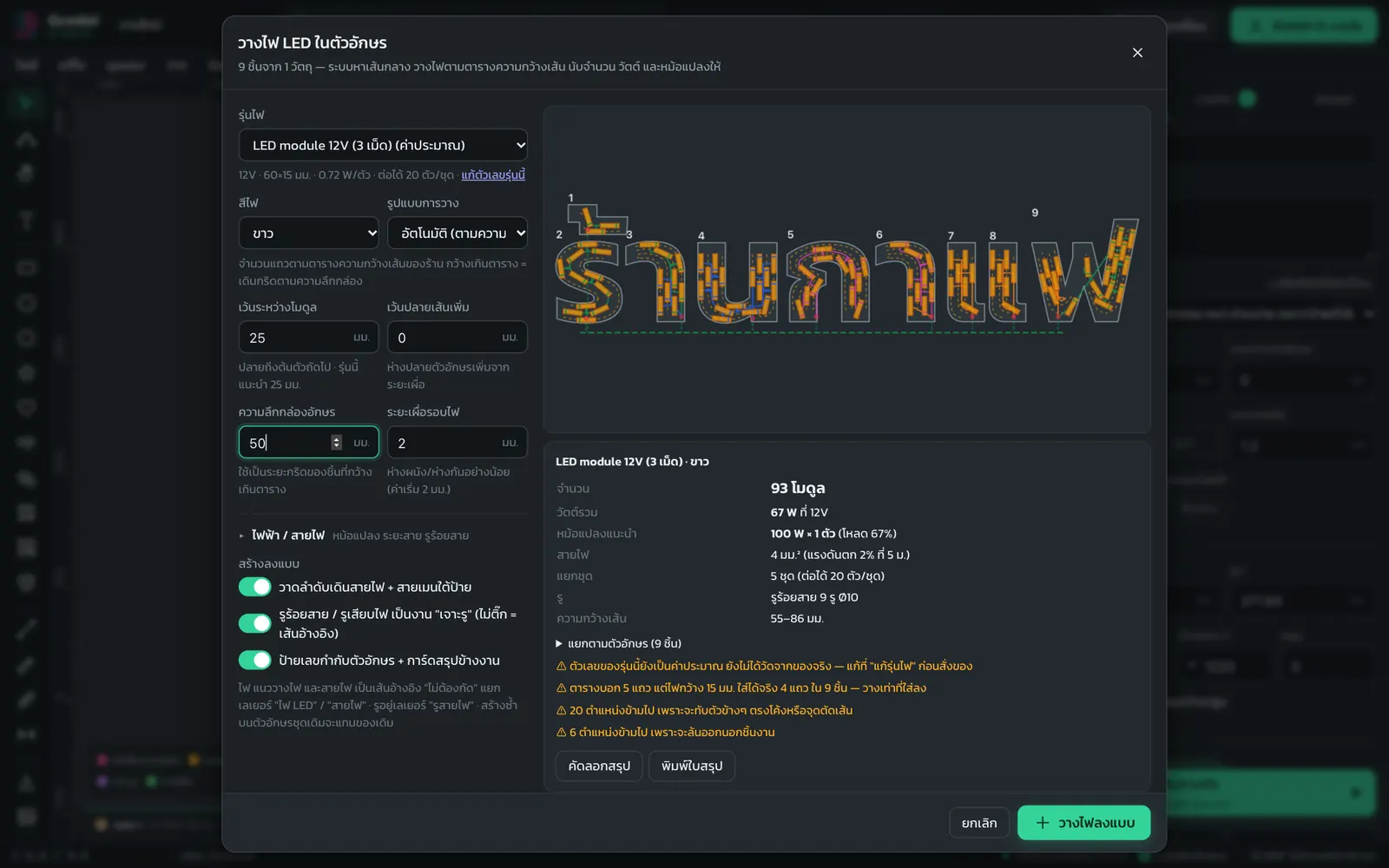
Short answer: Select letters or a logo made of closed shapes and click Signs → LED layout in letters…. Choose the LED type, model and layout pattern. The program lays out the LEDs eCut-style and shows them right away (even rows run parallel to the edges, odd rows add a center line, every LED sits fully inside the letter, no letter is left dark, and small letters that cannot fit LEDs use ribbon LED instead). It counts the LEDs or the length of LED strip, total watts, power supply size (with 20% headroom) and wire size, and drills the wiring holes for you.

After this lesson you will…

  • Calculate LEDs and power supplies for channel letter signs yourself
  • Choose a layout pattern that suits the stroke width, with no dark letters
  • Get an LED summary sheet for the installer and for pricing
  1. Select the letters (typed text works as is) or a logo made of closed shapes
  2. Click Signs → LED layout in letters…
  3. Choose the Light type and Light model, such as LED module 12V (3 LEDs), LED strip 12V / 24V, ping-pong LEDs, 5V bullet LEDs or 220V LED
  4. Choose the Layout pattern: Auto (by stroke width) counts rows from your shop's stroke width table; even rows run parallel to the edges and odd rows add a center line; wider than the table = a grid based on the letter depth (single LEDs can use Auto too) · Centerline run · 1 edge row · 2 edge rows, two loops parallel to the edge, one LED apart · Fill area · Grid (parallel rows), horizontal rows spaced at the letter depth, good for light boxes and solid signs · Parts too narrow for the chosen pattern get a center line automatically
  5. Enter values for the LED type: modules Gap between modules, Extra stroke-end setback · strips Strips per letter stroke (2 strips (pair) = down one side, U-turn at the end, up the other side), Gap between strips · single LEDs LED spacing · edge and fill patterns have an Edge distance box (if you enter too little, the program enforces a minimum of half an LED + the clearance so nothing spills over the edge). Then set the Clearance around lights and the Letter box depth
  6. With modules or single LEDs: check Small letters use ribbon light (on by default) and choose a ribbon LED model. Letters too small or strokes too narrow for LEDs get ribbon LED instead. The summary card shows Ribbon light in small letters in meters and a separate Ribbon light power supply if the voltages differ. If the chosen LED does not fit any letter, the summary card switches the whole job to ribbon LED
  7. Check the summary card, then click Place lights in design. Click Print summary if you want a job sheet or a PDF
Resulting layerWhat it is for
LEDEach LED position, LED strip paths and ribbon LED in small letters, as reference lines that are not cut
WiringWire routing along the LED rows, as reference lines that are not cut
Wire holesWire pass-through / LED plug holes, already set as a drilling job, fully inside the letter and kept 2 mm away from the LEDs
LED layout in letters window showing LED positions inside the letters, LED count, total watts, power supply size and wire size
See the LED positions and the electrical summary card as soon as you change a value

How the eCut-style layout works: modules must sit fully inside the letter and can tilt to follow curves (rigid bars do not tilt and never overlap). Closed loops are spaced evenly all the way round, so no gap is wider than the value you entered. LED strips are fed from the end nearest the wire hole

The numbers are estimates. LED brands draw different power, so click Edit this model's numbers to match the LEDs your shop actually buys · For complex letter shapes, the LED count may differ slightly from other programs

💡 Tip Combine this with the next lesson, Edge roll, to get the letter faces, the returns and the LEDs all in one job

Lesson 3.16 · About 7 min

Edge roll (letter returns): make channel letters from ACP

Short answer: Select the letters and click Signs → Edge roll (letter returns)…. Enter the return height and sheet thickness. The program unrolls the edge of each letter into a long strip with fold grooves at corners, bending grooves on curves, strip joints and fold-over flanges, then nests them on a 1220×2440 ACP composite sheet ready to cut with a V-bit.

After this lesson you will…

  • Make channel letter returns without measuring lengths yourself
  • Get return sheets and letter face sheets ready to send to the machine
  1. Select letters or a logo made of closed shapes (for imported files with broken lines, use Arrange → Join broken lines first)
  2. Click Signs → Edge roll (letter returns)…
  3. Enter the Return height, Return sheet thickness, Flange width and the material sheet size
  4. Choose how the strip ends join: butt joint, lap joint or jigsaw lock, and choose the fold groove bit (V-bit), the bending groove bit and the cut-through bit
  5. Check the preview and strip table, then click Create cut sheets. You get the work sheet, Return sheet 1, 2… and Letter sheet 1, 2… (letter sheets are mirrored left-right to cut from the back)
Edge roll window showing the unrolled return strips, fold grooves, bending grooves and the strip length table
Return strips unrolled with fold grooves and joints, nested on sheets automatically

💡 Tip Click Download strip table (CSV) to get the length of every strip, for checking during assembly or for material costing

Cut a small test piece to check the fold groove depth on the real sheet first. Grooves too deep will break when folded; grooves too shallow will not fold into a clean corner

Module 4 · 6 lessons

Bits, materials and machines

Set them up once to match your shop, and the program chooses suitable values for every job.

Lesson 4.1 · About 6 min

Tool library T1–T12 and default speeds per bit

Short answer: Open Machining → Tool library…. There are 12 slots, T1–T12, to set up to match the bits your shop has. Edit the name, type, size and angle, and click the gauge button at the end of the row to set that bit's speeds for each material. Empty boxes use automatic values.

After this lesson you will…

  • Set up the tool library to match the bits in your shop
  • Set default bit speeds for each material
  • Know where to change speeds for a single job
  1. Click Machining → Tool library… (or tab Machining → Tool library T1–T12)
  2. Each row has the slot, name, type, size ⌀, angle, tip/flute style, flute length and number of flutes. Edit them to match the real bits
  3. To switch to a ready-made bit from the catalog, click Find a bit in the catalog or the magnifier button in the row
  4. Set default speeds for a bit: click the gauge button (this bit's speeds per material) to open the Speeds for bit T# window. Enter values only for the materials you want; empty = auto
  5. To go back to the original set, click Reset to defaults
SlotDefault bit
T1Compression 3.175 mm (1/8")
T2Flat end mill 2 mm
T3Flat end mill 6 mm
T4Flat end mill 12 mm (area clearing)
T5V-bit 90°, 12 mm cutting diameter
T6V-bit 45°, 12 mm cutting diameter
T7Neon flex grooving bit (Neon) 6 mm
T8ACP composite grooving bit 90°, 12 mm cutting diameter
T9Engraving bit 30°, 0.2 mm tip
T10Ball nose 3.175 mm
T11Drill bit 3 mm
T12Ball nose 6 mm
Gcodai Studio tool library window T1 to T12 showing bit names, types, sizes, angles and the speed button for each bit
Tool library T1–T12: set it up to match the bit slots in your shop

💡 Tip To change speeds for a single job, you do not need the tool library. Click the job card in the Machining tab and edit the feed rate, spindle speed and depth per pass right there

💡 Tip The T slot number matches the number in the G-code file. Machines with an automatic tool changer (ATC) pick the bit by this number, so set it to match the real slot on your machine

💡 Slot numbers can repeat You can store more than 12 bits in the library, for example T8 holding ACP grooving bits at 90°, 108° and 130°, or several sizes of molding bits. Use the Duplicate button on the bit's row, then edit the angle/name · Choose the bit for each job with the bit button on job card in the Machining tab (✨ let the program choose, or pick a bit from the library) · The G-code file names the bit to fit at every tool change. With an automatic tool changer, the program warns you when one file uses several bits with the same number

Lesson 4.2 · About 3 min

CNC bit catalog: find bit specs and add them to the library

Short answer: Machining → CNC bit catalog… collects the bits sign shops use most, with specs. Search by type, such as flat end mill, compression, V-bit, ball nose, ACP grooving bit or neon flex grooving bit, then add one to a tool library slot right away.

After this lesson you will…

  • Find bits by job type
  • Add bits from the catalog to your library
  1. Click Machining → CNC bit catalog…
  2. Choose a category: flat end mill, compression, up-cut / down-cut, O-flute, V-bit, flat-tip engraving bit, ball nose / tapered ball nose, round-over bit, drill bit, ACP composite grooving bit, neon flex grooving bit (Neon), spoilboard surfacing bit
  3. Choose a bit and add it to the T slot you want
CNC bit catalog in Gcodai Studio with categories for flat end mills, V-bits, ball nose and grooving bits, with sizes and uses
Bit catalog: choose by job type, then add to your tool library

Lesson 4.3 · About 3 min

My materials: add your own, such as HDPE or brass

Short answer: If your material is not one of the 8 built-in materials, add it yourself in Machining → My materials…. Enter a name, choose the closest material, the default thickness, spindle speed, chip load and depth per pass, then use it like any other material.

After this lesson you will…

  • Add a new material so the program can calculate speeds for it
  1. Click Machining → My materials…
  2. Enter the Name and Similar to (for example HDPE is similar to acrylic). The program uses that material's values as a base
  3. Enter the Default thickness, Spindle speed, Chip load and Depth per pass if you know them

💡 Tip Chip load is the thickness of material each cutting edge takes per revolution. Too high and the bit breaks; too low and the bit overheats and the material melts. If you are not sure, leave it empty and the program uses the value from the similar material

Lesson 4.4 · About 6 min

CNC machine settings (do this once)

Short answer: Machining → Machine settings…: enter the controller type, work area size, max speed, max/min spindle speed, safe Z, machine rigidity, default speeds for all bits, start point and plunge method. Set it once and the values are remembered and synced with your account. The defaults are a single pass for every job, straight plunge, feed rate 3000 and plunge rate 1000 mm/min.

After this lesson you will…

  • Set the machine settings to match the real machine
  • Understand safe Z and machine rigidity
  • Choose where the spindle parks when the job ends
  • Set the default speeds, start point and plunge method for every job
  1. Click Machining → Machine settings…
  2. Choose the Machine type / controller (see the lesson Choosing the machine type), enter the Work area width (X), Work area length (Y) and Max feed rate
  3. Enter the Max spindle speed, Min spindle speed, Spindle spin-up wait before cutting and the Board max S value (some boards use S1000 instead of full RPM)
  4. Enter the Safe Z: the height the bit lifts to for rapid moves. It must be higher than your clamps
  5. Default feed rate (all bits) and Default plunge rate (all bits) default to 3000 and 1000 mm/min and apply to every bit and material, except bits with speeds set in the tool library or values edited on the job card · Clear them = calculate automatically from the material
  6. Start point (all closed paths): Top center (default) / Bottom center / Left center / Right center / Custom point (set with the edit nodes tool N → Set start point) / Auto (least travel)
  7. Choose the Machine rigidity: Desktop / Standard / Heavy steel frame. The program uses this to calculate automatic speeds
  8. When the job ends → Park the head at: Job zero (X0 Y0) / Behind the sheet (easy to take the part off) / Stay put / Machine home (needs limit switches), plus Retract height (at job end)
  9. Peck plunge, step (mm): the bit plunges in steps and lifts to clear chips (pecking plunge), for jobs that plunge straight down, plus Chip-clearing lift above surface (empty = 1 mm) · First box empty = plunge in one go
  10. Ramp plunge is off by default = the bit plunges straight down in every job, for bits that can plunge (center cutting) · On = the bit ramps down along the line, so it stays cool and does not break
  11. Single pass for all jobs is on by default (depth per pass = job depth), good for powerful machines or thin sheets such as ACP and thin acrylic · Turn it off and the program splits the job into several passes by material, which is gentler on the bit
  12. For GRBL machines that run jobs with UGS or Candle and want one file per bit, check Separate file per bit (change the bit, then open the next file)

⚠️ Caution Set the rigidity honestly. On a small desktop machine (such as a 3018), choosing Heavy steel frame makes speeds higher than the machine can handle, and bits can break or motors can skip steps

💡 Tip For thick sheets, solid wood, acrylic or aluminum, turn off Single pass for every job, turn on Ramp plunge and clear the default speed boxes. The program splits the passes and calculates speeds from the material for you. For deep holes in hard materials, set Peck plunge to help clear chips

Lesson 4.5 · About 5 min

Choosing from 12 machine types: which one for your machine

Short answer: Choose the machine type in the Export tab, Machine / controller box, to match the software or box that controls your machine. For example, a GRBL board: choose GRBL; a computer running Mach3: choose Mach3; Weihong controlled by a computer: choose NcStudio; a Richauto handheld controller: choose DSP. If yours is not listed, you can create your own file format (see the next lesson).

After this lesson you will…

  • Know which type to choose for your shop's machine
  • Know the differences in tool changes and the files you get
Machine typeBest forFileTool change
GRBLMost Chinese hobby machines, Arduino boards. Can receive jobs over USB from Gcodai.ncPauses for tool change
Mach3 / Mach4Computer + LPT/USB port.tapPauses for tool change
grblHAL / FluidNC32-bit boards using ioSender or WebUI.ncPauses for tool change
UCCNCCNCdrive UC100 / UC300 / UC400ETH cards.ncPauses for tool change
LinuxCNCLinux computer + Mesa / LPT card.ngcSeparate file per bit
MASSO G3Controller with built-in touchscreen.ncSeparate file per bit
Centroid Acorn / CNC12Machines using M6 + G43 tool length.ncTool change with M6
Standard G-code ISO/FanucGeneral controllers that read standard ISO.ncPauses for tool change
CNC-ATCAutomatic tool changers: Syntec / LNC / Fanuc (M06 + G43).txtChanges bits automatically
DSP handheld controllerRichauto A11 / Weihong / basic Syntec.ncSeparate file per bit, straight lines only, no comments
NcStudioWeihong with computer + control card.ncSeparate file per bit, with arcs, no comments
GRBL laserLaserGRBL / LightBurn (uses M4).nc–
  1. Click Export G-code and choose in Machine / controller, or set it as the default in Machining → Machine settings…
  2. Not sure? Look at the name on the machine control software screen or on the handheld controller. Most have the brand written on them

Sending jobs directly from Gcodai works only for GRBL over USB. For Mach3, UCCNC, LinuxCNC, MASSO, NcStudio, DSP and Syntec, download the file and open it in the machine control software, or copy it to a USB flash drive and plug it into the handheld controller

💡 Tip Many DSP handheld controllers misread arcs (G2/G3), so the program converts them into short straight lines. NcStudio reads arcs correctly, so its files are smaller and curves are smoother

💡 Tip Change the file extension in the Export tab, File extension box (.nc .tap .txt .gcode .ngc .cnc .gc .nct). .jg files must be converted with the machine manufacturer's CNC_Change program. See the lesson Export G-code

Lesson 4.6 · About 5 min

Machine not on the list: customize the file format yourself

Short answer: Click Machining → Machine settings…, then Customize file format… (the same button is in the Export tab). Choose the closest machine as a template, edit the header, tool change block and footer, watch the live code preview every time you edit, then save it as My machine. It syncs with your account.

After this lesson you will…

  • Make files that match a controller that is not on the list
  • Share the file format with other shops or machines
  1. Click Machining → Machine settings… → Customize file format…
  2. Choose a Prototype from the closest machine, then set the Machine name (shown in menu)
  3. Set the File extension, Units, Decimals, Comments, Tool change and Spindle on command
  4. Edit the Header · Tool change block · Footer boxes. Click the variable buttons to insert values such as {T} tool number, {S} spindle speed, {F} feed rate, {SAFEZ} retract height, {SEC} / {MS} spindle wait time
  5. Check the Code preview (small job, 2 bits). When it says Format is valid, ready to save, click Save and use this machine
Customize machine file format window: edit the header, tool change block and footer with a live G-code preview
Edit and see the G-code preview instantly. The program checks the format before saving

Code may contain English characters only (no Thai), up to 40 lines per box, and up to 20 machines can be stored · For the first file from a new format, do a dry run with the Z axis raised above the work before cutting for real

💡 Tip Click Save as .json file to share it with other shops. Shops with the same machine model can import it right away without setting it up again

Module 5 · 7 lessons

3D work

Reliefs from images or STL, curved raised letters, layered relief sculpting, photos on wood, 3D slat walls, turned shapes, and carving around a log on 4/5 axes

Lesson 5.1 · About 5 min

3D relief from an image or STL file

Short answer: 3D menu → Image → 3D relief… turns an image into a relief, or 3D → Import 3D model (STL)… uses a ready-made model. Then set the relief depth and surface quality. Gcodai creates a roughing toolpath with a flat end mill and a finishing pass with a ball nose.

By the end of this lesson you will…

  • Create a relief from an image or STL
  • Balance surface quality against cutting time
  1. Click 3D → Image → 3D relief… or Import 3D model (STL)…
  2. Adjust Raised areas, Contrast, the relief width and depth, Surface smoothness and the base around the model (for STL you can pick View from)
  3. Click the relief. In the right panel section 3D machining, enter the Relief depth, choose a Surface resolution: Fast / Normal / Very fine, and the Finishing direction
  4. Tick Rough first with a flat end mill to save time, and Finish again in the other direction for a smoother surface
  5. Choose the Finishing bit (a ball nose, e.g. T10 or T12) and the Roughing bit

⚠️ Caution Very fine quality can multiply the cutting time several times over. Check the estimated time in the Machining tab before you decide.

💡 Tip Reliefs work best from black-and-white images where the raised parts are white. If the result comes out inverted, change Raised areas.

Lesson 5.2 · About 4 min

Turn letters or shapes into a 3D relief

Short answer: Select text or a shape, then click 3D → Make selected text/shapes 3D relief…. Choose a cross-section: prism (sharp ridge), rounded dome, pillow or chamfer. Set it to raise up or sink in, then cut with a ball nose.

By the end of this lesson you will…

  • Make curved raised letters
  • Choose the cross-section and the relief direction
  1. Select the text or shape and click 3D → Make selected text/shapes 3D relief… (or right-click → Make 3D relief…)
  2. Choose a cross-section: Prism (sharp ridge) / Rounded dome / Pillow / Chamfer
  3. Choose Raised or Sunken, and set the edge and the base
  4. Choose a ball nose in the 3D machining section

💡 Tip Prism (sharp ridge) looks like a V-carve, but raised. Great for premium wooden shop signs · For raised letters on a curved sign board, a moulding frame or several stacked layers, use 3D relief sculpting

Lesson 5.3 · About 8 min

3D relief sculpting (relief modelling): raised signs, Thai-motif signs, emblems, domed letters, moulding frames

Short answer: Select text or shapes on the sheet, then click 3D → Sculpt relief from selection…. Pick one of 15 ready-made templates in 4 groups: Signs / Letters / Thai motifs & emblems / Other, for example a raised sign on a curved base, a raised house-number sign, domed letters, a round organization sign, a temple/pavilion sign with an arch, or a moulding picture frame. Adjust the shape and height of each component on the left, add Thai motifs from the pattern library, sculpt more with brushes, then click Create on sheet. Gcodai turns it into a 3D relief and sets up roughing with a flat end mill and finishing with a ball nose for you. To edit later, double-click the sculpt on the sheet: everything is still there.

By the end of this lesson you will…

  • Make raised signs, domed letters, sunken letters, moulding frames and raised medals from templates
  • Make temple signs, organization signs, house-number signs and Thai-motif emblems, then add kanok and krajang motifs from the pattern library
  • Stack several relief components and choose how they combine
  • Refine the surface with brushes, then send the job to your CNC router

Step 1 · Select objects on the sheet, then open the sculpt window

  1. Type text or draw shapes on the sheet as usual, then select them. The Signs and Thai motif templates create the sign board or emblem body for you. If you want your own sign shape (rectangle, circle or a custom outline), draw the outline first and select it together with the text
  2. Click 3D → Sculpt relief from selection…, or right-click the object → Sculpt relief from selection…, or click the 3D relief sculpting button in the right panel
  3. You can also start with nothing selected: click 3D → Relief sculpting…. Templates that need letters get sample text first; replace it with your own later

Step 2 · Choose a starting template

The Choose a starting preset page has 15 templates in 4 groups. Each one shows a preview made from your actual selection. The depth is set automatically from the sheet thickness, and everything can be changed later.

GroupTemplateWhat you get
SignsRaised sign on curved baseA sign board that bulges in the middle, with round-edged letters or motifs raised on the curved base
Name sign with Thai motif frameA round-edged sign board, raised Thai motif corner frame and raised letters in the center
Raised house-number signA soft rounded sign, large bold raised numbers, krajang/kanok ornaments top and bottom
Desk sign / executive name plateA long sign, raised name in the center, raised lotus-base motif along the bottom edge
LettersDomed raised lettersLetters or shapes with a rounded dome profile, with the surrounding area cut down
Sunken lettersLetters carved down into the board with a rounded bottom, board surface unchanged
Raised letters on wave backgroundA wavy background with flat-faced letters floating above the pattern
Thai motifs & emblemsRound organization signA curved, raised round emblem with a kanok border, a laurel spray at the bottom, a raised logo/text in the center and a flat band around the ring for the name (add your own organization name/logo)
Round sunburst emblemA double ring, rays around the circle, raised center plate with raised text
Temple/pavilion sign with archA raised ruean kaew arch around the name, an ornament under the arch peak, sign board shaped to the arch
Gable signA raised gable (pediment) shape, a motif in the middle of the gable and a raised name on the board below it
Medal / round sealA raised medal rim, a curved raised center and your chosen motif raised in the middle
OtherMoulding picture frameA moulding that runs along the selected closed shape, or a rectangular frame. For picture frames and mirror frames
Layered flowerA flower with 2 layers of petals and a domed center
Start emptyAn empty area: add components yourself or sculpt everything with brushes

Templates in the Signs and Thai motifs & emblems groups create the sign board or emblem body for you, sized to the actual text on the sheet. If it is larger than the sheet, it is scaled down and you are told · If you also selected a sign outline on the sheet, that shape becomes the sign board · If nothing is selected, sample text is added first (the house-number sign gets numbers, the organization sign gets a sample motif in the center) · For the round organization sign, add your own organization's name and logo. Gcodai does not include the Garuda emblem or any real government or organization emblems

Step 3 · Adjust components (like layers)

  1. On the left is the Component list. Each component is one layer of the work. The top component is calculated last and sits over the ones below. Drag ⋮⋮ to reorder, click the eye to hide, double-click a name to rename
  2. Click a component, then choose under How to combine with components below: Add adds its height on top of the existing surface (e.g. letters on a curved base) · Merge (keep higher) overlapping parts do not spike up · Subtract carves down into the material · Keep lower trims peaks so nothing rises above this component · Replace uses this component instead of the existing surface inside its outline
  3. For components made from text or shapes, choose a Surface profile: Dome · Constant-radius round · Angled slope · Flat · Pillow · Chamfer · Cove · Ogee, then set Height, Edge width, Raise base and Flat top at
  4. For a softer or tilted surface, open Height adjust / blur (height multiplier, raise/lower, surface blur), Fade or Tilt · Move, scale and rotate a component with Move X, Move Y, Size, Rotate

Settings bar above the 3D view: select a component and edit X, Y, Lift Z, width, height (proportional), rotation, relief height and combine mode there; type a value and press Enter to apply it · with nothing selected (click empty space outside the work) the bar shows the work area size and base

Moving a component: click it in the 3D view to select it, then drag it to a new spot, or drag the arrows X (red), Y (green) and Z (blue, raise/lower). The yellow dot in the middle moves it freely on the floor · typing in Position X, Position Y or Lift Z under Move / Scale / Rotate moves it right away · dragging empty space still orbits the camera.

Step 4 · Add more components

Click Add component and choose a type:

  • From shapes on the sheet… text, shapes or closed paths, raised in the chosen profile
  • Flat floor a base of equal height over the whole area. Use it as a sign background, or as the board surface for sunken carving
  • Sweep along 1 path… a cross-section runs along a path, e.g. mouldings, edges, raised line art · Sweep between 2 paths… a cross-section stretches between two paths, e.g. leaves, frames of varying width
  • Revolve perfectly round shapes: dome, button, cup, ring, cone, layered flower, medal, seal (raised center, flat band around the ring for a name)
  • Thai motif / pattern library… click a category tab (e.g. applied Thai motifs, emblem elements, sign frames, dividers) or search in Thai, e.g. kanok, lotus, krajang, emblem. Click a motif, set Width × Height (mm), then choose a placement: Single centered in the work area · Around a circle motif tops pointing outward, set Quantity and Loop radius, for emblem/medal borders · In a row set the count and Run length, for sign base borders. Then click Place in sculpt (double-click a motif = place immediately). The motif becomes a raised component in Keep higher mode with its base at the work's base level; move, scale and rotate it on the left
  • Vector file (SVG / AI / EPS / PDF / DXF)… bring a logo or line art straight in without placing it on the sheet first. Closed shapes are raised in the chosen profile (holes stay with their shape), open lines become raised strokes. Choose By colour (colour illustrations: one layer per colour, heights set per colour and scaled to fit the board automatically), One piece per shape or Merge into one piece · very detailed files (thousands to hundreds of thousands of points) are simplified to the real job size, tiny bits removed and invisible paths (no fill, no stroke) skipped automatically, and Fit the work area or Actual size from file · you can also drop vector, STL or image files onto the sculpt window · convert text to outlines in your design program first
  • Relief from image / STL… a black-and-white image (light = raised) or an .stl model · Existing relief on the sheet… brings a 3D relief already on the sheet into this work

Step 5 · Sculpt with brushes

  1. Pick a brush on the toolbar: Add, Carve, Smooth, Flatten, Erase, Sign (keys 1–6), then drag over the surface
  2. Set Size (brush radius, mm) and Strength (%) · Press [ ] to quickly shrink/grow the brush
  3. Hold Shift = reverse (Add ↔ Carve) · Hold Alt = temporary smooth · Esc = back to Orbit · Ctrl+Z = Undo · F = fit the whole piece in view · ? = show all shortcuts
  4. Viewing: left-drag = rotate · mouse wheel = zoom · right-drag = pan · switch views 3D, Up, Front, Side, and turn on Contour lines or Height colors to see slopes

Step 6 · Create on sheet, then cut

  1. Check the bottom bar: work area size, required cutting depth and the warnings Nearly through the sheet or Deeper than the sheet! · Choose Resolution: Fast for trying designs, Normal or Fine for the real job
  2. Click Create on sheet. Gcodai places the 3D relief at the same position on the sheet and hides the source text/shapes in the object list (not deleted). Sign outlines and medal rings stay visible, ready to set as a Profile cut right away. If the sign board or emblem came from a template (you did not draw an outline), Gcodai also adds a Sign board outline (profile cut) or Emblem outline (profile cut) path already set as a Profile cut
  3. Click the relief. In the right panel section 3D machining, check Surface resolution, tick Rough first with a flat end mill and choose a ball nose as the Finishing bit
  4. Check the result in 3 Simulate, then export G-code as usual

Edit it later

Double-click the sculpt on the sheet, or select it and click 3D → Edit selected sculpt… (or right-click → Edit this sculpt…, or the Edit sculpt button in the right panel). Every component and brush stroke is still there. When you are done, click Save changes. The sculpt is also stored in the .gcodai job file.

💡 Tip Relief depth must always be less than the sheet thickness. The highest point of the work is the board surface; the lowest is where the bit goes deepest. Templates are set to no more than 60% of the thickness (12 mm max), e.g. 20 mm wood can go about 12 mm deep and still leave a solid back. If the bottom bar shows Almost through the sheet, lower the component's Height or Height scale

Sculpted surfaces must be finished with a ball nose. A small bit (e.g. 3 mm ball) finishes small letters and narrow grooves more crisply but takes longer; a large bit (6 mm) is faster and suits wide curved bases. Roughing uses a flat end mill · Make sure the ball nose's cutting length is longer than the job depth · This feature is in the Complete plan

⚠️ Caution If you click Cancel before Create on sheet, the work sculpted in the window is lost. Gcodai asks you to confirm before closing.

Export as an STL file

Click Export STL in the bottom bar of the sculpt window, or select a 3D relief on the sheet and choose 3D → Export selected 3D relief as STL…. Set the Base thickness under relief and the resolution, then click Download STL. You get a closed solid in millimetres that opens in other 3D programs, can be 3D printed, or imported back as a relief. The sculpt stays editable in the app (STL export needs the Complete plan).

Lesson 5.4 · About 4 min

Photos on wood: halftone dot engraving

Short answer: File → Photo → Halftone engrave… (or the 3D menu) turns a photo into dots of different sizes, then a V-bit plunges each one as a hole. Dark areas become big dots and light areas small dots. From a distance you see the photo on wood.

By the end of this lesson you will…

  • Engrave a photo onto wood or acrylic
  • Choose AM or FM dots
  1. Click File → Photo → Halftone engrave… and pick an image
  2. Choose the Dot type: AM (even spacing, varying dot size) or FM (same dot size, varying density)
  3. Set Image width, Dot spacing, Deepest, Contrast, Brightness
  4. Choose a V-bit and check the simulation

💡 Tip Portraits with clear lighting and a plain background give the best results. Light-colored wood, or a board painted dark on the surface, shows the dots more clearly.

Lesson 5.5 · About 10 min

3D slat wall (slat / rib relief): a slat wall from a model, step by step

Short answer: A 3D slat wall slices a 3D model into many flat wooden slats. You cut them on the CNC and line them up on the wall so they form a relief. Go to 3D menu → 3D slat wall…, import an STL, enter the wall size, wood thickness and gap, and choose a mounting method. Gcodai creates the slats, rails and assembly numbers and nests everything onto sheets for you.

By the end of this lesson you will…

  • Create a 3D slat wall from an STL file
  • Choose a suitable mounting frame and locking method
  • Send the cut parts to CAM or export DXF/SVG
Video demo (in Thai; every button is shown on screen): from an STL model to slats, an exploded view and parts nested on sheets ready to cut

Step 1 · 3D model

  1. Click 3D → 3D slat wall…
  2. Click Choose STL file… (a solid relief with a flat back works best) or try a sample model: Box / Dome / Sample face

Step 2 · Slats

  1. Choose the Slat direction: Vertical or Horizontal
  2. Enter the wall size Width X (wall), Height Y and the relief depth Relief Z (you can tick Lock width-height ratio)
  3. Enter the Material thickness t and the Gap g or Slat spacing. Gcodai shows the actual slat count and gap
  4. We recommend ticking Fill solid to the back: every slat becomes one piece that touches the wall, with no floating parts
3D slat wall model in Gcodai Studio, vertical wooden slats lined up to form a relief on a wall
Assembled slats view: the finished slat wall

Step 3 · Locking / mounting frame

  1. Choose a mounting type: Assembled slats (basic slats) / Tenons + slotted back panel / Wall-mounted comb rail (slat backs against the wall)
  2. If you use rails, choose the How slats lock to the rail: Hook: cannot pull out (recommended) or Half-lap notch: push onto the wall
  3. Set the screw holes Screw hole Ø and Screw hole every n slats. Add rail rows with Add rail row, or drag a rail in the 3D view to move it
Orbit view around a 3D slat wall showing the slat relief and the mounting rails at the back
Orbit around to check the relief and rail positions
Exploded view of a 3D slat wall, each slat separated with its assembly number
Exploded view: click a slat to see its cut part and matching number

Freestanding statue (stacked or spaced slices)

Make a figure from layers of wood or acrylic that stands on its own. Open 3D → Stacked-slice statue (freestanding)…, or pick Freestanding statue (rods + base) in step 3.

  1. Load the statue STL (try the Figure sample first). Set the front to Front (−Y); models standing along Z are set automatically.
  2. A gap of 0 stacks the slices tight and glued · enter a gap (e.g. the sheet thickness) for spaced slats.
  3. Set the Threaded rod Ø (e.g. 8 mm). The app places the rods and drills matching holes in every slice they pass, aiming for two rods per piece so nothing spins.
  4. No threaded rod? Under Rods pick Wooden rods cut from the sheet: flat wooden rods (sheet thickness, 3× the thickness wide, adjustable with Wooden rod width) pass through square holes in every slice so nothing spins, with capsule-shaped wooden washers between spaced slices and wedges that lock the rod ends, all cut from the same sheet · CNC adds dogbone corners to the square holes, laser keeps square corners · rods longer than the sheet are split, and the app estimates the bending load and warns if a rod is too weak (use a wider rod, more rods or threaded rod).
  5. Spaced slices: choose Washers cut from the same sheet (gap must equal the thickness or a multiple) or Tubes (cut yourself).
  6. Tick Make base plate: slices touching the ground get tenons into through-slots in the base, numbered beside each slot. The app checks the centre of gravity and shows how far the statue can tilt before tipping.
  7. The summary lists every rod's cut length, the spacer count, the base size and the assembly steps · the assembly list (CSV) includes the rods.

Step 4 · Numbers, material, sheets

  1. Tick Engrave numbers on parts (single line, shallow, not through) so the slats never get mixed up during assembly
  2. Choose the Slat material, the Sheet size for nesting and the Cutting bit
  3. Switch views to check the work: Original model / Assembled slats / Explode parts / 2D cut parts / Nest on sheets
  4. Click Create parts on sheet (to CAM) to continue making G-code, or Export DXF / Export SVG
3D slat wall parts automatically nested on a wood sheet, with a number on each part
Nested on sheets view: all parts laid out on the material, ready to cut

💡 Tip You can edit it later: click a slat part on the sheet and choose 3D → Edit 3D slat wall of selected part…. The new result replaces the old set.

⚠️ Caution If the summary shows an error, you must fix it before the parts can be created. For example, if the sheet is larger than the machine work area, click ⟳ Rotate sheet 90° or choose a smaller sheet.

Lesson 5.6 · About 6 min

Revolve (turned shapes): table legs, balusters, vases on a rotary axis

Short answer: Click 3D → Revolve (rotary)… and pick one of 7 presets (classic baluster, tapered table leg + rings, vase, bed post / stair newel, finial / post top, fluted cylinder, tool handle). Adjust with sliders or use a path you drew, enter the blank size, then create. Gcodai makes toolpaths around the blank for a 4-axis rotary machine.

By the end of this lesson you will…

  • Turn table legs, balusters and stair newels on a CNC with a rotary axis
  • Design your own shape from a drawn path
  1. Click 3D → Revolve (rotary)… (or Machining → Revolve: table leg/baluster…)
  2. Enter the Stock diameter and Stock length to match your wood
  3. In Outer profile (Profile), choose Presets, Use selected lines or Drag points, then adjust the overall depth, bead / ring size and taper
  4. If you want lengthwise grooves, turn on Flutes and enter the number of flutes, width and depth
  5. Click Create revolve, then check the toolpaths (step 2) and the simulation around the blank (step 3)
3D simulation of a turned baluster on a 4-axis rotary in Gcodai Studio
Simulation around the blank: see the real shape before cutting

This job uses a ball nose bit. If you get a warning that the depth exceeds the bit's cutting length, lower the overall depth or choose a bit with a longer flute in the tool library · Edit it later with 3D → Edit selected revolve…

💡 Tip For a custom shape, draw half of the outer profile with the Pen (P), select that path, then click Use selected path

Lesson 5.7 · About 8 min

3D carving around a log from STL: Buddha images, statues (4-axis / 5-axis)

Short answer: Click 3D → 3D rotary carving (STL) 4/5 axis… and choose an STL file of a full model (e.g. a Buddha image, a statue, a post top). Enter the part length and Gcodai picks the blank size for you. Then choose a 4-axis (A) machine (default) or 5-axis (A + B tilt head). Gcodai creates roughing + finishing around the blank, and for 5-axis it adds tilted-head finishing only in the recesses a vertical bit cannot reach.

By the end of this lesson you will…

  • Carve a full 3D statue on a log with a rotary machine
  • Know when to use 5-axis, and set the B tilt head / RTCP to match your machine
  1. Click 3D → 3D rotary carving (STL) 4/5 axis… (or Machining → the same menu item)
  2. Click Choose STL file… or Try sample model · If the statue lies in the wrong direction, choose a different Model rotation axis, and rotate the model around the axis to pick the front
  3. Enter the Part length · Keep Auto raw stock on: Gcodai uses the model ⌀ + 4 mm and allows 20 mm for holding at each end · End tenons is on by default: Gcodai leaves 12 mm between the statue and the holding area on each side, then turns it down to a round bar on the axis (⌀ about 1/4 of the blank), so the bit can finish the head and base of the statue from every direction. Thin pointed ends are thickened to the tenon size. After cutting, saw off the tenons and sand
  4. Choose the machine: 4-axis (A) for a typical rotary machine, or 5-axis (A + B tilting head), then set the B head tilt angle (start at 30°) · The preview shows hidden areas in pink
  5. If your controller compensates the tilt head itself (RTCP / TCPM), turn it on and enter the RTCP-on command if your machine needs one (e.g. G43.4 H{T}) · Without RTCP, enter the B pivot to bit tip distance
  6. Click Create rotary carve job, then check the toolpaths (step 2), the simulation around the blank (step 3) and export G-code
3D rotary carving window in Gcodai Studio, choosing a 4-axis or 5-axis B tilt head machine
Choose 4-axis or 5-axis. The preview shows the hidden areas that need a tilted head

5-axis files contain both A and B axes and work with 5-axis controllers such as Syntec / LNC / Fanuc / LinuxCNC · Before every B angle change the file retracts the bit clear of the part, and it ends with B0 · The simulation around the blank does not show the tilted-head passes (areas under recesses cannot be shown in the wrapped view)

💡 Tip Statues without deep recesses (no outstretched arms, no deep undercut under the chin) are fully covered by 4-axis. Gcodai will say "No hidden areas found" · For deep cuts near the center axis use a tailstock, and choose a ball nose with a long enough flute in the tool library

Module 6 · 4 lessons

Production and sales

Material-saving nesting, making copies, quoting, operator worksheets and saving your work

Lesson 6.1 · About 5 min

Auto nesting, making copies, multiple sheets and ZIP files

Short answer: Select the part and click Arrange → Make copies (enter quantity)…, enter the quantity, then click Auto nesting (true shape)…. Gcodai rotates and packs the parts as tightly as possible to save material, and adds new sheets by itself when they don't fit. On export you get one file per sheet, bundled as a ZIP.

By the end of this lesson you will…

  • Make many parts in one go
  • Nest them to save material
  • Manage jobs with several sheets
  1. Select the master part (e.g. a keychain with toolpaths already set) and click Arrange → Make copies (enter quantity)…. Enter the Total parts needed
  2. Click Arrange → Auto nesting (true shape)…
  3. Set Spacing between parts, Sheet edge margin and Allow rotation: No rotation / 0/90/180/270° / Every 45° / Every 15°
  4. Choose Quality: Fast or Fine. Tick Place small parts inside holes of large parts if you want
  5. If the parts overflow the sheet, Gcodai adds new sheets. See all sheets at once with View → View all sheets (Shift+0)
  6. Export: Download all gives you every sheet's file bundled as a ZIP
Many keychains auto-nested tightly on an acrylic sheet in Gcodai Studio
12 keychains nested by true shape to use as little material as possible

💡 Tip The sheet tab menu has Apply this material and size to all sheets and Duplicate this sheet (with objects). The Move to sheet… button in the right panel moves parts between sheets. If a moved part overlaps existing parts or overflows the sheet, Gcodai places it in free space on that sheet (existing parts stay put). In the all-sheets view you can also drag parts onto another sheet.

⚠️ Caution Wood has grain. If you don't want the grain running across the part, choose No rotation or 0/90/180/270°

Lesson 6.2 · About 4 min

Estimate prices and print a quotation

Short answer: File → Price estimate / quotation… calculates the price from material cost per square meter, machine time from the real toolpaths, setup cost, design fee and profit. You can add 7% VAT. Then click Print quotation to print or save a PDF for your customer.

By the end of this lesson you will…

  • Price a job in seconds
  • Print a quotation for your customer
  1. Click File → Price estimate / quotation… (or the Estimate job price button in the Machining tab)
  2. Enter the material price per m², machine rate per hour, setup cost per sheet, design fee, profit %, minimum price and number of sets
  3. Choose Material cost: by area +15% or full sheet, and choose whether to add 7% VAT
  4. Enter the customer name, shop name, phone and notes, then click Print quotation
Price estimate and quotation window in Gcodai Studio showing material cost, machine cost, profit and total
Price estimate: machine time comes from the real toolpaths, no guessing

💡 Tip Set your machine rate and shop details once in My account and every job uses them automatically

Lesson 6.3 · About 2 min

Print a worksheet for the machine operator

Short answer: File → Print operator worksheet gives you a "CNC worksheet" with a picture of each sheet, the job list, bits used, times and checkboxes, so the operator at the machine can follow it without mistakes.

By the end of this lesson you will…

  • Print a worksheet for the operator to use at the machine
  1. Click File → Print job sheet for operator (or the Export tab → Other files → Print job sheet)
  2. Check the sheet pictures and the job list, then print

💡 Tip The worksheet has ☐ boxes for the operator to tick step by step, e.g. tool change, re-zero Z. It helps cut down on scrap from forgotten tool changes.

Lesson 6.4 · About 4 min

Saving jobs, recent jobs and syncing your account across computers

Short answer: Press Ctrl+S or File → Save job (.gcodai) to get a job file that stores the bits and materials it uses, so it opens the same on another computer. File → Recent jobs… opens the last 10 jobs stored in the browser. Machine settings, tool library, styles and line color rules sync with your account automatically when you sign in.

By the end of this lesson you will…

  • Keep jobs so you can always reopen them
  • Move jobs between computers
  • Know what syncs with your account
  1. Save: click Save on the top bar or File → Save job (.gcodai) (Ctrl+S). Name the job in the job name box on the top bar first · in Chrome/Edge you choose where to save the first time, after that Save writes over the same file (no new download each time; jobs opened from a file save over that file) · for a new file click ▾ next to Save → Save as… (Ctrl+Shift+S)
  2. Open an existing job: File → Open / Import file… and choose the .gcodai file
  3. Recent jobs: File → Recent jobs… keeps 10 jobs in the browser, and Gcodai autosaves while you work
  4. Sync: sign in with the same account and your machine settings, tool library, machining styles, shop details, line color rules and My materials are the same on every computer. You can also edit them in My account

⚠️ Caution Recent jobs are stored in the browser. If you clear browser data or change computers, they are gone. For important jobs, always press Ctrl+S to save a .gcodai file

💡 Tip Send the .gcodai file to a coworker and they will get the same G-code, because the file also stores the special bits and materials used

Module 7 · 6 lessons

Working with the machine

Sending jobs over USB, zeroing, two-sided jobs, 4-axis rotary, editing G-code files and jobs larger than the machine work area

Lesson 7.1 · About 10 min

Control a GRBL machine over USB: connect, zero, probe Z, send jobs

Short answer: Connect your GRBL machine to the computer with a USB cable, then click the Machine control button on the top bar (use Chrome or Edge on a computer). Click Connect machine and choose the port. Then jog the spindle, zero XY and Z or probe Z with a touch plate, and click Start job. No UGS or Candle needed.

By the end of this lesson you will…

  • Connect a GRBL machine from the browser
  • Jog the spindle and zero X Y Z
  • Send, pause and resume jobs, and start from the middle of a job
GRBL machine control window in Gcodai Studio with X Y Z position, jog buttons, zero buttons and the job sending section
Machine control window: large numbers = work position (relative to the job zero), small numbers = machine position

Connect the machine

  1. Plug in the USB cable and close other programs using the port (UGS, Candle, LaserGRBL)
  2. Click the Machine control button on the top bar (or Machining → Machine control / send over USB…)
  3. Choose the port speed (GRBL is normally 115200), then click Connect machine
  4. The browser asks for a port. Choose your machine's port, e.g. USB-SERIAL CH340, and click connect. The status dot shows when the machine is ready

Jog and zero

  1. Open the Jog / set zero section, choose the jog Step 0.1 / 1 / 10 / 50 mm and the jog Speed
  2. Click X− X+ Y− Y+ Z+ Z− to move. The ■ button in the middle stops jogging immediately
  3. Move the bit to the sheet corner that matches the zero point set in Gcodai, then click Zero XY
  4. Lower the bit to touch the material surface (use the 0.1 step when close), then click Zero Z, or Zero all if it is the same position
  5. Other buttons: Home finds the home position, Unlock clears an Alarm state, Go to zero moves the bit back to the job zero

Probe Z with a touch plate

  1. Measure the touch plate thickness with calipers and enter it in the Thickness box next to the button
  2. Put the touch plate under the bit and clip the lead onto the bit. The machine must be ready (Idle)
  3. Click Probe Z with touch plate → Start probing. The machine slowly moves down to find the plate and sets Z zero for you. Remove the plate after the bit lifts

Send the job

  1. In the Send job (G-code from this job) section, choose a file (jobs with several bits have several files to choose from)
  2. Start from: normally choose Start of file (normal)
  3. Click Start job and a Pre-start checklist (tick all) list appears: workpiece clamped, bit fitted, X Y zeroed, Z zeroed, safety glasses on and you know where the emergency stop is. Once all are ticked, click Start now
  4. During the job you see the percentage, line, time elapsed and time remaining. If the job uses several bits, the machine stops and waits for a tool change. Change the bit, re-zero Z, then click Resume

Pause, resume and adjust speed during a job

  • Pause stops and waits · Resume carries on from where it stopped
  • Stop job stops immediately (resets the machine). Use it when something goes wrong; afterwards check the spindle and the bit first
  • Adjust Feed rate and Spindle speed during the job: −10 / −1 / 100% / +1 / +10, and rapid 25% / 50% / 100%

Resume from the middle of a job (power cut, broken bit, stopped job)

  1. In the Start from box choose Last stop point (line …), or start at a specific toolpath, or Line… and enter a line number
  2. Before starting, Gcodai tells you that it will lift the bit, start the spindle, move to which X Y, then lower the bit slowly to which Z. Check that the path is clear
  3. If the machine just lost power or the job was stopped with a reset, click Home (if your machine has it) and check that the job zero is still correct first

Console / history

You can type GRBL commands yourself, e.g. $$ machine settings, $G modes, $# zero offsets, $I version, or G0 X10, then press Enter. Errors and Alarms are translated into plain-language messages for you.

⚠️ Caution Stay at the machine the whole time it runs and know where its emergency stop (E-stop) is. The on-screen Stop job button is a software stop and does not replace a real E-stop button.

Works with GRBL machines only. You need to be a member or in the trial period, and use Chrome or Edge on a computer (it uses Web Serial). You can close the control window and the connection stays open.

Lesson 7.2 · About 5 min

Two-sided jobs (flip the sheet): cut front and back in register

Short answer: Machining → Two-sided job (flip sheet)… sets the current sheet as the front. Choose how to flip, left-right or top-bottom, and Gcodai creates the back sheet and dowel holes to stop it shifting. Cut the front first, flip the sheet onto the dowels, then cut the back in exactly the right position.

By the end of this lesson you will…

  • Set up a two-sided job with dowel holes
  • Flip the sheet and cut the back in register
  1. On the front sheet, click Machining → Two-sided job (flip sheet)… (or the sheet tab menu)
  2. Choose how to flip: ↔ (left-right) or ↕ (top-bottom)
  3. Set the dowel holes: Dowel size, Distance from sheet edge, Depth into spoilboard, then click Set as two-sided job
  4. Lay out the back-side work on the back sheet. You will see a faint shadow / blue dashed outline of the front side for positioning. Switch with Go to front sheet / Go to back sheet
  5. At the machine: cut the front (including the dowel holes into the spoilboard) → insert dowels → flip the sheet onto the dowels → cut the back. Do not re-zero X Y (detailed steps appear in the Export tab of the back sheet)

💡 Tip Undo it with Cancel two-sided job. The dowel holes Gcodai created are deleted for you.

Lesson 7.3 · About 5 min

4-axis rotary: engrave names on round handles and logs

Short answer: Machining → 4-axis rotary… Enter the blank diameter and length. Gcodai unrolls the cylinder surface into a flat sheet for you to design on, then converts the Y axis into rotation angle A on export. It works both with controllers that have an A axis and with a rotary wired in place of the Y motor.

By the end of this lesson you will…

  • Set the sheet up to match a turned blank
  • Design on the unrolled surface
  • Choose the mode that matches your machine
  1. Click Machining → 4-axis rotary… (or the sheet tab menu → Set sheet to rotary blank…)
  2. Choose a mode: 4-axis controller (has an A axis) / rotary wired in place of the Y motor, and the rotation direction
  3. Enter the Stock diameter (D) and Length to cut, then click Set sheet to turned stock
  4. Design on the resulting sheet (this sheet is the unrolled surface of the blank): type a name, place motifs and set up toolpaths as usual
Name engraved on a round wooden handle with a 4-axis rotary in Gcodai Studio, simulation showing letters around the blank
Rotary: design on the unrolled surface, then check the simulation around the blank

⚠️ Caution Rotary files with an A axis only work on controllers that have an A axis. A standard 3-axis GRBL machine will throw an error. If your machine is 3-axis, use the rotary-in-place-of-Y-motor mode.

💡 Tip The G93 (inverse time) option gives the most accurate surface speed. It is supported in Mach3/Mach4, LinuxCNC, Syntec and Fanuc, but most GRBL and DSP controllers don't support it, so Gcodai uses compensation instead.

💡 Tip Try opening Sample jobs… → Engraved wooden handle (4-axis rotary)

Lesson 7.4 · About 4 min

Indexed rotary (4-axis indexed): table legs, 4-sided sign posts

Short answer: Machining → Indexed rotary (4-axis)… is for parts cut one face at a time, such as square table legs, 4-sided sign posts or holes drilled around a tube. Choose a square or round part, enter the size and the faces to cut, then click Create sheets for all faces.

By the end of this lesson you will…

  • Create design sheets for every face of a square or round part
  1. Click Machining → Indexed rotary (4-axis)…
  2. Choose the Stock shape: Square (enter Width (W), Thickness (H)) or Round (enter Diameter), and the Length
  3. Choose the Faces to cut. Gcodai shows the number of sheets and the retract height before rotating. Click Create all face sheets
  4. Design each face on its own sheet, then export as usual

💡 Tip Great for machines with a rotary axis when you don't want continuous rotary cutting, because each face is cut like an ordinary flat sheet job

Lesson 7.5 · About 3 min

Open and edit G-code files

Short answer: File → Edit G-code file from computer… opens .nc .gcode .tap .txt files for editing, with line numbers, find, replace and go to line. Click Simulate this code to check the result first, then Download edited file. For files from the current job, click the edit button in the Export tab.

By the end of this lesson you will…

  • Safely edit values in a G-code file
  • Simulate an edited file before using it
  1. Click File → Edit G-code file from computer… and choose a file (or in the Export tab, click the edit button next to a file)
  2. Use Search / Replace / Replace all / Aa (match case) / Go to line
  3. Click Simulate this code to check the result, then click Download edited file

Manually edited files get an "Edited" badge, and the File menu gets a "Continue editing: file name" item so you can come back to it. Viewing and editing the full code requires membership or the trial period.

⚠️ Caution Editing G-code by hand can cause crashes. If you are not sure, it is better to change the design and export again, and always simulate before sending to the machine.

Lesson 7.6 · About 4 min

Jobs larger than the machine work area: split the file into panels and shift the sheet (toolpath panel)

Short answer: If the sheet is longer than the machine table, the Export tab shows a Larger than machine work area section. Tick that sheet and Gcodai splits the G-code into several files (-panel1, -panel2 …), all using the same machine zero. Cut the first file, shift the sheet by the distance Gcodai shows, then cut the next file, just like Toolpath Panel in UCanCam.

By the end of this lesson you will…

  • Cut signs or walls that are longer than the machine table
  • Set the panel length and seam overlap
  • Shift the sheet so each panel lines up
  1. Set the table size to match your real machine in Machining → Machine settings…, boxes Work area width (X) and Work area length (Y). Gcodai uses these to check whether a sheet is too large
  2. Design on the full-size sheet as usual, then click Export G-code. The Export tab shows a Job larger than machine work area section (only when a sheet is longer than the table)
  3. Tick the sheet you want (split into sections by work area). Each sheet can be turned on or off separately
  4. Choose Move sheet along axis Y or X, enter Section length (empty = table length minus 20 mm) and Seam overlap if you want the panels to overlap slightly
  5. Check the summary line, e.g. 3 files (-panel1, -panel2 …), then click Download all (ZIP)
  6. At the machine: zero once, run the -panel1 file → shift the sheet by the Panel length along the chosen axis (use a square or dowels to keep the sheet straight) → run the next file without re-zeroing X Y

⚠️ Caution The sheet must be shifted by exactly the right distance and kept perfectly straight, or the seams will be offset. Mark reference lines or fit dowels at the sheet edge before you start · If the other axis is also longer than the table, Gcodai warns you: scale or rotate the job first

💡 Tip For waveboard walls or long signs with grooves running across the seam, add a little seam overlap so the grooves join more smoothly

Module 8 · 7 lessons

Full reference

Tables of every button, menu and tool, keyboard shortcuts, CNC glossary, troubleshooting and FAQ

Lesson 8.1 · About 3 min

Every button on the top bar and right panel

Short answer: The Gcodai Studio top bar has the job name box, the steps 1 Design, 2 Toolpaths, 3 Simulate, the member badge, Search, Undo, Redo, theme, How to use, Machine control and Export G-code. The right panel has 3 tabs: Objects, Machining and Export.

ButtonShortcutWhat it does
Job name box (New job)–Name the job; used as the file name on export
1 Design1Design mode
2 Toolpaths2View toolpaths; the right panel switches to the Machining tab
3 Simulate33D cutting simulation
Member badge–See your status; opens the account page in a new tab
SearchCtrl+K or /Search commands and settings
Undo / RedoCtrl+Z / Ctrl+Shift+ZUndo or redo the last step
Dark/light theme–Change the screen colors
How to use–Open the Help menu
Machine control–Send jobs to a GRBL machine over USB, with a status dot
Export G-codeCtrl+EGo to the Export tab
Ask (bottom right)–Type a question (in Thai) about where a menu is, then click Take me there to open that menu or setting
Right panel tabWhat's in it
ObjectsSheet settings (material, size, zero point) · Selected object settings · Size and position · What will this object do? · List of all objects · Layers
MachiningSteps, bits used, time · Cutting order · Warnings · Estimate this job · Tool library T1–T12 · Machine settings · Next step
ExportCheck before export · Machine / controller · File extension · Larger than machine work area (appears when a sheet is longer than the table) · Files you will get · Before you press start at the machine · Send directly to machine · View code · Other files

Lesson 8.2 · About 6 min

Every menu and shortcut

Short answer: Gcodai Studio has 10 menus: File, Edit, View, Draw, Text, Arrange, Signs, 3D, Machining and Help. These tables list every command with its shortcut and what it does.

File menu

CommandShortcutWhat it does
New job…Alt+NStart a new job, choose material and sheet size
Open / Import file…Ctrl+OOpen .gcodai or import SVG, DXF, EPS, AI, PDF, images, G-code
Recent jobs…–Open the last 10 jobs
Trace image to vectors…–PNG/JPG logo to vector paths
Photo → Halftone engrave…–Halftone photo on wood
Sample jobs…–8 ready-to-cut jobs
Add sheet · Duplicate this sheet · Delete this sheet–Manage sheets
Save job (.gcodai)Ctrl+SSave the job file
Edit G-code file from computer…–Open and edit G-code
Price estimate / quotation…–Calculate a price and print a quotation
Print operator worksheet–CNC worksheet
Export G-code…Ctrl+EGo to the Export tab
Export SVG · Export DXF–Vector files

Edit menu

CommandShortcutWhat it does
Undo · RedoCtrl+Z · Ctrl+Shift+ZUndo / redo
Cut · Copy · PasteCtrl+X · Ctrl+C · Ctrl+VMove and copy objects
DuplicateCtrl+DCopy the selected object
DeleteDeleteDelete the selected object
Select allCtrl+ASelect every object on the sheet
Lock selected · Unlock all–Stop objects from moving
Bring to front · Send to back–Change stacking order

View menu

CommandShortcutWhat it does
Design · Toolpaths · Simulate1 · 2 · 3Switch steps
Zoom in · Zoom out · Fit sheet+ · - · 0Zoom
Show all sheetsShift+0See every sheet (when there are 2 or more)
Zoom to selection–Zoom in on the selected object
Snap · Dark/light theme–Turn snapping on/off and change theme

Draw menu

CommandShortcutWhat it does
Rectangle · Circle / ellipseR · EBasic shapes
Polygon · Star · Heart · Arrow · Speech bubble–Ready-made shapes
Line · Pen (lines/curves)L · PDraw straight lines and Bézier curves See lesson
Sign shape presets…–Shields, ribbons, hanging signs, house shapes, etc.
QR Code (link / WiFi / PromptPay)…–Cuttable QR codes
Sign design assistant (describe in Thai)…–Get 3 sign designs
Box maker (finger joints)…–Finger joint boxes
MeasureMMeasure distance, angle, ΔX ΔY
Dimension line (not cut)DAdd dimensions to the design
Auto-dimension selection (width × height)–Add dimensions automatically
Icon & sign frame library…–281 icons, frames, Thai motifs and 50 emblem elements

Text menu

CommandShortcutWhat it does
Add textTType text
Curved text (round sign)–Text curved around a circle
Text on your own path…–Text that follows a path
Serial numbers (number plates)…–Sequential numbers across many signs
Convert text to paths–Edit letter shapes point by point
Make stencil letters…–Stencils whose letter centers don't fall out
Create backing around text…–A backing plate behind the letters
Shop fonts…–Add your shop's TTF, OTF, TTC, WOFF fonts

Arrange menu

CommandShortcutWhat it does
Union · Subtract (first minus the others) · Intersect–Combine and cut shapes
Offset outline (grow / shrink)…–Make outlines thicker or thinner
Create backing around objects… · Make stencil (bridges for letter centers)…–Backing plates and stencils
Group · Ungroup (split by closed shape)Ctrl+G · Ctrl+Shift+GGrouping
Separate all paths (inner paths not holes)–Make every path its own object, so inner paths can be machined differently from outer ones (also in the right-click menu)
Center on sheet · Fit to sheet–Position on the sheet
Auto nesting (true shape)…–Nesting that saves material
Make copies (enter quantity)…–Copy to a set quantity
Distribute horizontally / vertically–Space objects evenly (3 or more)
Edit nodesNEdit points one at a time
Warp: arch / bulge / wave / slant…–Warp shop sign text
Slice…–Split into several pieces
Break apart · Link open paths–Split and join paths
Clone along curve…–Repeat shapes along a path
Flip horizontal · Flip vertical · Rotate 90°–Flip and rotate
Grid array… · Circular array…–Repeat in rows or around a circle

Signs menu

CommandShortcutWhat it does
LED layout in letters…–eCut-style LED layout: counts LEDs, watts, power supplies, wiring, ribbon LEDs for small letters See lesson
Edge roll (letter returns)…–Return strips for channel letters with fold grooves See lesson

3D menu

CommandShortcutWhat it does
Import 3D model (STL)…–Relief from STL
Image → 3D relief…–Relief from an image
Photo → Halftone engrave…–Photo on wood
Make selected text/shapes 3D relief…–Curved raised letters
Relief sculpting… · Sculpt relief from selection… · Edit selected sculpt…–Layered relief sculpting + sculpting brushes (raised signs, domed letters, moulding frames, medals) See lesson
3D slat wall… · Edit 3D slat wall of selected part…–3D slat walls
3D simulation–Simulate
Revolve (rotary)… · Edit selected revolve…–Table legs, balusters, vases on a rotary axis

Machining menu

CommandShortcutWhat it does
Job types (Profile cut, V-carve, Pocket, Grooving, Midline, 3D bevel cut, Prism, Round-over/cove edge, Texture, Flute, Drilling, Inlay) · Let Gcodai choose · Don't machine–Set the job for the selected object
Tool library…–Bits T1–T12
My materials…–Add your own materials
Line color → job…–Line color rules for imported files
CNC bit catalog…–Look up bit specs
Machine settings…–Settings for your machine
Machine control / send over USB…–Send jobs to GRBL
Two-sided job (flip sheet)…–Cut front and back
4-axis rotary… · Indexed rotary (4-axis)…–Round blanks and 4-sided parts
Machine settings… → Customize file format…–Create a file format for a machine that is not in the list

Help menu

CommandShortcutWhat it does
Search commands / settings…Ctrl+KSearch everything
Getting started tour–5-step on-screen tour
Keyboard shortcuts–List of shortcuts
CNC glossary–Shop-floor terms ↔ names used in Gcodai
Sample jobs–8 sample jobs

💡 Tip Right-click an object or an empty spot on the sheet for a shortcut menu of frequently used commands

Lesson 8.3 · About 3 min

Every tool in the left toolbar

Short answer: The left toolbar has the Select, Edit nodes, Pan, Text, shape, Sign shape presets, QR Code, 3D, Line, Pen, Measure, Dimension, Import file and Trace image tools.

ToolShortcutHow to use
Select / move / scaleVClick to select, drag to move, drag a corner to scale
Edit nodesNDrag points · double-click on a path = add a point · Delete = remove a point
PanH or hold SpaceMove the view
TextTClick on the sheet to place text
RectangleRDrag to draw · Shift = square
Circle / ellipseEDrag to draw
Polygon · Star · Heart · Arrow–Drag to draw
Sign shape presets–Shield, ribbon, hanging sign, house shape, concave-corner frame, cloud, scalloped badge, price tag
QR Code–Link, menu, WiFi, PromptPay, LINE
3D–Relief sculpting, STL import, image to relief, raised letters
LineLDrag a straight line
Pen (lines/curves)PClick = corner point · click and drag = curve · click the first point = close the shape · Enter = finish · With a path selected: click on the path = add a point, click a point = delete it, drag a handle = bend the curve, Alt+click a point = toggle corner/smooth · Double-click a pen path with the Select tool = edit it again
MeasureMDrag to measure distance, angle, ΔX ΔY (Shift = straight)
DimensionDDrag from point to point. This line is not cut
Import file–SVG, DXF, EPS, AI, G-code
Trace image to vectors–PNG, JPG logos

Lesson 8.4 · About 3 min

All keyboard shortcuts

Short answer: The most used shortcuts in Gcodai Studio are T text, R rectangle, E circle, V select, N edit nodes, 1 2 3 switch steps, Ctrl+K search, Ctrl+S save and Ctrl+E export G-code.

KeyWhat it does
VSelect / move
H or hold SpacePan
T · R · E · L · PText · Rectangle · Circle · Line · Pen
N · M · DEdit nodes · Measure · Dimension
1 · 2 · 3Design · Toolpaths · Simulate
+ · - · 0 · Shift+0Zoom in · Zoom out · Fit sheet · Show all sheets
Ctrl+Z · Ctrl+Shift+ZUndo · Redo
Ctrl+C · Ctrl+V · Ctrl+X · Ctrl+DCopy · Paste · Cut · Duplicate
DeleteDelete
Ctrl+ASelect all
Ctrl+G · Ctrl+Shift+GGroup · Ungroup
Arrow keys (Shift = 10 mm steps)Nudge objects
Alt + dragCopy objects
Shift + drag cornerFree scale (aspect ratio unlocked)
Shift + rotateRotate in 15° steps
Mouse wheel / pinchZoom
Alt+N · Ctrl+O · Ctrl+S · Ctrl+ENew job · Open file · Save · Export G-code
Ctrl+K or /Search commands / settings

💡 Tip On a Mac you can use Cmd instead of Ctrl, as usual in the browser

Lesson 8.5 · About 5 min

CNC terms worth knowing

Short answer: Common CNC terms include G-code (machine commands), feed rate (cutting speed), spindle speed (RPM), depth per pass, stepover, safe Z (retract height for rapid moves), tabs (holding bridges) and zero (the origin point). See plain shop-floor explanations in this lesson, or in Gcodai under Help → CNC glossary.

G-code
The set of commands that tells a CNC machine where to move, how deep and how fast. Files are usually .nc .tap .gcode
CAM
Software that turns a design into toolpaths and G-code. Gcodai Studio has CAM built in
Toolpath
The path the bit actually travels. See it in step 2 Toolpaths
Post processor (machine type)
Converts G-code to suit each controller brand, e.g. GRBL, Mach3, NcStudio, DSP
Feed rate
How fast the spindle travels while cutting, in mm/min
Plunge rate
How fast the bit moves down in Z. It should be slower than the feed rate
Spindle speed (RPM)
How fast the bit spins
Depth per pass
How deep each pass cuts. Deep jobs are cut in several passes
Stepover
How far each pocketing pass overlaps the last. A small value gives a smoother floor but is slower
Chip load
The chip thickness each cutting edge takes per revolution. Used to calculate speeds
Safe Z
The height the bit lifts to when moving between positions. It must clear your clamps
Work zero (X0 Y0 Z0)
The job's reference point. X0 Y0 is the chosen corner, Z0 is the top of the material
Home
The machine's reference position, found with limit switches
Touch plate / probe
A metal plate the machine moves down onto to set Z zero automatically
Tabs
Small bridges of material left uncut so parts don't break loose and fly off
Onion skin
A thin skin left along the whole path instead of tabs, trimmed off afterwards
Climb / conventional
The bit's spin direction relative to its travel direction. Climb cutting usually gives a smoother edge
Ramp
Entering the material at an angle instead of plunging straight down. Easier on the bit and the machine
V-carve
Carving with a V-bit, where the depth follows the line width, giving sharp corners
Pocket
Clearing the area inside a shape to a flat floor at a set depth
Profile cut (cutout)
Cutting along a shape's outline: outside, inside or on the line
Midline (centerline)
Engraving a single line through the middle of each letter. Faster than V-carving
Inlay
Cutting a pocket, then cutting a matching piece that fits into it
Dogbone / T-bone
Cutting slightly past inside corners so square parts fit snugly
Chamfer
Using a V-bit to bevel the top edge
3D bevel cut (3D cutting / 3D corner engraving)
Cutting with a V-bit so the part's walls slope at the bit angle, e.g. beveled letters
Prism letters (prism machining)
Using a V-bit to slope the letter faces up to a sharp ridge in the middle, layer by layer from the top down
Round-over / cove edge (embossing)
Using a ball nose to shape letter or sign edges into round-overs, coves or slopes, both raised and recessed
Texture / waveboard
Cutting straight flutes, waves, ripples or fan patterns over a whole area, for decorative walls and headboards
Trochoidal milling
The bit moves in small loops along the path instead of taking a full-width cut. Less load on the bit, fewer broken bits in metal or narrow slots
Peck drilling (pecking plunge)
Plunging the bit in stages and lifting to clear chips, instead of going down in one go
Dwell (G4)
Holding the bit at the bottom of the hole for a set number of seconds, for a clean hole with all chips cleared
Toolpath panel (tiling)
Splitting the G-code of a sheet longer than the machine table into several files, then shifting the sheet to cut one panel at a time
Compression bit
A bit with both up-cut and down-cut flutes, so top and bottom edges don't chip. Great for plywood and MDF
O-flute bit
A single-flute bit with a wide chip channel. Great for acrylic and plastics
Ball nose
A bit with a rounded tip, used to finish 3D surfaces
Nesting
Packing parts as tightly as possible to save material
Relief
3D carving that rises from a background
Relief sculpting (relief modelling)
Building your own relief by stacking several raised components and refining with brushes, the same way as in Aspire or ArtCAM
Component
One layer in a relief sculpt, e.g. a sign base, letters, a frame moulding. Each one can add to, stack on, or carve into the components below
Sweep
Dragging a cross-section along 1 or 2 paths to make a raised run, for mouldings, picture frames and table edges
Kanok / krajang / prajam yam
Basic Thai motifs. Kanok is a flame-like scroll with curled tips, krajang is a row of pointed leaf shapes, prajam yam is a four-petal flower. Found in the pattern library under applied Thai motifs
LED ribbon / strip
Long, cuttable LED strips for small letters or narrow strokes where modules don't fit. Counted in meters
Spin
Rotating a cross-section around a center point to make a round shape, e.g. a dome, ring or medal
Halftone
Turning a photo into dots of different sizes, engraved with a V-bit
Rotary (A axis)
A device that turns the workpiece so it can be cut all the way around
Spoilboard
A board under the material that lets the bit cut through without touching the machine bed
Override
Adjusting the feed rate or spindle speed while the machine is running
Alarm
A state where a GRBL machine locks itself because of a problem, e.g. hitting a limit. You need to unlock or Home
Baud rate
USB communication speed. GRBL normally uses 115200

CNC glossary window in Gcodai Studio with categories for bits, speeds and depths, cutting methods, machines and files
In Gcodai, open it from Help → CNC glossary. Searchable, in 4 categories

Lesson 8.6 · About 6 min

Common problems and fixes (troubleshooting)

Short answer: Frequent problems and quick fixes: not cutting through? check the sheet thickness and Z zero. Broken bit? lower the feed rate or depth per pass and set the machine rigidity correctly. AI file won't open? save it as SVG. Port won't open? close UGS or Candle. Machine in Alarm? click Unlock or Home.

SymptomCommon causesFix
Not cutting through, thin skin leftThickness in Gcodai is less than the real sheet · Z0 not set on the top surface · Spoilboard not flat · Onion skin turned onMeasure the real thickness and enter it again · Zero Z on the top surface · Surface the spoilboard
Broken bitCutting too deep or too fast · Machine rigidity set higher than reality · Dull bit · Workpiece vibratingLower the feed rate or depth per pass on the job card · Set rigidity to match your machine · Use ramping · Clamp the workpiece firmly
Wrong sizeFile in inches · Wrong size chosen on import · Inside/outside cut swapped · Machine steps/mm incorrectImport again and choose File is in inches (×25.4) · Check inside/outside cut · Cut a 100 mm square and measure it
Job ends up in the wrong cornerThe zero point in Gcodai doesn't match the one set on the machineSet the Machine zero point (X0 Y0) to the corner you actually zero on
Small letters disappear in the simulationBit larger than the strokeUse a smaller bit · Use Midline engraving or V-carve
Parts break loose and fly offNo tabsTurn on Add tabs, or onion skin
AI file won't openThe AI file was saved without ticking Create PDF Compatible FileSave As again with that box ticked, or save as SVG, EPS or DXF and import again
Floating or stacked Thai vowels and tone marks (imported files)The text in the file is still live text, not outlinesConvert to outlines in the source program before saving, or retype it in Gcodai with a Thai font
Download button lockedNot signed in, or the trial has endedSign up for the 3-day free trial or buy a lifetime license
No Machine control button / can't connectUsing Safari, Firefox or a phoneUse Chrome or Edge on a computer
Port won't openAnother program is using the portClose UGS, Candle, LaserGRBL and connect again · Unplug and replug the USB cable
Connected but the machine doesn't respondWrong port speed · Not a GRBL boardChoose 115200 · Press the reset button on the board · For Mach3/DSP/NcStudio, export a file instead
Machine shows AlarmHit a limit switch · Job outside the machine limits · Reset while movingClick Unlock or Home · Check the zero point and job size
Inner paths cut through as holes when you wanted groovesInner paths inside an outer path are treated as holes in the partClick Separate all paths in the warning box of What will this object do?, or Arrange → Separate all paths (inner paths not holes), then choose a job for the inner paths
Job longer than the machine tableThe sheet is larger than the machine work areaExport tab → Larger than machine work area: tick split into panels, then shift the sheet and cut one file at a time
Machine doesn't dwell at the bottom of holesThe machine type has no G4 command (e.g. DSP handheld controller, NcStudio)See the warning box in the Drilling job · If your machine really supports G4, choose another machine type or customize the file format
Machine won't accept a .jg file you renamed yourself.jg is an encoded format used by some brands (Suda / Signvec)Export as a Mach3 machine (.tap), then convert with the manufacturer's CNC_Change program
error:20 when sending a jobThe file has commands the machine doesn't support, e.g. an A axis on a 3-axis machineChoose the correct machine type · Use the rotary-in-place-of-Y-motor mode

💡 Tip The console in the Machine control window translates GRBL error and Alarm codes into plain-language messages. Read that message before you fix anything.

Lesson 8.7 · About 8 min

Frequently asked questions (FAQ)

Short answer: The questions sign shops and CNC operators ask most, from getting started, pricing, signing up, supported machines and file types to troubleshooting at the machine and the affiliate program. Click a question to see the answer.

Getting started and using Gcodai

Do I need to install Gcodai Studio?

No installation needed. It runs in your web browser at gcodai.com/app. We recommend Chrome or Edge on a computer. Open it and start designing right away.

What is free and what do I pay for?

Designing, viewing toolpaths and the 3D simulation are free with no limits. Downloading G-code, viewing the full code, editing code and sending jobs to the machine over USB require membership or the 3-day free trial.

How do I start the 3-day free trial?

Click the member badge on the top bar of Gcodai Studio, or open My account (gcodai.com/account.html), then sign up with a Google account or email. You get every feature for 3 days.

How much does it cost? Is there a monthly plan?

Buy once and use it for life, with no monthly fee. There are 3 plans: Starter 1,990 THB (normally 4,900) · Sign Shop 3,990 THB (normally 9,900) · Complete 6,990 THB (normally 16,900). Promo prices until Oct 31, 2026. Upgrade your plan any time and pay only the difference.

How do I pay? Can I use it right away?

Order at gcodai.com/buy.html and scan the PromptPay QR (Thai payments) or pay by credit/debit card via Stripe. Once payment succeeds, your access is activated automatically and you can use it right away.

Can I use it on several computers in my shop?

Yes. Sign in with the same account on every computer in your shop. Machine settings, tool library, machining styles, line color rules and My materials sync along with you.

Can I use it on a phone or tablet?

Gcodai is designed to be most comfortable on a computer with a mouse. Sending jobs to the machine over USB only works in Chrome or Edge on a computer.

I've never used CNC software before. Where do I start?

Go through Module 0 and Module 1 of this manual first; it takes less than 45 minutes. Then open File → Sample jobs…, which are already set up. Check the simulation and try changing things.

I can't find a menu. Is there somewhere to ask?

Yes. Click the Ask button at the bottom right of Gcodai Studio and type a question (in Thai), e.g. where do I set the cutting start point, then click Take me there and Gcodai opens that menu or setting for you. Or press Ctrl+K to search commands and settings.

Files, fonts and design

What files can I import?

SVG, DXF, EPS, AI (both older PostScript versions and CS or newer), PDF, PNG JPG WebP BMP images, STL models, G-code files (.nc .gcode .tap .txt) and .gcodai job files

My AI file won't open. What do I do?

AI files from Illustrator CS or newer open fine (read as PDF). If it still won't open, it was saved without ticking Create PDF Compatible File. Save As again with that box ticked, or save as SVG / EPS / DXF. Text must be converted with Create Outlines first.

Can I open PDF files?

Yes. Import vector PDFs directly. Line colors work with the Line color → job rules. For multi-page files you can pick a page or split every page into its own sheet. Text that hasn't been converted to outlines and images in the file are not imported (for scanned PDFs, import them as images instead).

Can I use my own fonts?

Yes. Besides the 8 built-in Thai fonts, click Text → Shop fonts… and choose a TTF, OTF, TTC or WOFF file (or drag the font file onto the screen). The font appears in the font box under Shop fonts. Fonts are stored in that computer's browser, so if you open the job on another computer, add the font there too, or convert the text to paths before saving.

Thai vowels or tone marks float or overlap. How do I fix it?

All 8 built-in fonts and standard OpenType Thai fonts place vowels and tone marks correctly. If you see this in an imported file, the text in the file is still live text. Convert it to outlines in the source program before saving, or retype it with the Gcodai text tool.

A customer's file is in inches and the size is wrong

When importing, choose the size option File is in inches (×25.4), or choose Set width and enter the real width in millimeters.

Can I use a logo that's a JPG file?

Yes. Use File → Trace image to vectors… and adjust the threshold and line smoothness. A sharp image with a plain background gives the cleanest paths.

Machining, bits and speeds

How does Gcodai choose bits and speeds for me?

Gcodai picks the bit from the material, the job type and the bits in your tool library. The default speeds are feed rate 3000 and plunge 1000 mm/min, one pass at full depth with a straight plunge (most shops adjust speed at the machine). Spindle speed is calculated from the material and bit. Change these in Machining → Machine settings. If you clear the speed boxes and turn off single pass, Gcodai calculates feed and depth per pass from the material, the bit and your machine's rigidity. You can edit every value yourself.

Can I set bit speeds myself?

Yes, two ways. To change it for this job only, click the job card in the Machining tab. To set it as the bit's default, go to Machining → Tool library…, click the gauge button for that bit and enter speeds per material.

My bits keep breaking. How do I fix it?

Lower the feed rate or depth per pass on the job card, or in Machine settings turn off «Single pass for every job» and turn on «Ramp plunge» (thick sheets or hard materials should be cut in several passes). Set your machine's rigidity to match reality, replace dull bits and clamp the workpiece firmly. While the machine runs you can also lower the feed rate right away in the Machine control window.

It doesn't cut through and leaves a thin skin at the bottom

Check that the sheet thickness in Gcodai matches what you actually measured, that Z is zeroed on the top of the material, that the spoilboard is flat, and that onion skin is not turned on.

The finished part is not the size of the design

Check the file units on import and check that you chose outside or inside cut correctly. If it is still off, cut a 100 mm square and measure it. If that is wrong, your machine's steps per millimeter need adjusting.

Parts fly off when they are cut free

Turn on Add tabs in the Profile cut job, or use onion skin (instead of tabs) in the advanced settings.

My job uses several bits. How does the machine change them?

With GRBL, Mach3 or standard G-code, the machine stops and waits for a tool change. With a DSP handheld controller or NcStudio, you get a separate file per bit. With CNC-ATC, the machine changes bits itself. Every time you change a bit by hand, you must re-zero Z.

Can I make beveled letters, prism letters or round-over edges like in UCanCam?

Yes. Select the object and choose under What will this object do?: 3D bevel cut (V-bit) for beveled letters, Prism letters (V-bit) for letter faces with a sharp ridge, and Round-over / cove edge (embossing) for rounded edges or coves with a ball nose. Each job has the same kind of settings as the Thai version of UCanCam.

Can I make waveboard walls or grooved headboards?

Yes. Draw a closed shape the size of the area, then choose Texture / waveboard. Pick straight flutes, wave grooves, 3D ripples or a fan pattern, or click a preset such as large waveboard or braid, then adjust groove spacing, wavelength and depth. A ball nose is recommended.

Inner paths are cut through as holes, but I want grooves. What do I do?

Paths inside an outer path are treated as holes in the part and cut the same way as the outer path. Click the Separate all paths button in the warning box of What will this object do?, or right-click → Separate all paths (inner paths not holes), then choose a new job for the inner paths, e.g. grooving along the line.

CNC machines and sending jobs

Which CNC machines does it work with?

There are 12 machine types to choose from: GRBL, grblHAL / FluidNC, Mach3/Mach4, UCCNC, LinuxCNC, MASSO, Centroid Acorn, standard ISO/Fanuc G-code, CNC-ATC (Syntec/LNC/Fanuc), DSP handheld controller (Richauto A11/Weihong/Syntec), NcStudio (Weihong) and GRBL laser. If your machine is not listed, customize the file format yourself in Machining → Machine settings… → Customize file format…

How do I send files to NcStudio, Mach3 or a DSP handheld controller?

Click Export G-code, choose the matching machine type and download the file. Open it in your machine control software, or copy it to a USB flash drive and plug it into the handheld controller. These machines can't receive jobs over USB from Gcodai directly.

Why do I need Chrome or Edge?

Sending jobs to the machine over USB uses Web Serial, which is available in Chrome and Edge on computers. Safari, Firefox and mobile browsers don't support it yet.

I connect but the port won't open

Usually another program is using the port. Close UGS, Candle or LaserGRBL first, then connect again. If that doesn't work, unplug the USB cable and plug it back in.

It connects but the machine doesn't respond

Check the port speed (GRBL is normally 115200), try the reset button on the board, and check that the machine really has a GRBL board. For Mach3, DSP or NcStudio, export a file instead.

The machine shows Alarm. What do I do?

Alarm means the machine locked itself because of a problem, e.g. hitting a limit switch or a job outside the machine limits. In the Machine control window, click Unlock or Home, then check the zero point and job size before starting again. Alarm messages are translated into plain language for you.

Power cut or stopped mid-job. Can I continue?

Yes, for GRBL machines running jobs from the Machine control window. Choose Start from → Last stop point or Line…. Before starting, Home (if your machine has it) and check that the job zero is still correct.

How do I zero Z with a touch plate?

Open the Machine control window, enter the touch plate thickness measured with calipers, put the plate under the bit, attach the clip, then click Probe Z with touch plate → Start probing. The machine moves down to the plate and sets Z zero for you.

Does it work with laser machines?

Yes. Choose GRBL laser as the machine type and the job buttons change to Cut through, Line engrave and Fill. You can set power, speed and number of passes. Never use a laser on PVC.

My shop's machine is not in the list. What do I do?

Click Machining → Machine settings… → Customize file format…. Start from the closest machine, edit the header, tool change block, footer, file extension and decimals, check the live code preview and save it as My machine. It syncs with your account, and you can export it as a .json file for other shops.

Can I cut a job longer than the machine table?

Yes. Set the work area size correctly in Machine settings, then in the Export tab under Larger than machine work area, tick to split that sheet into panels and choose the shift axis and panel length. You get -panel1, -panel2 … files that all use the same machine zero. Run the first file, then shift the sheet by the distance shown before running the next.

What is a .jg file? Can I just rename the extension?

A .jg file is an encoded format used by some Chinese machine brands, e.g. Suda / Signvec handheld controllers. Just renaming the extension won't work. Export as a Mach3 machine (.tap), open it in the manufacturer's CNC_Change program and save it as .jg. Common extensions such as .nc .tap .txt .gcode .ngc .cnc .gc .nct can be chosen in the Export tab, File extension box.

3D and special jobs

Can it do 3D work?

Yes. Reliefs from images or STL files, curved raised letters, layered relief sculpting, halftone photo engraving and 3D slat walls are all in the 3D menu.

What is a 3D slat wall?

It slices a 3D model into many flat wooden slats that you cut on the CNC and line up on a wall so they form a relief. Gcodai creates the slats, mounting rails and assembly numbers and nests everything onto sheets for you, in 3D menu → 3D slat wall…

Can I sculpt reliefs like in Aspire or ArtCAM?

Yes. Select text or shapes on the sheet, then click 3D → Sculpt relief from selection…. Pick one of 15 templates, such as a raised sign on a curved base, a raised house-number sign, domed letters, a temple/pavilion sign with an arch, a round organization sign or a moulding picture frame. Stack components in several layers, add Thai motifs from the pattern library, refine with brushes, then click Create on sheet. Gcodai sets up roughing with a flat end mill and finishing with a ball nose for you. Double-click the sculpt to edit it later. This feature is in the Complete plan. See how in 3D relief sculpting

Can I make an organization's emblem?

Yes, if it is that organization's own emblem or logo. The pattern library has an Emblem elements category (kanok ring, laurel spray, sunburst rays, Dharma wheel, flame rays, curved ribbon under the emblem, double-line ring + text band) for building your own emblem, and the relief sculpting window has the Round organization sign and Round sunburst emblem templates for raised emblems right away. Gcodai does not include the Garuda emblem or any real government or organization emblems, because only authorized organizations may use them. See how in 3D relief sculpting

Can I engrave names on round handles or logs?

Yes, if your machine has a rotary axis. Use Machining → 4-axis rotary…, enter the blank diameter and length, then design on the unrolled surface.

Can it calculate LEDs and power supplies for channel letter signs?

Yes. Select the letters and click Signs → LED layout in letters…. Choose the LED model and layout pattern, and Gcodai places the LEDs so you can see them, counts the LEDs or strip length, total watts, power supply size (with 20% headroom) and wire size, and drills wiring holes. Small letters where modules don't fit use ribbon LEDs instead. You can print a summary sheet for the installer.

Small letters are too small for LED modules. What do I do?

In the LED layout window, tick Use ribbon LEDs for small letters (on by default) and choose a ribbon LED model. Letters where modules or single LEDs don't fit get ribbon LEDs instead, so none are left dark. The summary card counts ribbon meters separately and splits power supplies if the voltages differ. See LED layout in letters

Can it make returns for channel letters (edge roll)?

Yes. Select the letters and click Signs → Edge roll (letter returns)…. Gcodai unrolls the edge around each letter into a long strip with fold grooves at corners, bending grooves for curves, joints and fold tabs, then nests the strips onto 1220×2440 ACP composite sheets ready to cut. You can download a table of strip lengths as CSV.

Are there ready-made icons or sign frames?

Yes. Click Draw → Icon & sign frame library…. There are 281 icons in 13 categories, searchable in Thai, e.g. phone, coffee, restroom, parking, plus frames, ribbons, dividers, applied Thai motifs and 50 emblem elements. Set the size in millimeters before placing. You can use them in work you sell to customers.

Are there Thai motifs and kanok patterns to use?

Yes. Click Draw → Icon & sign frame library…, tab Frames & ornaments, category Applied Thai motifs. It has large kanok flames, kanok sprays, krajang ta oi, phuttan flowers, blooming lotus, spirals, krajang bands, lotus petal bands, rak roi bands, prajam yam kam pu, ruean kaew arch frames, gable frames and more, searchable in Thai. Resize before placing, and use them for V-carving, pockets, cutting, or relief sculpting in the relief sculpting window (+ Add component → Thai motif / pattern library…). See Icon library + sign frames

Can it turn table legs or balusters?

Yes, if your machine has a 4-axis rotary. Click 3D → Revolve (rotary)…, choose one of 7 presets such as baluster, table leg, vase, bed post, or use a path you drew. Enter the blank size and create. Gcodai makes the toolpaths around the blank and the simulation for you.

Jobs, shop and account

Can I price jobs for customers?

Yes. Use File → Price estimate / quotation…. It calculates from material cost, machine time from the real toolpaths, setup cost, design fee and profit, then you can print a quotation or save it as a PDF.

How do I save jobs? Will they get lost?

Press Ctrl+S to save a .gcodai file on your computer. The 10 recent jobs are stored in the browser and are lost if you clear browser data, so always save important jobs as a file.

Can I open a job on another computer?

Yes. Save it as a .gcodai file and open it on the other computer. The file stores the special bits and materials it uses, so you get the same G-code.

Can I edit G-code myself?

Yes. Use File → Edit G-code file from computer… or the edit button in the Export tab. It has find, replace, go to line and code simulation before download. Requires membership or the trial period.

Can I become an affiliate? How much commission?

Yes. Sign up free at gcodai.com/affiliate.html and get your own link to share. You earn 10% commission on what customers actually pay. The team transfers it to the account you provide. Affiliates are responsible for their own income tax.

Can I get a refund?

See the refund conditions under Refund policy on gcodai.com/en/terms.html

Where can I ask questions or report a problem?

Email natmawan@gmail.com. Tell us your machine type and material, and attach your .gcodai job file so we can help faster.

Still can't find the answer?

Email your question to natmawan@gmail.com. Tell us your machine type and material, and attach your job file (.gcodai) so we can help faster.