
Table legs, balusters, stair posts
Choose a ready-made design or draw your own outline. The app does roughing and finishing around the stock for you.
Menu 3D → Revolve (turned shape), rotary axis…
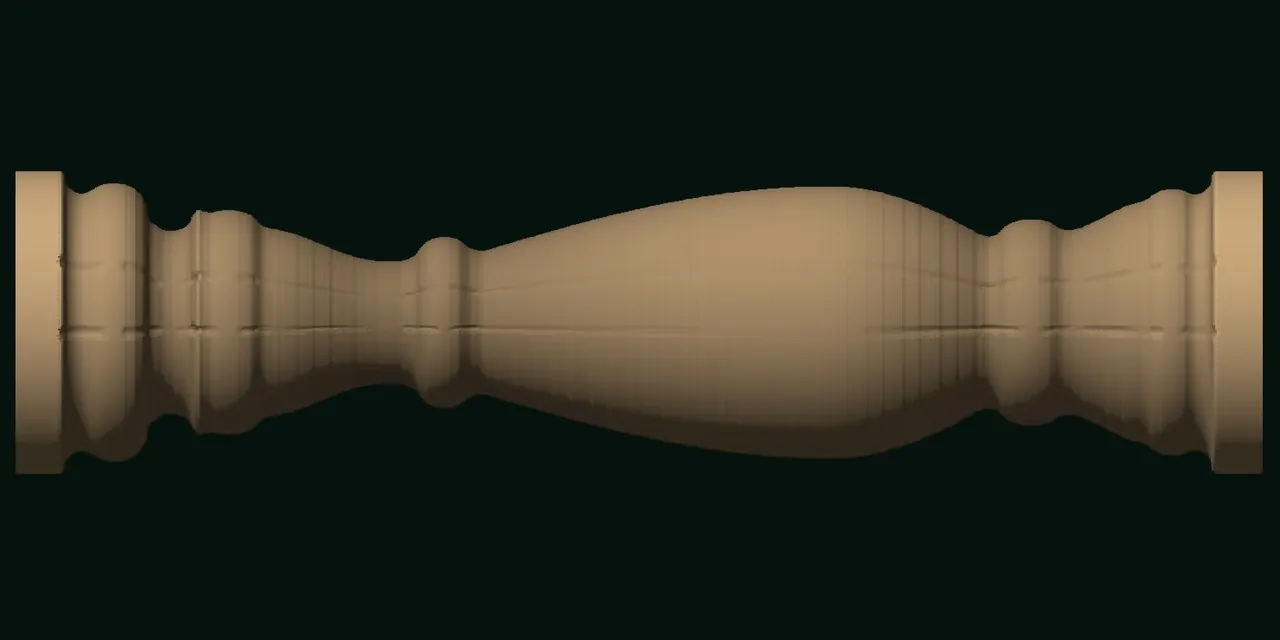
Table legs, balusters, stair posts, vases. Pick a design or draw your own shape and enter the stock size. The app builds toolpaths around the stock, lets you simulate first, then exports A-axis G-code ready for your machine. You can even engrave a name around a handle.
Yes. Gcodai Studio outputs G-code for turning and 4-axis CNC work (rotary axis A) in several ways: turned shapes such as table legs, balusters, stair posts and vases (3D menu → Revolve), names or patterns around the stock (Machining menu → 4-axis rotary), indexed rotary for square parts, and 3D carving around the stock from STL such as Buddha statues and sculptures (3D menu → 3D carving around the stock). Choose 4-axis or 5-axis with a tilting B head. Export for controllers with an A axis, or use the mode where the rotary axis replaces the Y motor on a 3-axis machine.
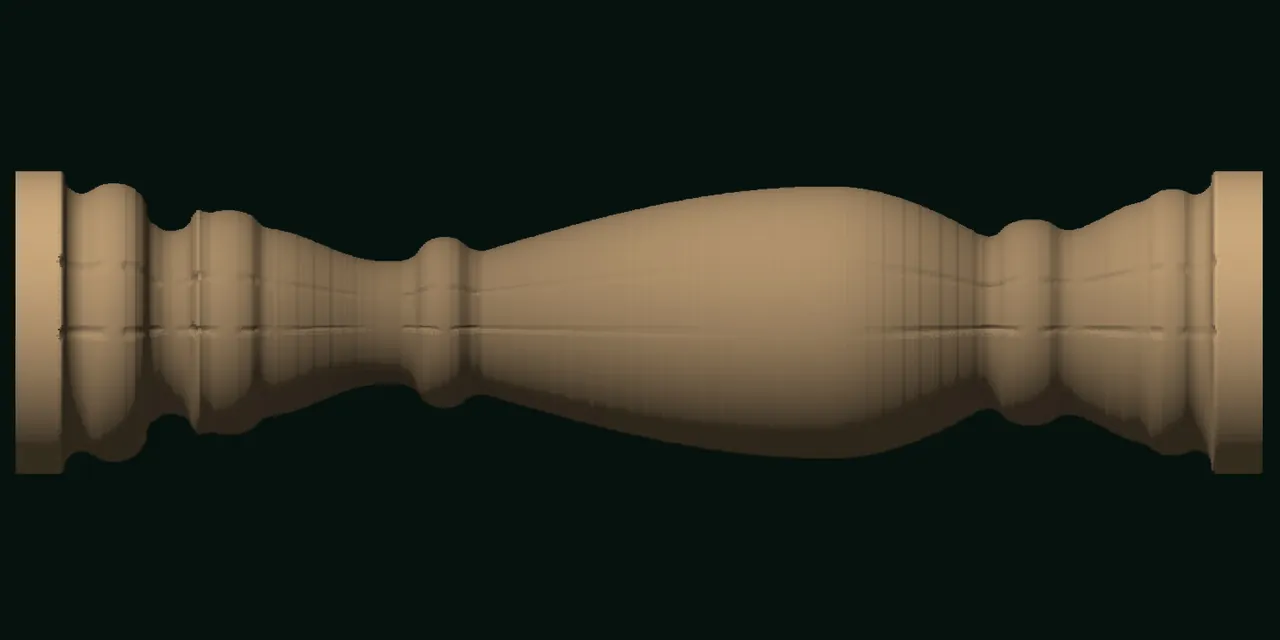
Enter the stock size to match the wood you have and choose the classic baluster design.
The bit runs lengthwise while the A axis turns the stock a little at a time, clearing excess material fast.
Beads, rings and curves come out as designed, with a smooth surface ready for sanding.
Choose a ready-made design or draw your own outline. The app does roughing and finishing around the stock for you.
The app unrolls the stock surface into a flat sheet. Design like a normal flat job, and it converts to rotation angles on export.
Use a full STL model. The app finds the stock size and does roughing + finishing around the stock. Choose a 4-axis machine or 5-axis with a tilting B head.
Choose a square or round part, enter its size and the faces to cut. You get a design sheet for every face and cut one face at a time, like a flat job.
No expensive CAM software needed. Do it all in one window, in English or Thai.
Pick one and adjust with sliders: overall depth, bead / ring size, taper.
Draw half the outline with the line tool and click use selected line, or drag points to adjust.
Cut grooves along the stock. Set the number of flutes, width and depth.
Both steps are created for you. It picks a ball nose bit from the tool library and warns if the depth exceeds the bit's cutting length.
Watch the stock being cut pass by pass. Drag to spin the stock or change the view before you cut.
See the time for the whole job, the number of steps and the bits used before the wood goes on the machine.
Machines with an A axis get A-axis degrees · a 3-axis machine can run the rotary axis in place of the Y motor. Rotation direction is selectable.
Accurate surface speed on every line. If your machine does not support it, the app compensates feed by radius instead.
Select the part and click 3D → Edit selected turned shape. Reshape it without starting over.
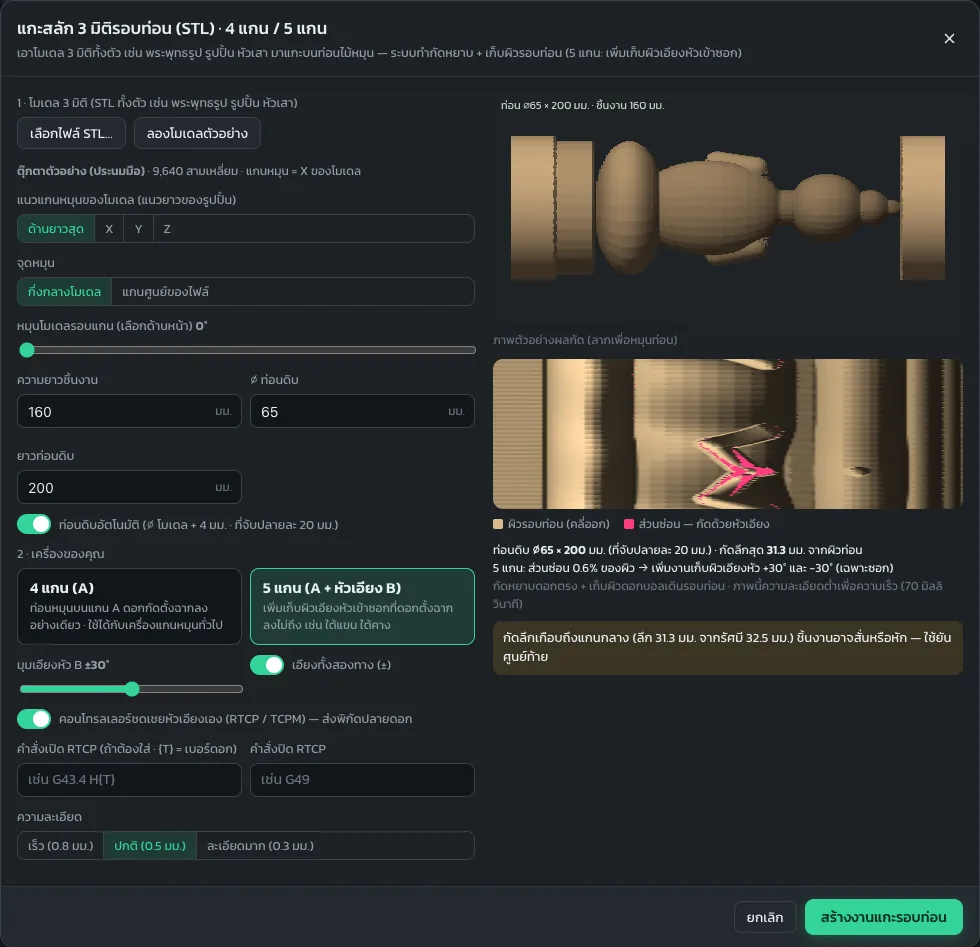
Choose your machine: 4-axis, where the bit points straight down at the axis, or 5-axis, which adds a tilting B head to reach recesses under arms and chins that 4 axes cannot.
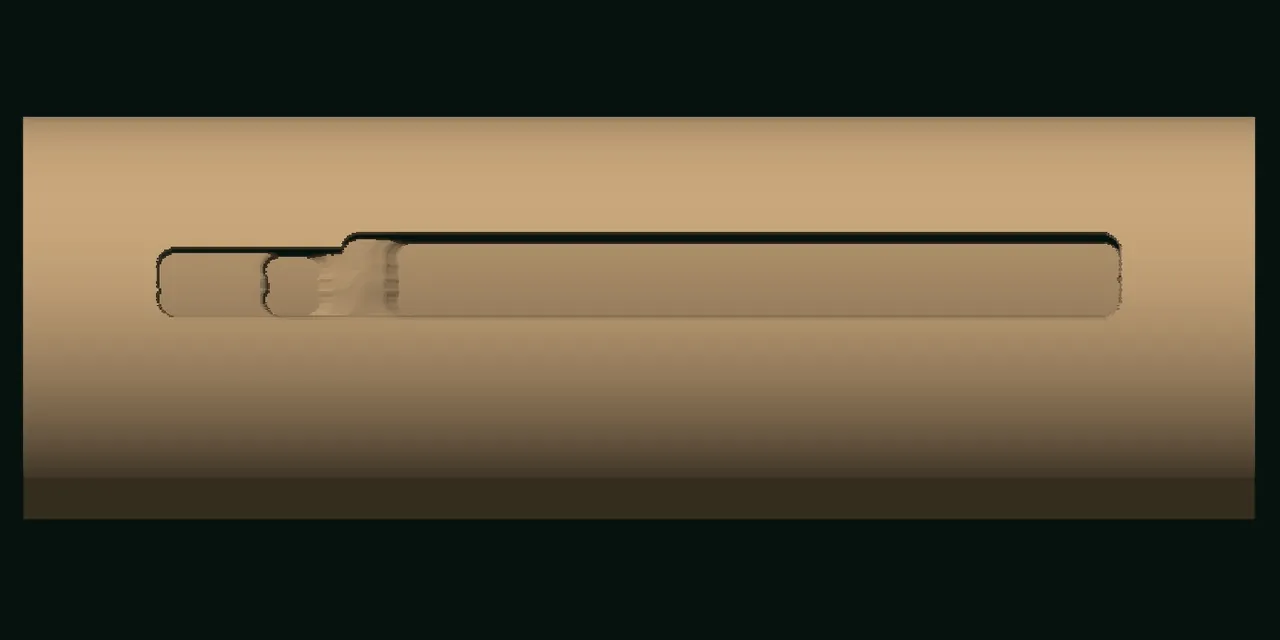
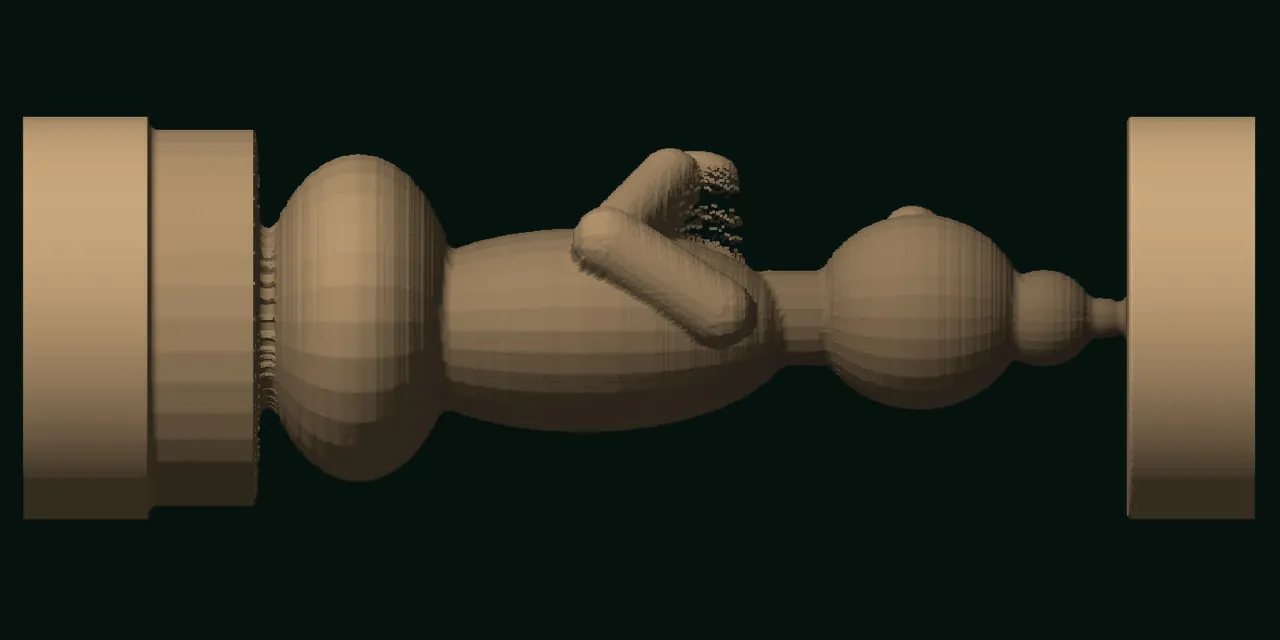
Real simulation in the app: the sample model "praying figure" on ⌀65 × 200 mm stock.
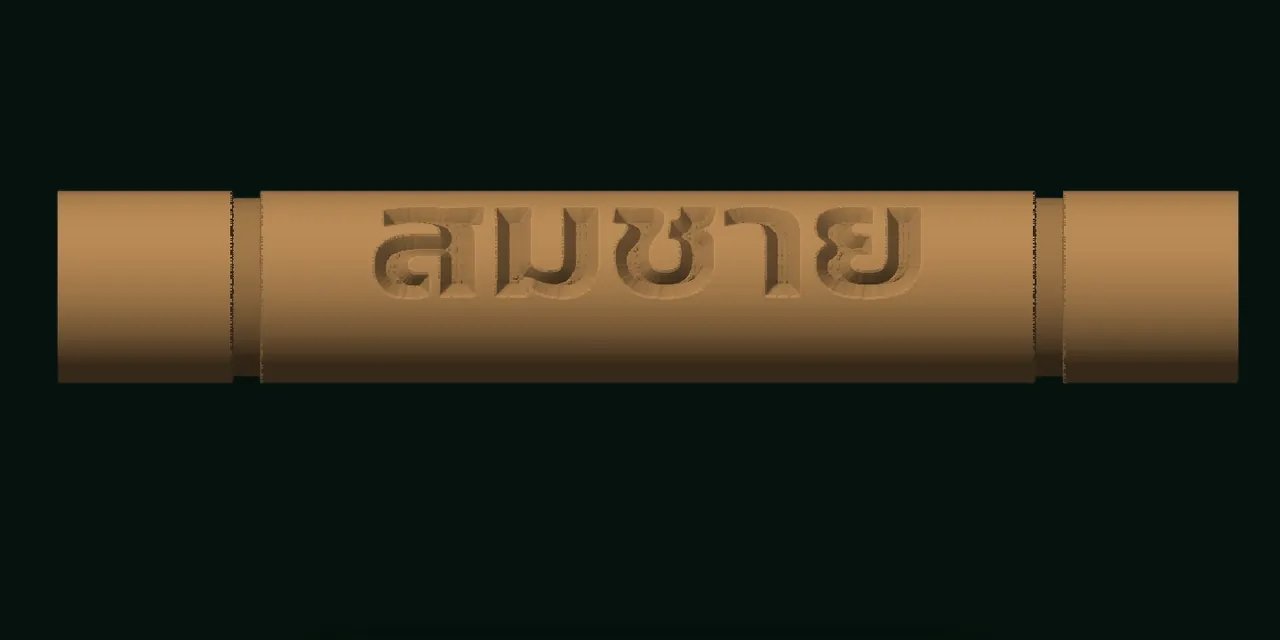
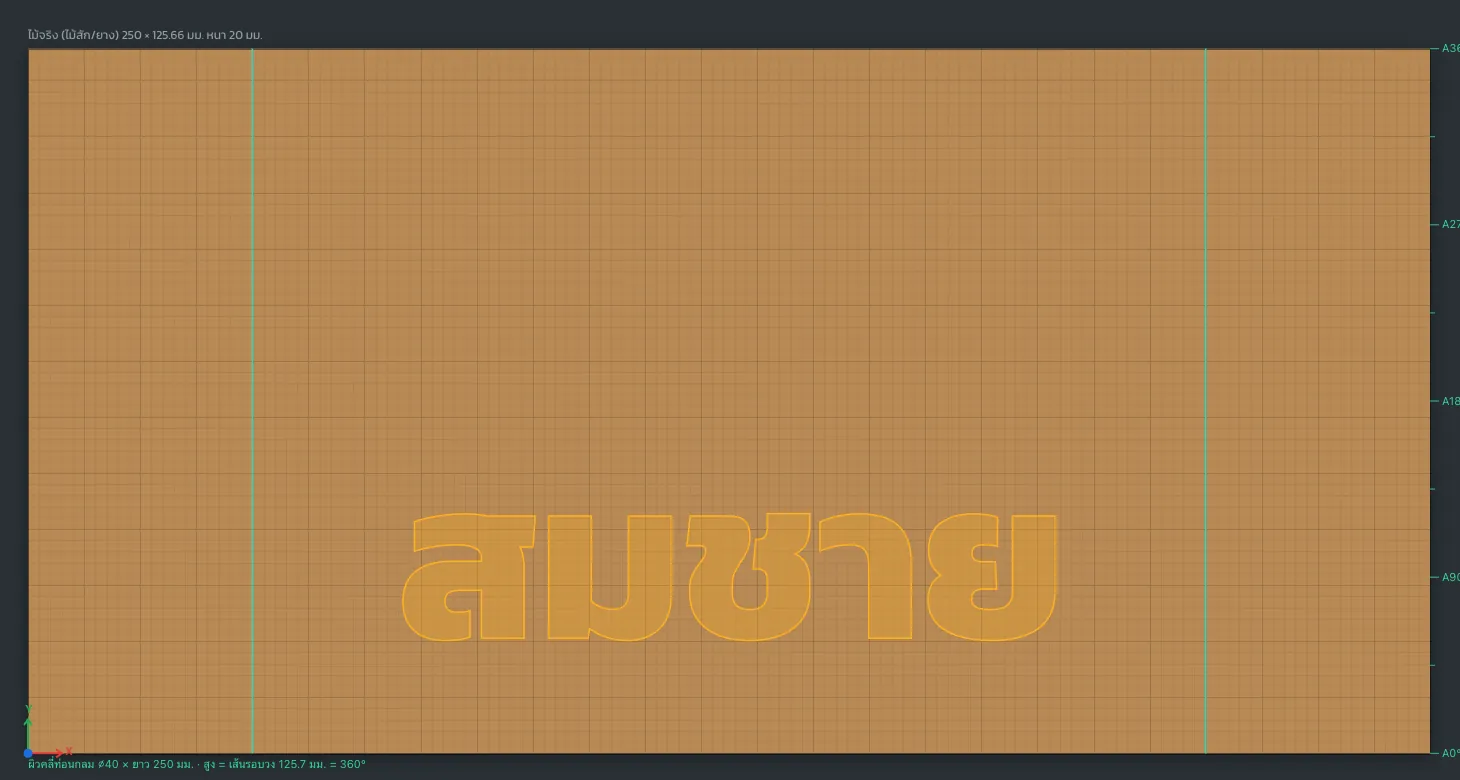
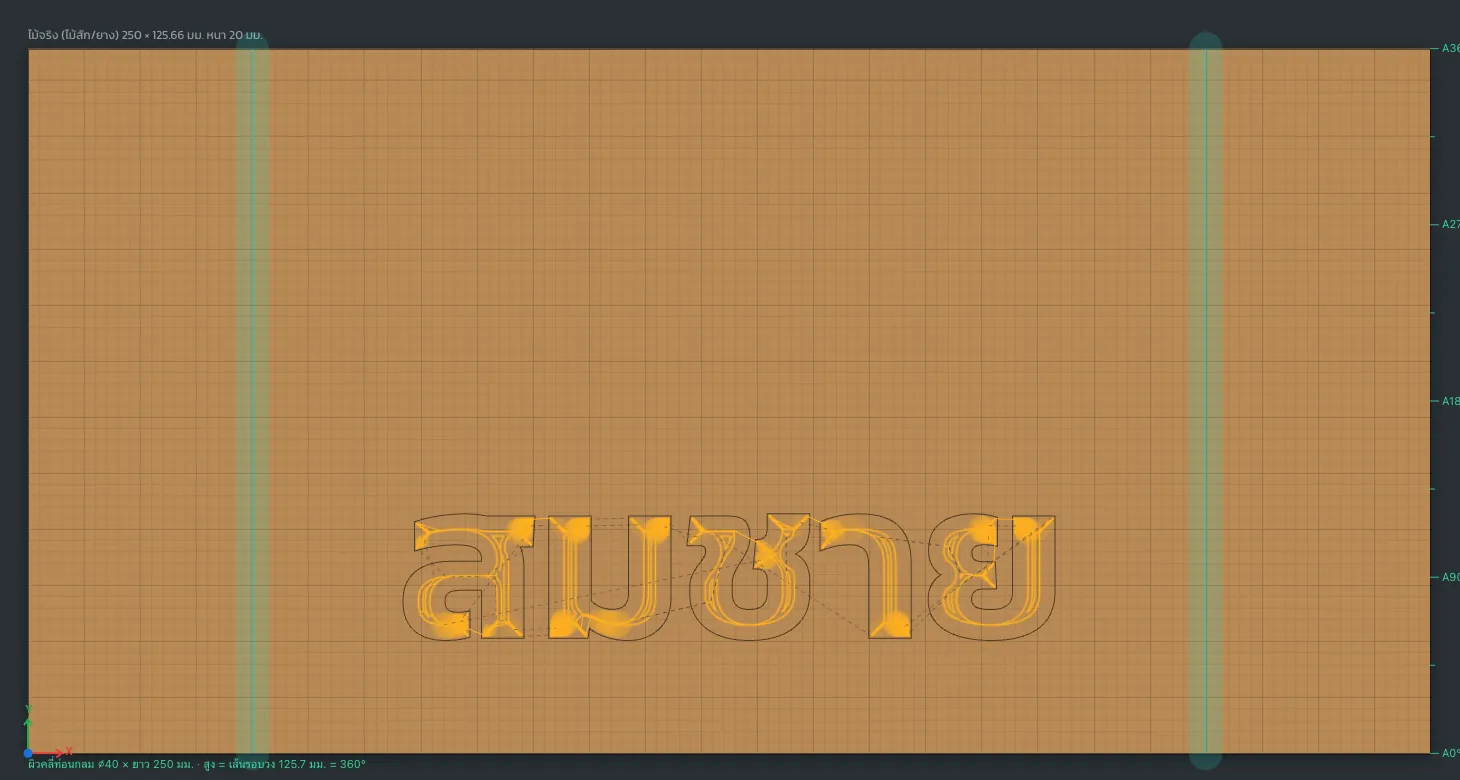
Sample job in the app: a ⌀40 × 250 mm wooden handle engraved with a name (in Thai script). You design on a flat sheet that is the unrolled stock surface, and the app converts it to rotation angles on export.
Try it now at File → Sample jobs… → Engraved wooden handle (4-axis rotary)
All images are real screenshots of the app.
Open Gcodai Studio, click the 3D menu and choose Revolve, or click the button below on this page to open the Revolve window right away.
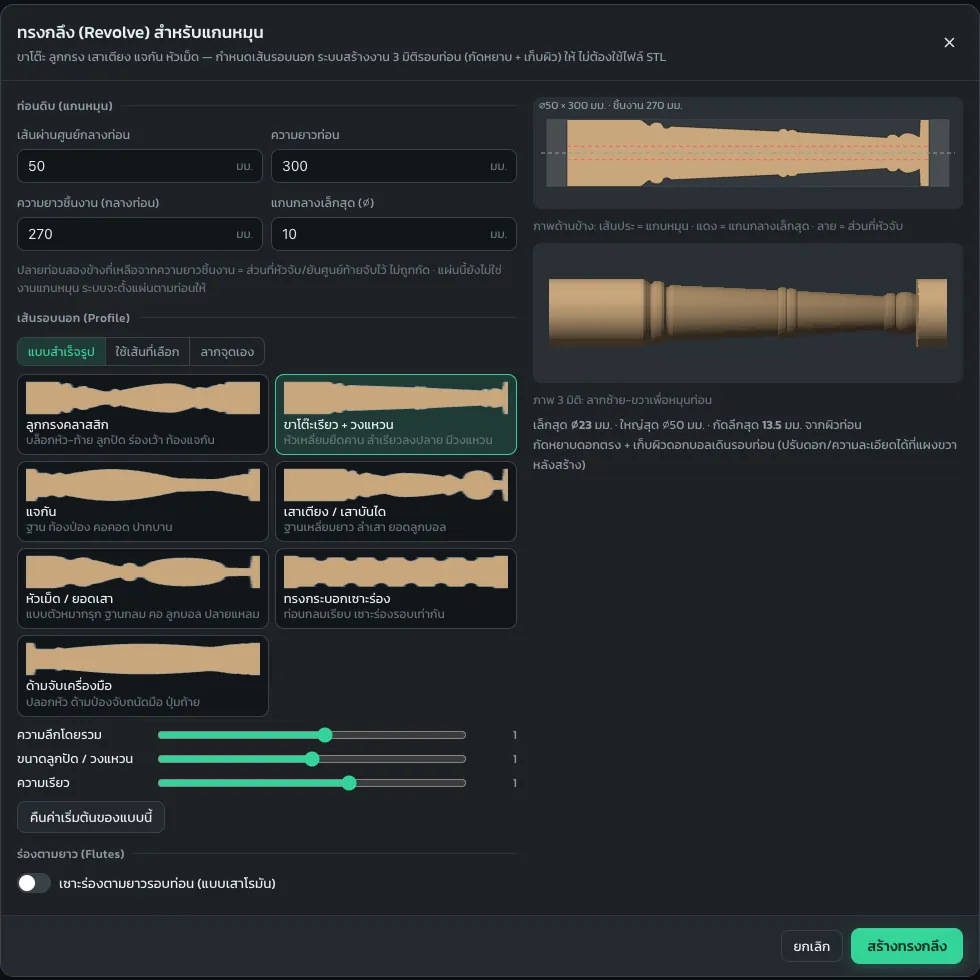
Enter the stock diameter and length to match your wood, choose a ready-made shape, then adjust depth, beads and taper, or turn on lengthwise flutes.
Click create turned shape. The app builds roughing and finishing around the stock, picks the bit and shows the estimated time.
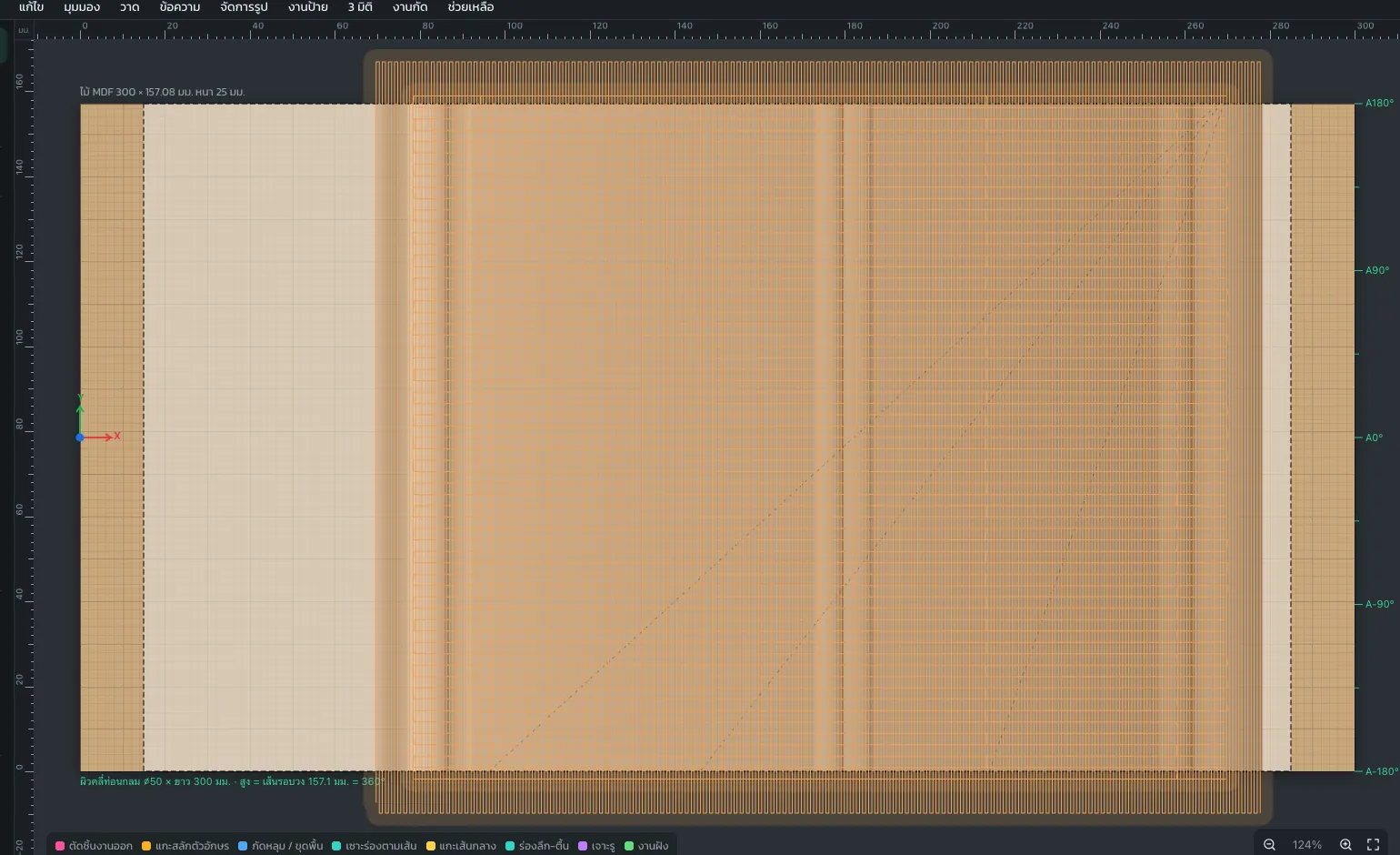
Click Simulate and watch the stock being cut into the real shape. Drag to rotate in any direction and check before the wood goes on the machine.
Choose the machine type in the export tab and click export. You get a file where X runs along the stock and A turns the stock in degrees, plus rotary setup steps.
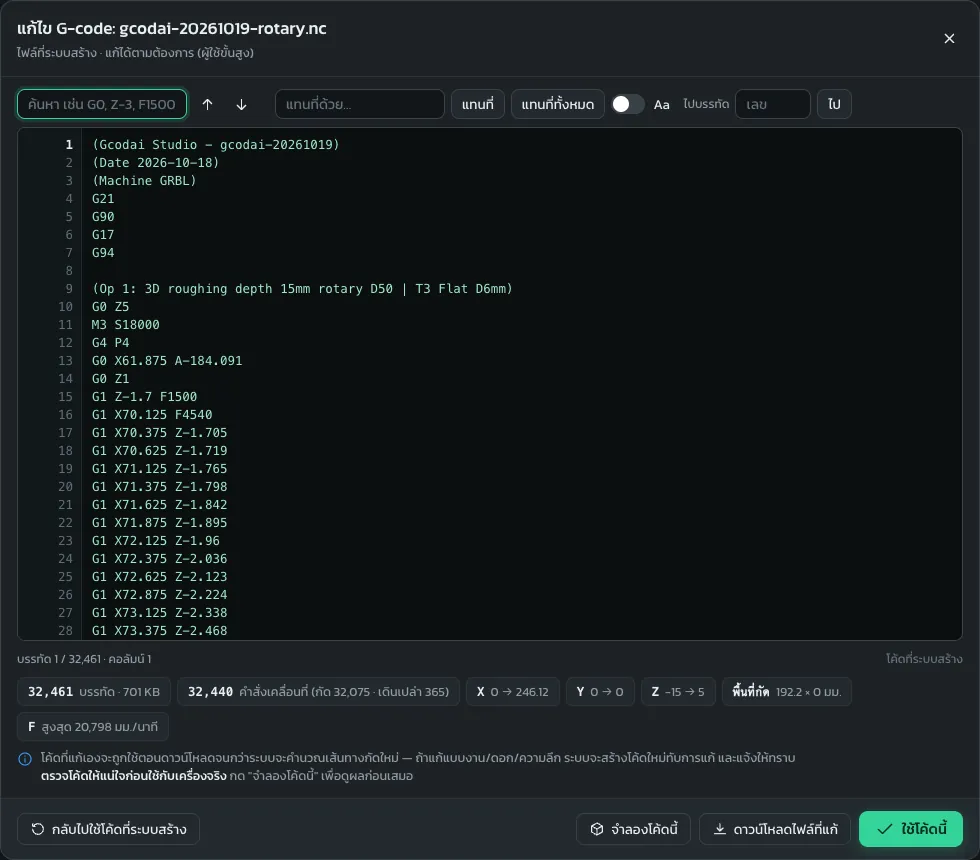
Choose the machine type in the export tab and the app formats the file for that machine.
For other machines, adjust the machine file format yourself in Export → Customize file format, then turn on "Has rotary axis A".
Sign up with your Google account and start turning right away, no card needed. If you like it, buy once and use it for life. Pay by PromptPay (Thai payments) or card.
Try Revolve freeYes, in 3 ways: turned shapes (table legs, balusters, stair posts, vases), names or patterns engraved around the stock, and indexed rotary. It exports A-axis G-code for 4-axis controllers, or a mode where the rotary axis replaces the Y motor for 3-axis machines.
Yes. Use 3D menu → 3D carving around the stock (STL) 4/5 axis. Choose the STL file of the full model and enter the part length. The app picks the raw stock size and builds roughing and finishing around the stock. Works on both 4-axis and 5-axis machines.
On 4 axes (A) the bit only points straight down at the axis, so hidden recesses under arms or chins cannot be reached. 5 axes (A + tilting head B) add tilted-head finishing at ±B angles only in those recesses. The file includes a B axis, for 5-axis controllers such as Syntec, LNC, Fanuc and LinuxCNC. If your machine has no RTCP, enter the distance from the head pivot to the bit tip and the app compensates.
The A axis works with Mach3/Mach4, NcStudio (Weihong), DSP Richauto, Syntec/LNC/Fanuc, LinuxCNC, UCCNC, MASSO, Centroid and grblHAL/FluidNC. Standard 3-axis GRBL Arduino has no A axis, so use the mode where the rotary axis replaces the Y motor.
No. There are 7 ready-made shapes, and you adjust depth, bead size and taper with sliders. For a custom shape, draw half of the outline with the line tool (P), select that line, then click use selected line.
G93 (inverse time) gives the most accurate surface speed in rotary work. It is supported in Mach3/Mach4, LinuxCNC, Syntec, Fanuc and grblHAL. If your machine does not support it, the app automatically uses feed compensation by radius instead, with nothing to set up.
Turned shapes use a ball nose bit, and the app picks one from your tool library. If it warns that the depth exceeds the bit's cutting length, reduce the overall depth or choose a bit with a longer cutting length in the tool library.
Every time you export, the app writes the machine setup steps for you. For example: mount the stock so the rotary axis is parallel to the X axis, move the head so the bit tip is over the rotary axis, zero X at the left end of the stock, set A = 0 at the start position, and set Z0 at the top surface of the stock.
No. Gcodai Studio runs in your web browser on Windows, Mac and tablets. Sign up and try every feature free for 3 days. Step-by-step guides are in the Revolve lesson and the 4-axis rotary lesson.
Open the app and try a ready-made shape. Nothing to install.